@GitHub_Daily: After using a computer for a long time, you'll often run into insufficient disk space. When you check the storage setti…
Summary
MangoDisk is an open-source disk cleanup tool for macOS and Windows that scans for and safely removes unnecessary files, with features like deep cleanup, developer-friendly scans, and AI explanations for ambiguous items.
View Cached Full Text
Cached at: 09/24/26, 04:30 PM
After using a computer for a long time, you’ll often run into insufficient disk space. When you check the storage settings, “System Data” takes up dozens of GB, but it’s unclear what exactly is in there.
MangoDisk is a new project by the author of MoneyPrinterTurbo (which already has over 120,000 Stars), an open-source disk cleanup tool that works on both macOS and Windows.
A single scan digs up everything that can be cleared from system caches, app logs, and browser caches, then calculates by category how much space you can free up.
It’s pretty developer-friendly: it separately lists out Xcode data, Docker build caches, dependency directories from Node.js, Rust, Swift, Python projects, and even locally downloaded AI models.
GitHub: http://github.com/harry0703/MangoDisk…
What I care about most is whether it’s conservative enough. By default, it only does read-only scans, confirms each item before deletion, keeps at least one copy per group of duplicate files, and the cleanup rules library is publicly available for inspection.
It also includes big file finder, app uninstallation with leftover cleanup, boot startup management, and a menu bar widget to check CPU and memory usage anytime.
If you come across a cleanup item you don’t understand, you can have the AI explain what it does based on the scan results, then decide whether to delete it or not.
harry0703/MangoDisk
Source: https://github.com/harry0703/MangoDisk
 MangoDisk
Disk cleanup, storage analysis, privacy protection, and system optimization for macOS and Windows
English · 简体中文 · 繁體中文 · 日本語 · 한국어





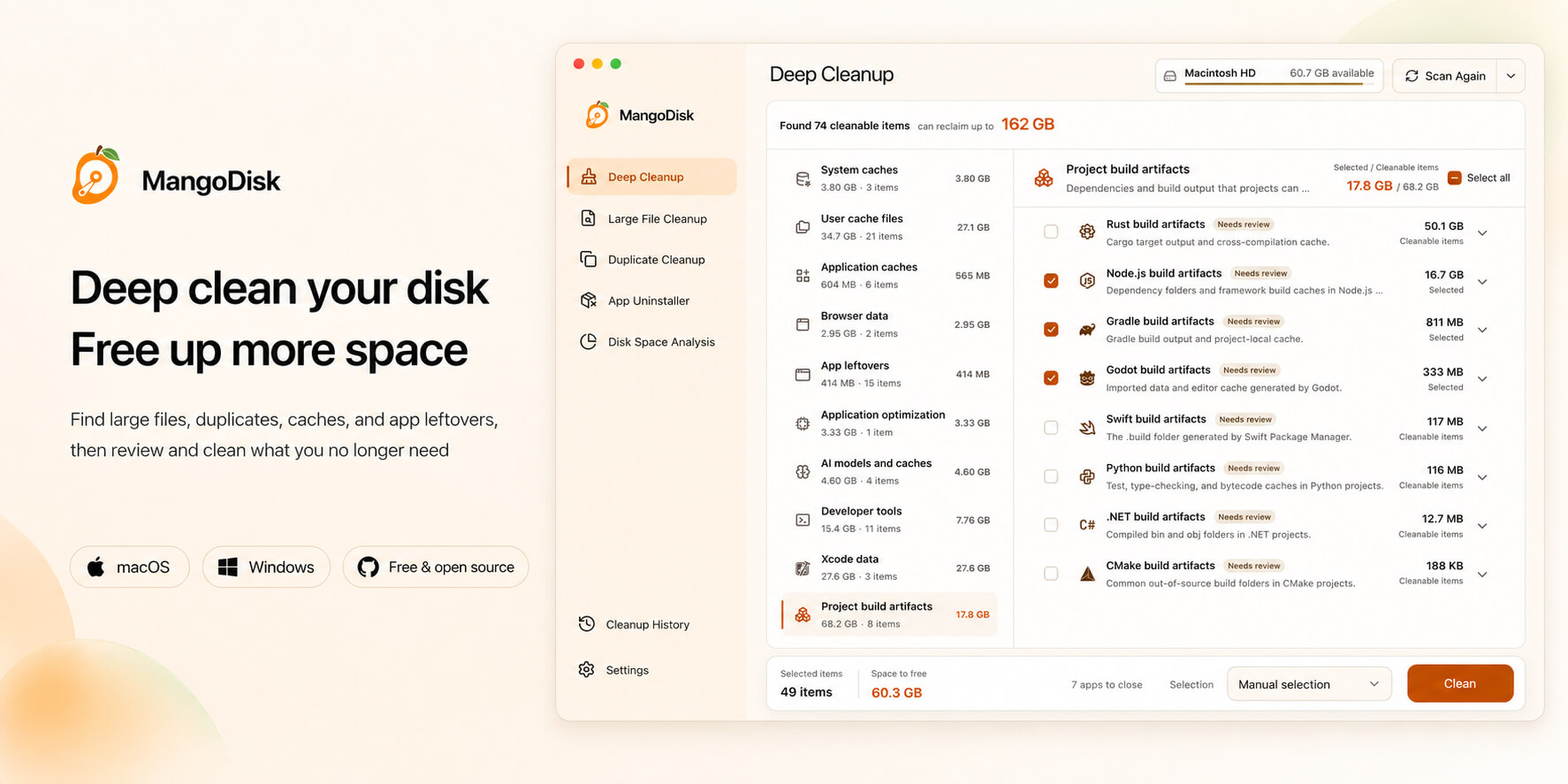
What MangoDisk Can Do
Storage
1. Deep Cleanup
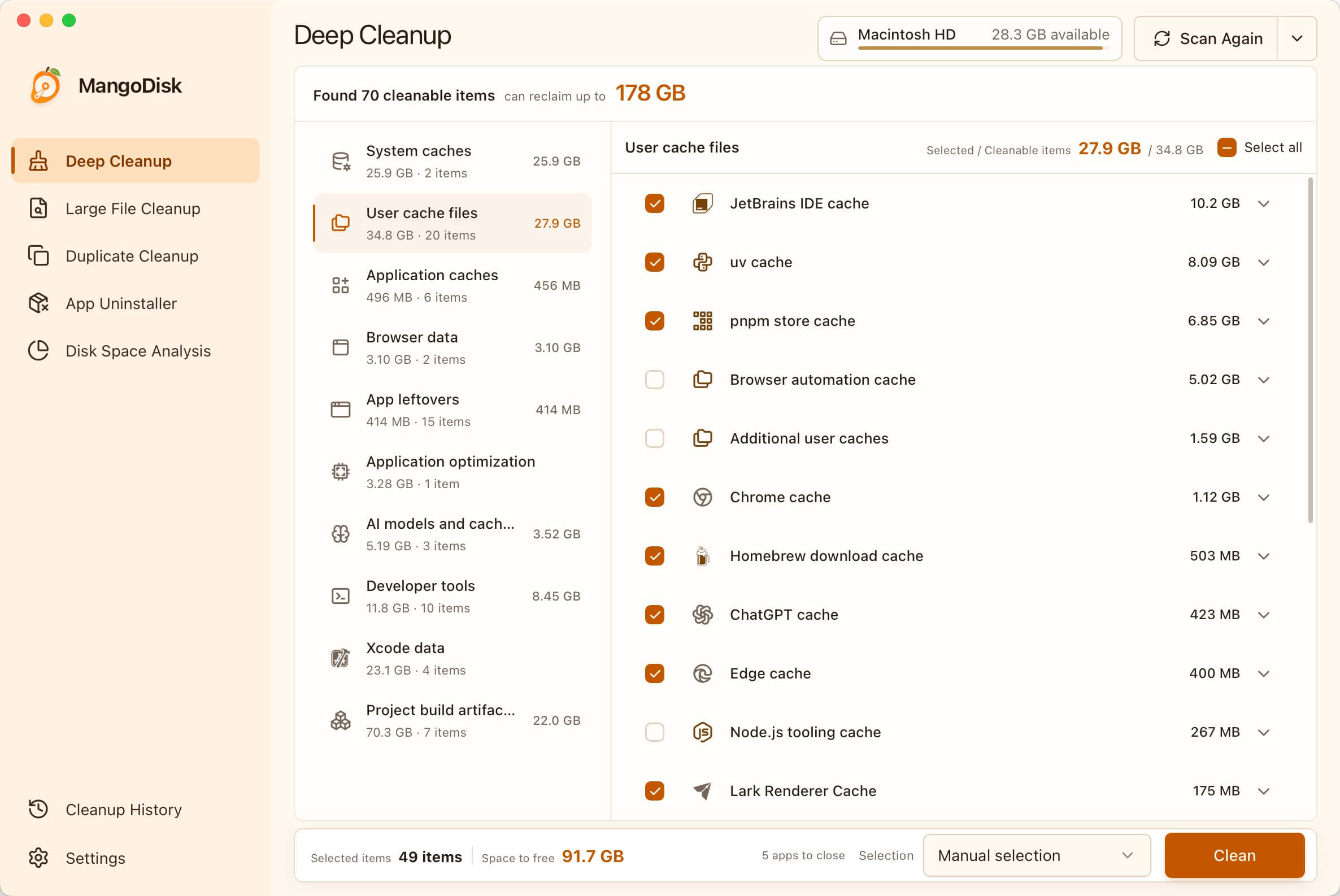
Find cleanable content scattered across the system, applications, developer tools, and local projects in one scan. MangoDisk saves you from checking each location manually and groups the results by reclaimable space:
- System and user caches: Reclaim space taken up over time by system temporary files, diagnostic data, and rebuildable caches.
- Application caches: Keep application caches, logs, update packages, and temporary content from quietly consuming more and more storage.
- Browser data: Reclaim space used by cached and temporary web data from Chrome, Edge, Firefox, Brave, Arc, Opera, and other browsers.
- Developer tools and Xcode: Quickly recover substantial storage used by package managers, IDEs, compiler caches, and Xcode development data.
- Container caches: Free up space used by inactive build caches and rebuildable data from Docker and other container tools.
- Project build artifacts: Recover space used by rebuildable dependencies, caches, and build directories across Node.js, Rust, Gradle, Swift, Python, .NET, Godot, CMake, and other projects.
- AI models and caches: Quickly spot large local AI models, download caches, and temporary transfer files.
- Application optimization: Shrink supported applications without affecting normal use, leaving more room on your disk.
Smart recommendations help you make safe choices quickly. You can also review items individually and see the estimated reclaimable space upfront, keeping every cleanup predictable and under your control.
2. Large File Cleanup
Quickly find the largest files and reclaim space used by old installers, videos, archives, and other bulky content without digging through folders one by one.
3. Duplicate File Cleanup
Reclaim space taken up by duplicate copies without treating files as duplicates just because they share a name. Smart selection keeps at least one file in every group, so cleanup stays effortless and safe.
4. Disk Space Analysis
See where your storage is going at a glance. Drill down through a treemap and list to locate the largest folders and files instead of cleaning blindly.
Privacy & Security
5. Privacy Cleanup
Keep browsing history, searches, cookies, recent items, and clipboard data from lingering on your computer. Clear traces left by browsers, applications, and the system to reduce exposure of your activity and make everyday privacy easier to manage.
System Tools
6. Application Uninstall and Cleanup
Uninstall applications and clear related caches, settings, and leftovers so removing an application actually gives you the space back. Potential personal files are handled cautiously to reduce the risk of accidental deletion.
7. Startup Item Management
Reduce unnecessary startup delays and background resource use, so your computer starts faster and feels lighter. Turn items back on at any time when you need them again.
8. System Optimization
Reduce unnecessary settings that slow down your system or get in the way. Balance performance, privacy, and personal preferences so your computer feels faster and easier to use.
9. System Maintenance
Fix common problems like missing search results, incorrect icons, no sound, or network connection failures—without hunting down fixes or typing complex commands. Get your computer back to normal sooner.
Activity
10. Operation History
Keep a clear record of every cleanup and system change. See how much space you recovered, what completed successfully, and whether anything still needs your attention.
Resource Usage and Memory Management
Available since version 1.1.1
Check CPU and memory usage, network speeds, and disk activity at a glance. See which apps use the most memory and free up memory with a click when resources are running low.
Keep these details in your menu bar, taskbar, or system tray—no need to open the main window.
AI Explanations
Available since version 1.1.0
Unsure what an item does or what might happen if you change it? AI explanations use the item’s description and current scan results to explain its purpose and what to consider before taking action. Spend less time looking things up and make more informed choices.
Get explanations directly from items in Deep Cleanup (built-in rules), Privacy Cleanup, Startup Item Management, System Optimization, and System Maintenance.
Official releases include free explanations each day, with the option to connect your own AI service. AI offers guidance; you decide which actions to take.
Safety and Rules
MangoDisk puts data safety ahead of reclaiming more space. Cleanup rules and system optimizations only ship after their safety boundaries are clearly defined and they pass validation on real systems.
MangoDisk scans in read-only mode by default. Before cleanup, deletion, uninstall, or system setting changes begin, you can review and confirm exactly what will happen. Results are saved to Operation History.
System Optimization only uses built-in, validated settings. It never accepts arbitrary registry paths, terminal commands, or scripts. MangoDisk reads each setting again after changing it and calls out high-impact items and changes that require administrator access or a restart.
MangoDisk maintains its own cleanup rules. Third-party projects may provide research leads, but a candidate rule is only accepted after reliable sources, safe boundaries, and real-system behavior have been verified. Anything without a clear safety boundary is excluded.
The complete rule library and revision history are open for inspection: view the MangoDisk cleanup rule library.
Screenshots
Deep Cleanup
Find cleanable content across the system, applications, developer tools, and projects to reclaim more space
|
Large File Cleanup Find the files taking up the most space without digging through folders 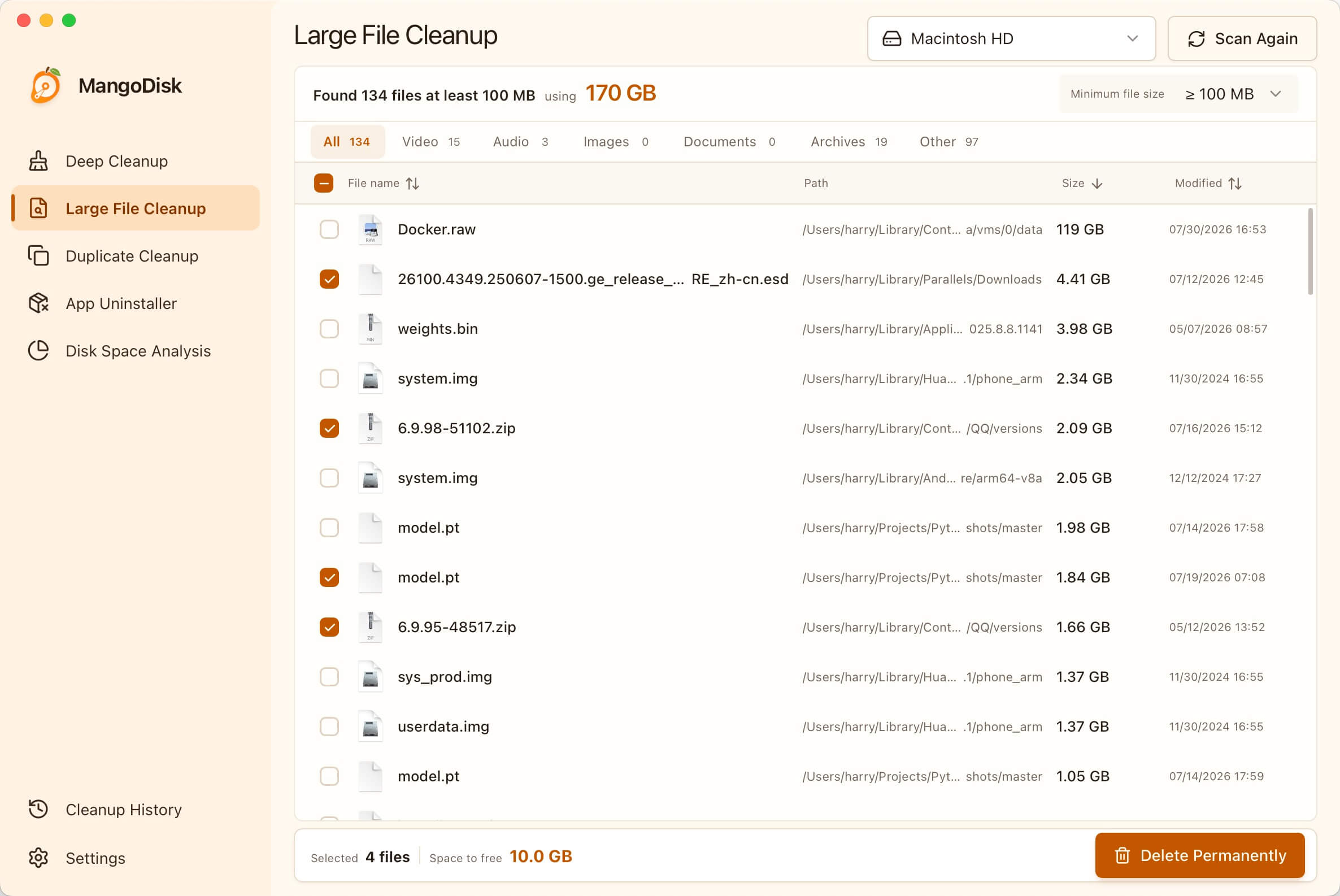
|
Duplicate File Cleanup Safely remove exact duplicates while keeping at least one copy 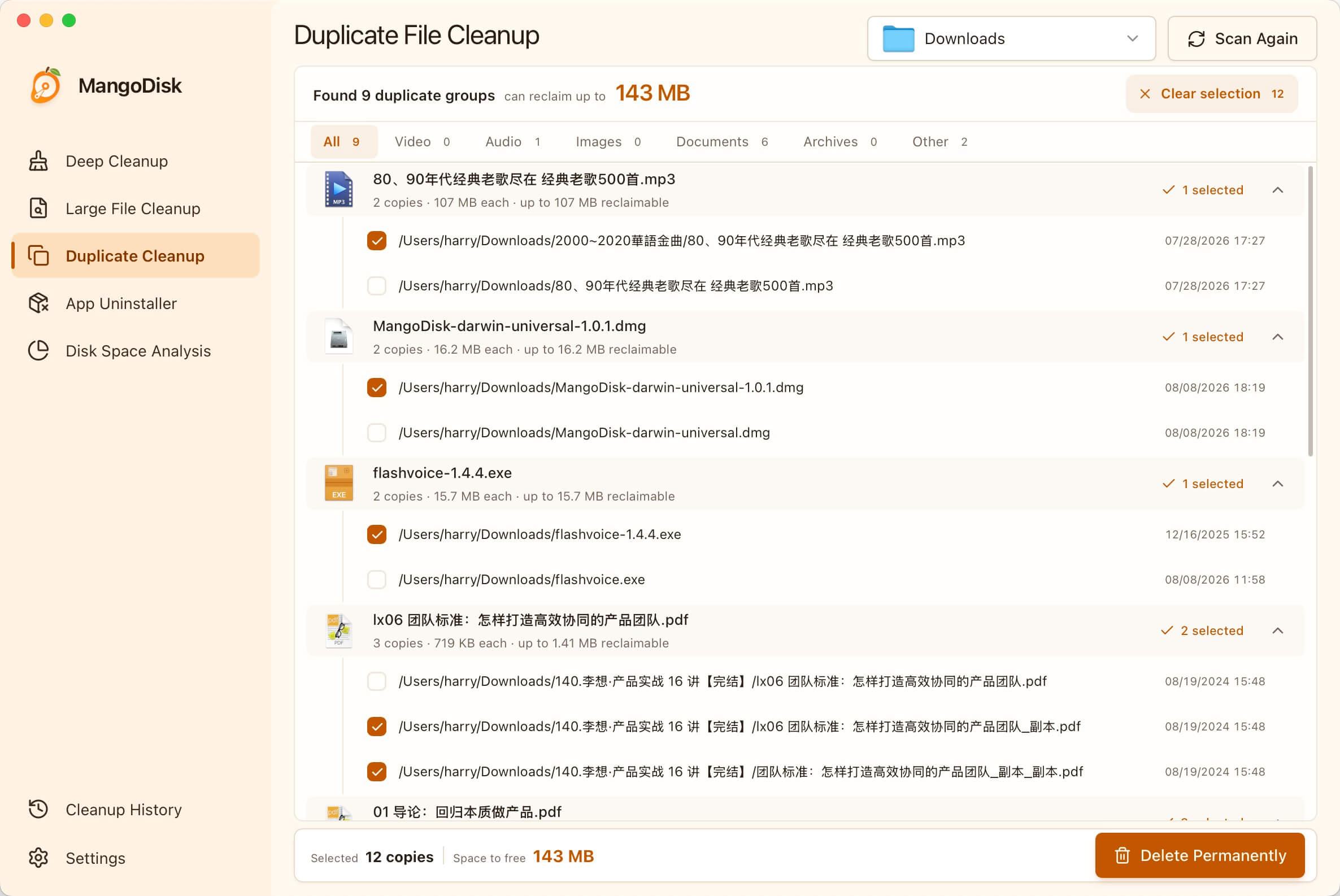
|
|
Disk Space Analysis See where your storage is going and quickly find the largest files and folders 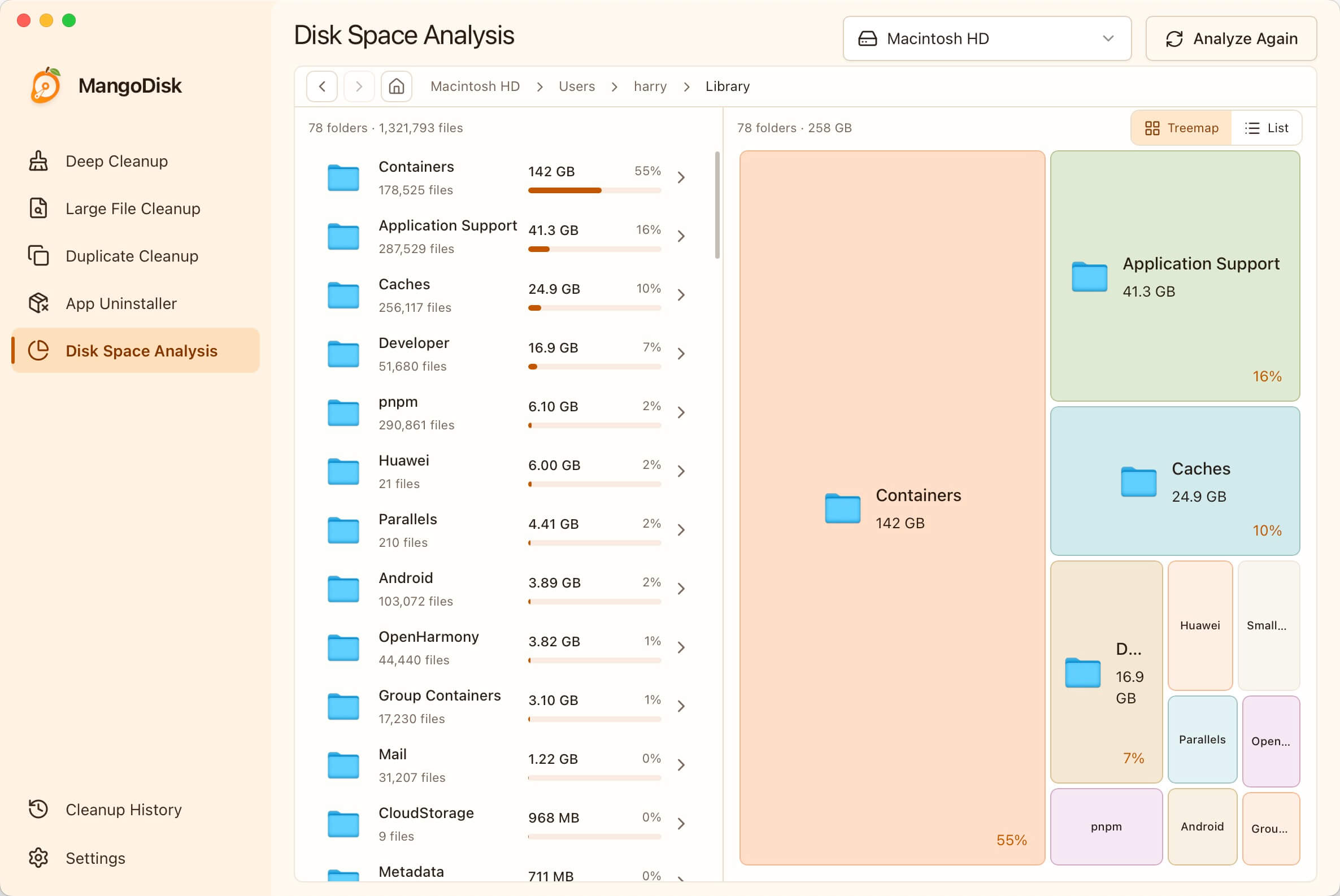
|
Startup Item Management Reduce unnecessary startup programs for faster sign-in and less background activity 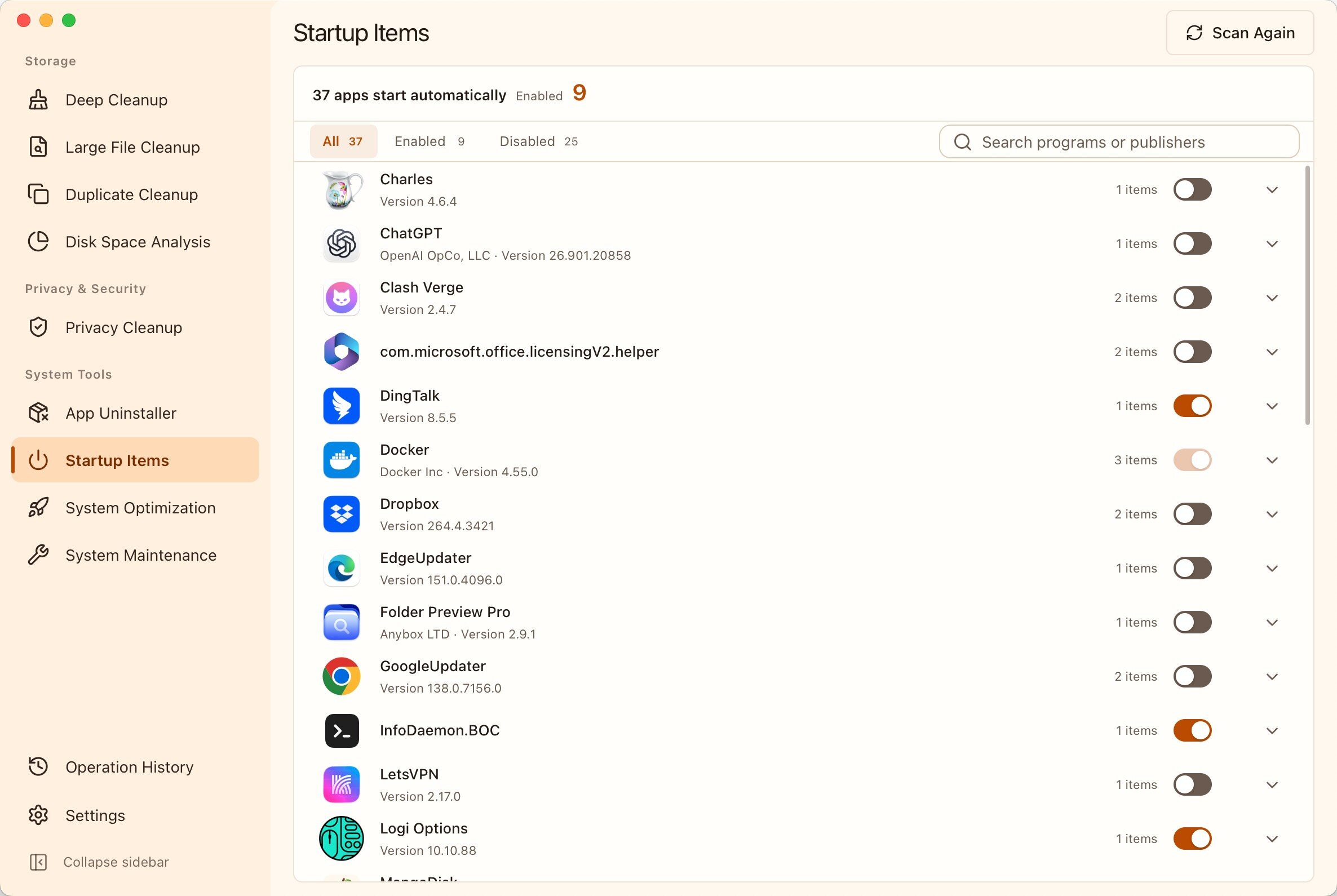
|
|
Application Uninstall and Cleanup Uninstall applications and remove related leftovers to reclaim more space 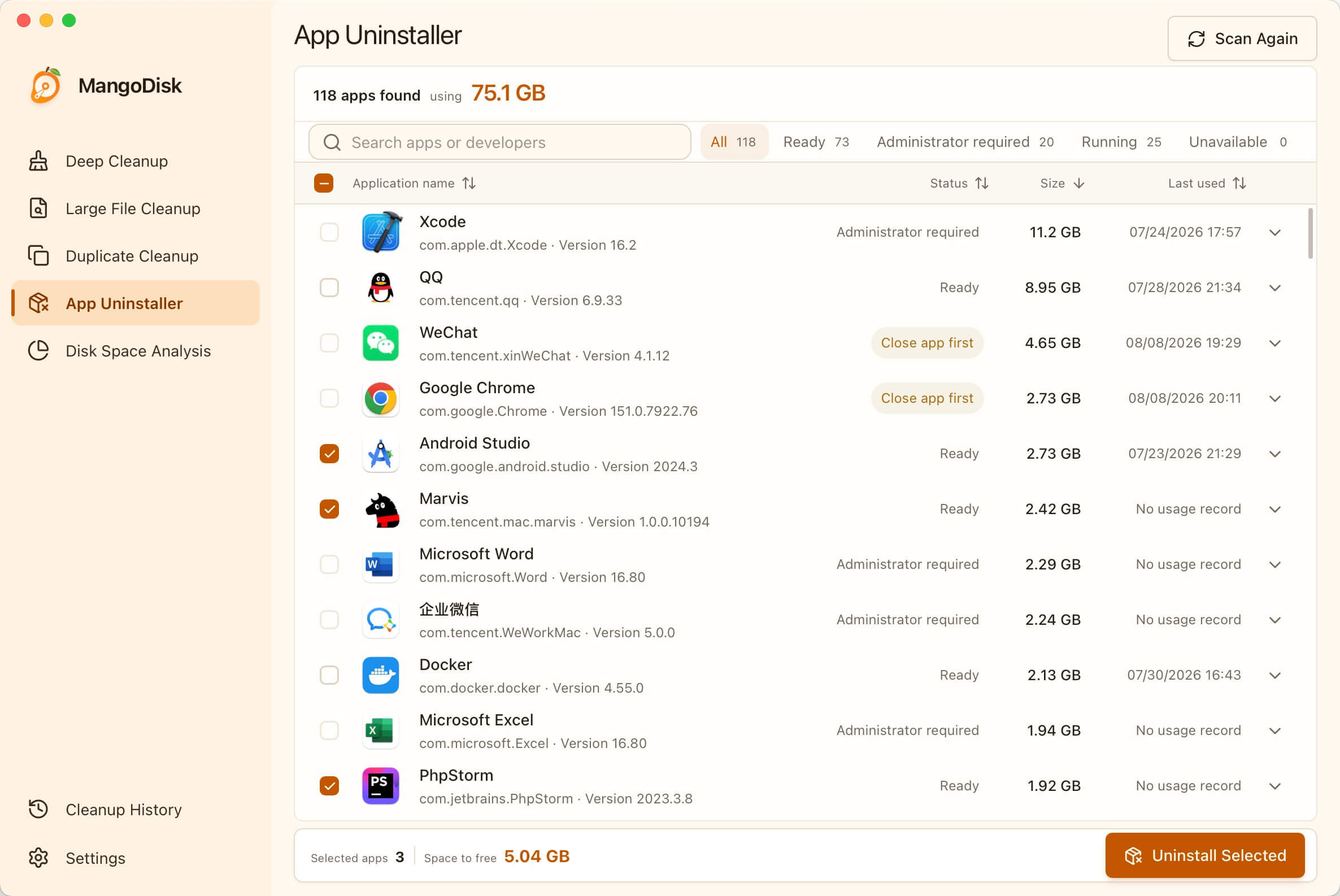
|
System Optimization Optimize performance, privacy, and everyday usability in one click 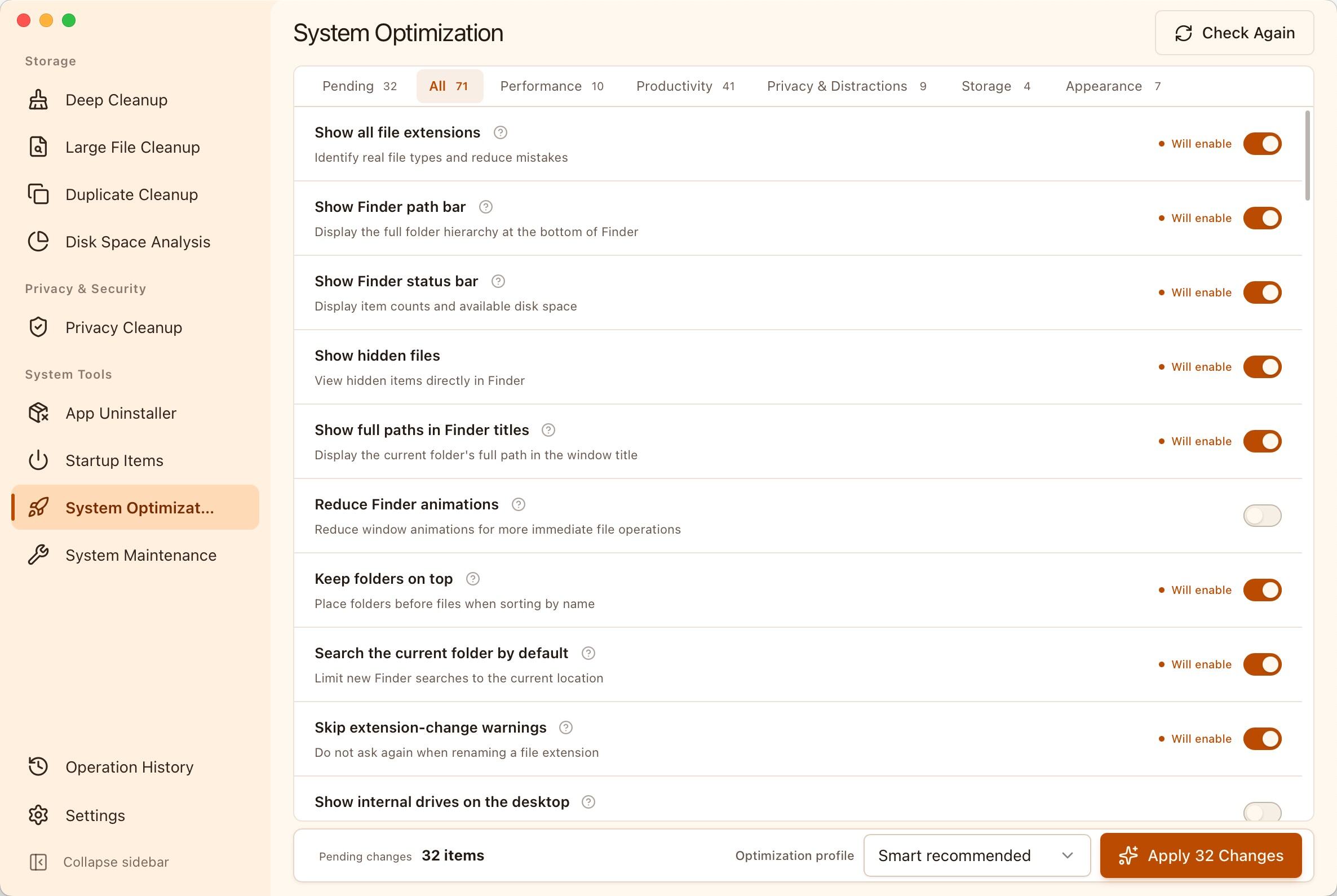
|
|
System Maintenance Fix common system issues quickly and get your computer back to normal 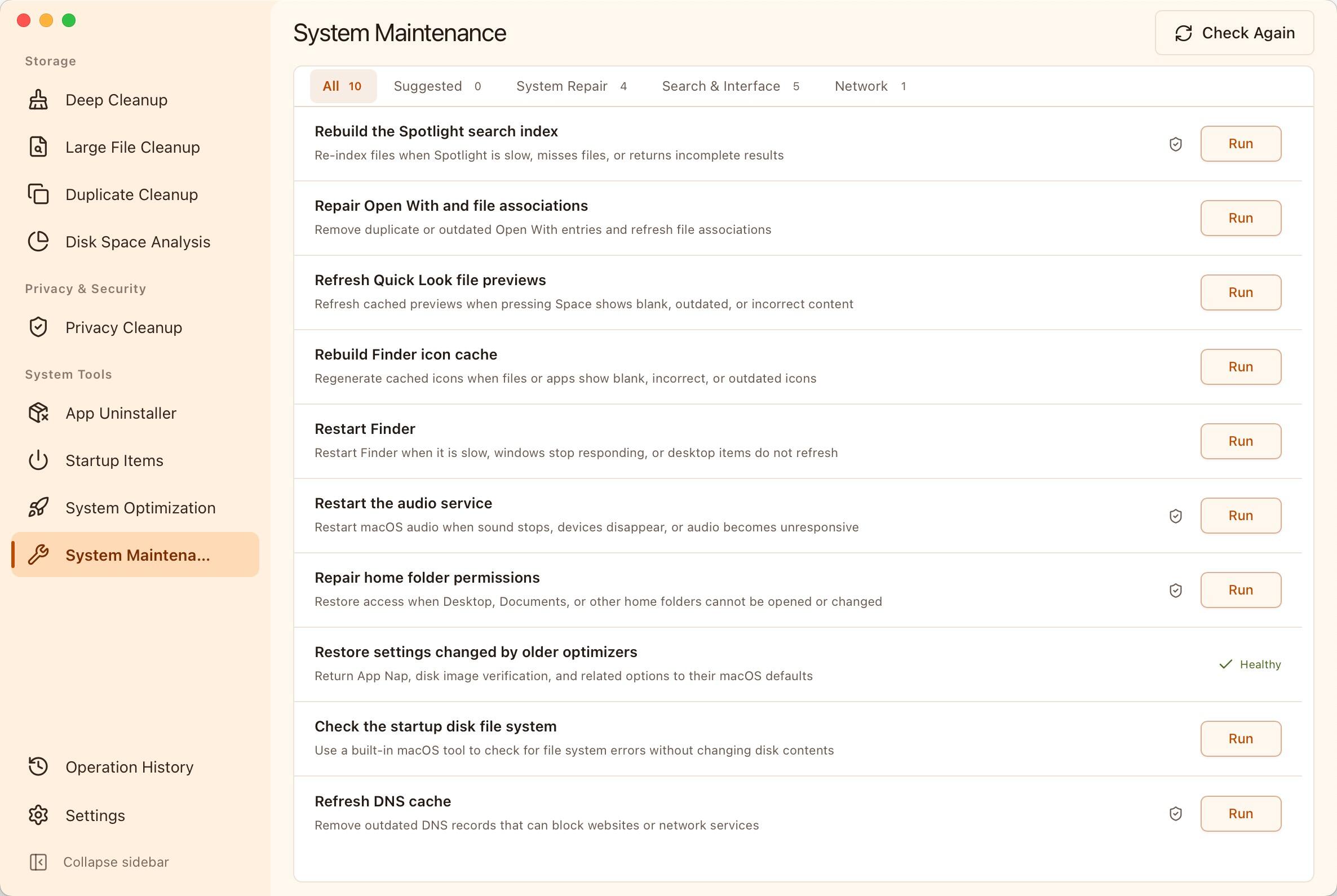
|
Privacy Cleanup Leave fewer activity traces behind and keep everyday use more private 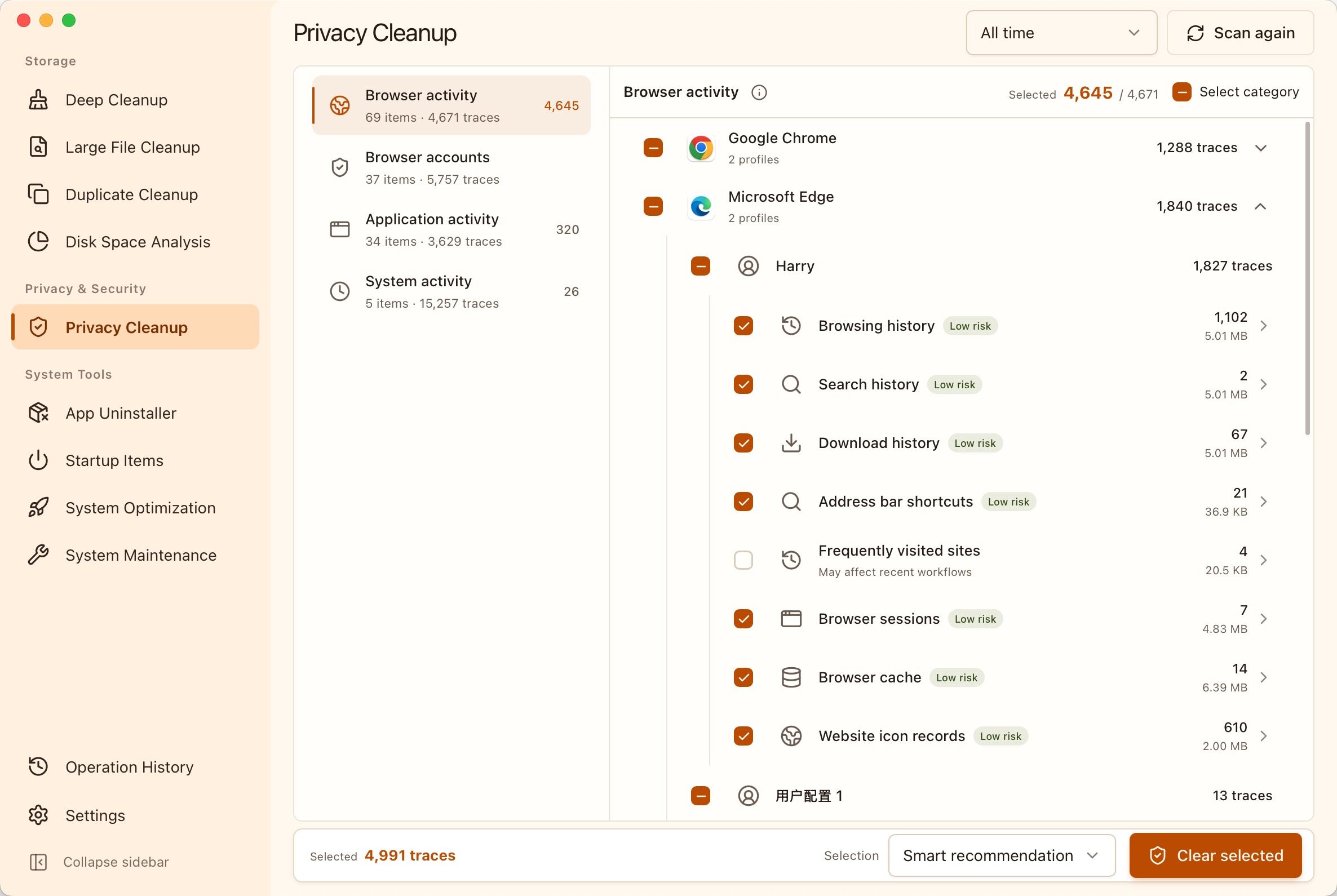
|
Install and Run
MangoDisk currently supports:
- macOS: macOS Monterey 12.5 or later.
- Windows: 64-bit Windows 10 or later, with Microsoft Edge WebView2 Runtime 111.0.1661.62 or later (latest recommended).
Install MangoDisk on macOS with Homebrew:
brew install --cask harry0703/tap/mangodisk
Install MangoDisk on Windows from PowerShell:
irm "https://get.mangodisk.app" | iex
Alternatively, download the latest version from the MangoDisk website or GitHub Releases:
- macOS: Open the DMG and drag MangoDisk into the Applications folder.
- Windows: Run the Windows installer and follow the prompts.
- Cleanup, permanent deletion, and uninstall operations may not be reversible. Review the selected content and keep reliable backups of important data.
- Before running system maintenance or changing a startup item or system setting, make sure you understand its purpose and impact.
- Some system optimizations can affect security, privacy, battery life, or update behavior.
CLI Quick Start
Install the standalone CLI on macOS with Homebrew:
brew install harry0703/tap/mangodisk-cli
On Windows, install the latest CLI from PowerShell:
irm "https://get.mangodisk.app/cli" | iex
If mangodisk is not immediately available after installation, open a new terminal, then verify the installation:
mangodisk --version
The CLI uses the same safety-first cleanup engine as the desktop application. Use commands such as:
# Scan and show cleanable content without changing anything
mangodisk clean

# Apply the same smart recommendations as the desktop application
mangodisk clean --apply

# Preview all selectable content without deleting anything
mangodisk clean --apply --selection all --dry-run

# Produce machine-readable JSON output
mangodisk clean --format json --no-progress
mangodisk clean only scans and never modifies files by default. To perform cleanup in a non-interactive environment, you must also pass --yes to confirm explicitly. Run the following command for all available options:
mangodisk clean --help
Build from Source
Prerequisites
- Node.js 24 LTS
- pnpm 11.13.1
- Stable Rust
- macOS: Xcode Command Line Tools
- Windows: Visual Studio 2022 Build Tools with Desktop development with C++
- Windows: Microsoft Edge WebView2 Runtime
See the Tauri 2 prerequisites for detailed platform requirements.
Get the Source and Run the Desktop Application
git clone https://github.com/harry0703/MangoDisk.git
cd MangoDisk
pnpm install --frozen-lockfile
pnpm tauri:dev
Run the Required Checks
pnpm check
cargo test --manifest-path src-tauri/Cargo.toml -p mangodisk-core
Build the Desktop Installer
pnpm tauri:build
Build the CLI
pnpm cli:build
Local builds do not include the signing, notarization, or update metadata provided by official MangoDisk releases. Use them for local development and validation only.
Contributing
Issues, cleanup rules, fixes, and new features are welcome. Read CONTRIBUTING.md and AGENTS.md before getting started.
Routine cleanup coverage should use build-validated, declarative TOML rules. See src-tauri/crates/mangodisk-core/rules/README.md for the rule schema, safety constraints, and validation instructions.
Before submitting changes, run at least:
pnpm check
cargo test --manifest-path src-tauri/Cargo.toml -p mangodisk-core
Report security vulnerabilities privately through GitHub Security Advisories as described in SECURITY.md. Do not open a public issue for a security vulnerability.
Technology Stack
- Tauri 2: Desktop runtime and system integration
- Rust: Scanning, filesystem access, safety validation, and cleanup execution
- Vue 3 and TypeScript: Desktop user interface
License
MangoDisk is open source under the GNU General Public License v3.0. Third-party components remain subject to their respective licenses.
Similar Articles
@QAInsights: Built DiskNuke to save disk space in couple clicks. Owning 256GB Mac Mini in the AI era is not perfect. It need a frequ…
DiskNuke is a native macOS disk cleaner built using Devin's feature, designed to safely reclaim disk space by scanning and deleting caches, logs, and other unnecessary files.
@gkxspace: Whenever my Mac storage gets close to full, I run a cleanup using Mole + Codex. This time, I cleared another 100+ GB. 1. First, a single Mole command: mo clean https://github.com/tw93/Mole 2. Then let Codex …
Shares tips on deeply cleaning Mac storage using the open-source tool Mole alongside Codex. Mole is a command-line tool that combines cleanup, uninstallation, and monitoring. This session freed up over 100 GB of space.
DevCleaner
DevCleaner is a tool that helps reclaim gigabytes of storage space by cleaning up files from development tools and AI applications.
@grgerwcwetwet: Recommend an open-source project WindowsCleaner, designed to fix insufficient space on Windows C drive. Temporary files, system cache, update leftovers, app junk, etc. can all be cleaned with one click. It also supports deep cleaning and log viewing, has a simple interface, and is completely free and open source. Suitable for Windows 10/11, daily C drive cleanup...
Recommending the open-source project WindowsCleaner, a C drive cleanup tool for Windows 10/11. It can clean temporary files, system cache, update leftovers, and app junk with one click, supports deep cleaning and log viewing, and is completely free and open source.
The app you need to clean up your computer
This article from The Verge's Installer newsletter recommends the Mole app for cleaning up Mac computers, along with other utilities like Bartender Pro and the PowerClip dongle.