Cached at:
06/15/26, 09:02 PM
# FreeBSD 15 on a Laptop
Source: [https://www.sacredheartsc.com/blog/freebsd-15-on-a-laptop/](https://www.sacredheartsc.com/blog/freebsd-15-on-a-laptop/)
- [home](https://www.sacredheartsc.com/)
- [blog](https://www.sacredheartsc.com/blog/)
- [cv](https://www.sacredheartsc.com/cv/)
- [contact](https://www.sacredheartsc.com/contact/)
- JMJ
---
June 15, 2026 AD
FreeBSD 15 really feels like a breakthrough release\.
It’s always been my favorite operating system for servers, but with the arrival of[pkgbase](https://wiki.freebsd.org/action/show/pkgbase), massive improvements to the[LinuxKPI](https://wiki.freebsd.org/LinuxKPI)drivers, and the launch of the[Laptop Support and Usability Project](https://github.com/FreeBSDFoundation/proj-laptop), it’s become my primary desktop, too\.
Since[my last attempt](https://www.sacredheartsc.com/blog/freebsd-14-on-the-desktop/)with FreeBSD 14, a lot has changed:
- KDE Plasma 6 was ported
- Wayland is now working
- Intel WiFi gained full support \(not stuck on 802\.11g\!\)
[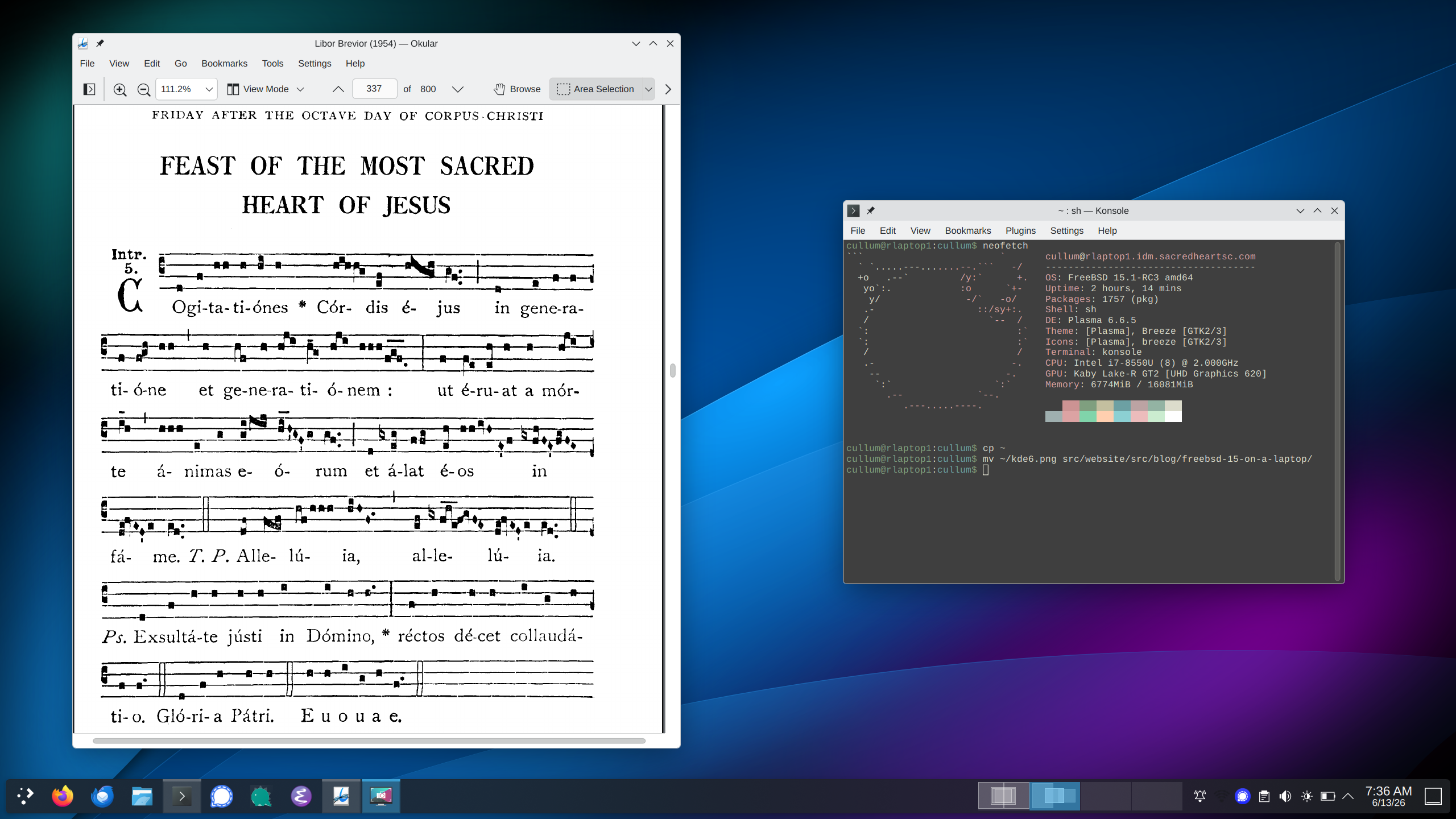](https://www.sacredheartsc.com/blog/freebsd-15-on-a-laptop/kde6.png)
I’m getting about 6\-7 hours of battery life with my ThinkPad X1 Carbon\. Other than Bluetooth \(which I have not attempted\), everything on my device functions well with FreeBSD\.
There’s also a new[Laptop Compatibility Matrix](https://freebsdfoundation.github.io/freebsd-laptop-testing/)where you can see what works on your own hardware\.
So let’s build a FreeBSD laptop system with KDE\!
This guide assumes you’re using Intel graphics with an Intel wireless chipset\. I’m sure that other hardware configurations work fine, but I’m sticking with firsthand experience here\.
## Installation
Grab a[FreeBSD 15\.1 memstick image](https://download.freebsd.org/releases/amd64/amd64/ISO-IMAGES/15.1/FreeBSD-15.1-RELEASE-amd64-memstick.img)and`dd`it to a USB stick:
```
curl -OJ https://download.freebsd.org/releases/amd64/amd64/ISO-IMAGES/15.1/FreeBSD-15.1-RELEASE-amd64-memstick.img
sudo dd if=FreeBSD-15.1-RELEASE-amd64-memstick.img of=/dev/sdX bs=1M conv=sync
```
The installation wizard is straightforward\. Make sure your system is configured for UEFI boot, and select`ZFS \(GPT\)`for the disk layout\.
When prompted for base system installation type, choose`Packages`to get the new[pkgbase](https://wiki.freebsd.org/action/show/pkgbase)goodness\.
You’ll want to enable SSH in the installer\. Better to copy paste into an SSH session than to type everything manually into a virtual console\!
Once you reboot, login as root using the password you specified during installation\.
## Hardware Devices, Drivers, and Tuning
First, we’ll configure device drivers and make various tweaks to get optimum performance and battery life out of a desktop system\.
Many of these steps are not strictly necessary, but they work well for me\. Use your own judgment\!
### Bootloader Tunables
First, open up`/boot/loader\.conf`and consider adding the following:
```
# /boot/loader.conf
# Timeout at the bootloader prompt (seconds).
autoboot_delay="3"
# HaRdEniNg: 99% of users will never need
# destructive dtrace.
security.bsd.allow_destructive_dtrace="0"
# The defaults here are way too conservative
# for desktop stuff like web browsers.
kern.ipc.shmseg="1024"
kern.ipc.shmmni="1024"
kern.maxproc="100000"
# If your system supports Intel Speed Shift
# (check dmesg), then set this to 0. This will
# allow each core to set its own power state.
machdep.hwpstate_pkg_ctrl="0"
# Enable PCI power saving.
hw.pci.do_power_nodriver="3"
# Enable faster soreceive() implementation.
# Don't use this if you run a BIND DNS server.
net.inet.tcp.soreceive_stream="1"
# Increase network interface queue length.
net.isr.defaultqlimit="2048"
net.link.ifqmaxlen="2048"
# For laptops: increase ZFS transaction timeout
# to save on battery life.
vfs.zfs.txg.timeout="10"
```
### Kernel Modules
Enable querying CPU information and temperature:
```
sysrc -v kld_list+="cpuctl coretemp"
```
The H\-TCP congestion control algorithm is designed to perform better over fast, long\-distance networks \(like the Internet\)\. You might consider using it:
```
sysrc -v kld_list+="cc_htcp"
```
If you’re using a ThinkPad, you’ll need this module to get all your buttons working:
```
sysrc -v kld_list+="acpi_ibm"
```
### Sysctl Tweaks
Next, open up`/etc/sysctl\.conf`and consider setting some of the following sysctls\. You can view the description of a sysctl using`sysctl \-d`\.
```
# /etc/sysctl.conf
# ==================
# sEcuRitY HaRdeNinG
# ==================
# These settings are pretty common sense for
# the majority of people:
hw.kbd.keymap_restrict_change=4
kern.coredump=0
kern.elf32.aslr.pie_enable=1
kern.random.fortuna.minpoolsize=128
kern.randompid=1
net.inet.icmp.drop_redirect=1
net.inet.ip.process_options=0
net.inet.ip.random_id=1
net.inet.ip.redirect=0
net.inet.ip.rfc1122_strong_es=1
net.inet.tcp.always_keepalive=0
net.inet.tcp.drop_synfin=1
net.inet.tcp.icmp_may_rst=0
net.inet.tcp.syncookies=0
net.inet6.ip6.redirect=0
security.bsd.unprivileged_read_msgbuf=0
# Some guides will tell you use these.
# More trouble than they're worth, IMO!
#
#kern.elf32.allow_wx=0
#kern.elf64.allow_wx=0
#security.bsd.hardlink_check_gid=1
#security.bsd.hardlink_check_uid=1
#security.bsd.see_other_gids=0
#security.bsd.see_other_uids=0
#security.bsd.unprivileged_proc_debug=0
# ==========================
# Network Performance Tuning
# ==========================
# The default values for many of these sysctls
# are optimized for the TCP latencies of a LAN.
#
# The modifications below should give you
# better TCP performance over connections with
# a larger RTT (like the Internet), at the
# expense of higher memory utilization.
#
# Source: it came to me in a dream
kern.ipc.maxsockbuf=2097152
kern.ipc.soacceptqueue=1024
kern.ipc.somaxconn=1024
net.inet.tcp.abc_l_var=44
net.inet.tcp.cc.abe=1
net.inet.tcp.cc.algorithm=htcp
net.inet.tcp.cc.htcp.adaptive_backoff=1
net.inet.tcp.cc.htcp.rtt_scaling=1
net.inet.tcp.ecn.enable=1
net.inet.tcp.fast_finwait2_recycle=1
net.inet.tcp.fastopen.server_enable=1
net.inet.tcp.finwait2_timeout=5000
net.inet.tcp.initcwnd_segments=44
net.inet.tcp.keepcnt=2
net.inet.tcp.keepidle=62000
net.inet.tcp.keepinit=5000
net.inet.tcp.minmss=536
net.inet.tcp.msl=2500
net.inet.tcp.mssdflt=1448
net.inet.tcp.nolocaltimewait=1
net.inet.tcp.recvbuf_max=2097152
net.inet.tcp.recvspace=65536
net.inet.tcp.sendbuf_inc=65536
net.inet.tcp.sendbuf_max=2097152
net.inet.tcp.sendspace=65536
net.local.stream.recvspace=65536
net.local.stream.sendspace=65536
# =====================
# Desktop Optimizations
# =====================
# Prevent shared memory from being swapped
# to disk.
kern.ipc.shm_use_phys=1
# Increase scheduler preemption threshold for
# a snappier GUI experience.
kern.sched.preempt_thresh=224
# Allow unprivileged users to mount things.
vfs.usermount=1
# ===================
# Laptop Power Saving
# ===================
# Decrease audio responsiveness to save power.
hw.snd.latency=7
```
### WiFi
Poor WiFi support is mostly a thing of the past, thanks to[LinuxKPI](https://wiki.freebsd.org/LinuxKPI)and the new[iwlwifi](https://wiki.freebsd.org/WiFi/Iwlwifi)driver\. If you have one of the common Intel cards, chances are it will just work\.
First, install the necessary firmware package for your wireless card:
To use the newer`iwlwifi`driver on an older card, you might need to block the old`iwm`driver from loading:
```
# /boot/loader.conf
devmatch_blocklist="if_iwm"
```
802\.11n and 802\.11ac are disabled by default\. You’ll need another`loader\.conf`tweak to unlock higher speeds:
```
# /boot/loader.conf
compat.linuxkpi.iwlwifi_11n_disable="0"
compat.linuxkpi.iwlwifi_disable_11ac="0"
```
You might also want to try power saving mode:
```
# /boot/loader.conf
compat.linuxkpi.iwlwifi_power_save="1"
```
Update`rc\.conf`to create a`wlan0`device on boot:
```
sysrc -v wlans_iwlwifi0="wlan0" \
create_args_wlan="wlanmode sta country US regdomain FCC" \
ifconfig_wlan0="WPA DHCP powersave"
```
With those settings,[wpa\_supplicant\(8\)](https://man.freebsd.org/cgi/man.cgi?wpa_supplicant)will manage your WiFi networks\. You can either edit[wpa\_supplicant\.conf\(5\)](https://man.freebsd.org/cgi/man.cgi?wpa_supplicant.conf(5))by hand, or use the graphical interface provided by`networkmgr`:
```
pkg install networkmgr sudo
```
Note that`networkmgr`requires superuser privileges\. You can allow all members of the`operator`group to run`networkmgr`without a password using`sudo`:
```
# /usr/local/etc/sudoers.d/networkmgr
%operator ALL=NOPASSWD: /usr/local/bin/networkmgr
```
### CPU Microcode
Install the latest CPU microcode:
```
pkg install cpu-microcode
```
Edit`loader\.conf`to load the microcode on boot:
```
# /boot/loader.conf
cpu_microcode_load="YES"
cpu_microcode_name="/boot/firmware/intel-ucode.bin"
```
### CPU Power Saving
You can save a**lot**of battery \(and heat\) by enabling lower CPU C\-states:
```
sysrc -v \
performance_cx_lowest=Cmax \
economy_cx_lowest=Cmax
```
With modern Intel processors, it is no longer necessary to run[powerd\(8\)](https://man.freebsd.org/cgi/man.cgi?powerd)\.
### Intel Graphics Driver
Install the Intel graphics driver and make sure it’s loaded on boot:
```
pkg install drm-kmod
sysrc -v kld_list+="i915kms"
```
### Device Permissions via devfs
For desktop systems, you’ll need a custom[devfs\(8\)](https://man.freebsd.org/cgi/man.cgi?devfs(8))ruleset to allow unprivileged users to control common hardware devices\. Create[devfs\.rules\(5\)](https://man.freebsd.org/cgi/man.cgi?devfs.rules)with the following:
```
# /etc/devfs.rules
[localrules=1000]
add path 'drm/*' mode 0660 group operator
add path 'backlight/*' mode 0660 group operator
add path 'video*' mode 0660 group operator
add path 'usb/*' mode 0660 group operator
```
And set your default ruleset like so:
```
sysrc -v devfs_system_ruleset=localrules
```
Give`devfs`a kick to fix those permissions:
### Linux Binary Compatibility
The[Linuxulator](https://wiki.freebsd.org/Linuxulator)allows you to run Linux binaries on FreeBSD:
```
sysrc -v linux_enable=YES
```
If you run Linux binaries, you will probably need to mount some Linux filesystems as well:
```
# /etc/fstab
devfs /compat/linux/dev devfs rw,late 0 0
tmpfs /compat/linux/dev/shm tmpfs rw,late,size=1g,mode=1777 0 0
fdescfs /compat/linux/dev/fd fdescfs rw,late,linrdlnk 0 0
linprocfs /compat/linux/proc linprocfs rw,late 0 0
linsysfs /compat/linux/sys linsysfs rw,late 0 0
```
### FUSE
If you ever want to mount filesystems like exFAT or NTFS, you’ll need[fusefs\(4\)](https://man.freebsd.org/cgi/man.cgi?fusefs):
```
sysrc -v kld_list+="fusefs"
```
### Webcams
With any luck, your webcam will be supported by[webcamd\(8\)](https://man.freebsd.org/cgi/man.cgi?query=webcamd)without any fuss:
```
pkg install \
webcamd \
v4l-utils \
v4l_compat
sysrc -v webcamd_enable=YES
```
### Printers
If you want to print on FreeBSD, you’ll need[CUPS](https://docs.freebsd.org/en/articles/cups/):
```
pkg install cups cups-filters
sysrc -v cupsd_enable=YES
```
You’ll want to give members of the`operator`group the ability to configure printers:
```
# /usr/local/etc/upcs/cups-files.conf
SystemGroup operator
AccessLog syslog
ErrorLog syslog
PageLog syslog
```
Now you can start the daemon:
You can access the CUPS configuration GUI in your browser at[localhost:631](http://localhost:631/)\.
### USB Power Saving
If you’re using a laptop, you’ll want to power down inactive USB devices to save battery life\.
Add the following to`/etc/rc\.local`:
```
# /etc/rc.local
usbconfig | awk -F: '{ print $1 }' | xargs -rtn1 -I% usbconfig -d % power_save
```
### ThinkPad Backlight Controls
I had to do a bit of work to get the backlight keys working on my ThinkPad\.
First, make sure the[acpi\_ibm\(4\)](https://man.freebsd.org/cgi/man.cgi?acpi_ibm)kernel module is loaded:
Then, set the following sysctl to allow[devd\(8\)](https://man.freebsd.org/cgi/man.cgi?query=devd)to handle events for the backlight buttons:
```
sysctl dev.acpi_ibm.0.handlerevents="0x10 0x11"
```
Make sure you add that to`/etc/sysctl\.conf`\.
Now we can receive the button events, but we’ll need a[devd rule](https://man.freebsd.org/cgi/man.cgi?query=devd.conf)to handle them\. Create`/etc/devd/thinkpad\-brightness\.conf`with the following:
```
# /etc/devd/thinkpad-brightness.conf
notify 20 {
match "system" "ACPI";
match "subsystem" "IBM";
match "notify" "0x10";
action "/usr/local/libexec/thinkpad-brightness up";
};
notify 20 {
match "system" "ACPI";
match "subsystem" "IBM";
match "notify" "0x11";
action "/usr/local/libexec/thinkpad-brightness down";
};
```
Finally, create the following script at`/usr/local/libexec/thinkpad\-brightness`:
```
#!/bin/sh
#
# /usr/local/libexec/thinkpad-brightness
cur=$(/usr/bin/backlight -q)
case $1 in
up)
if [ "$cur" -ge 50 ]; then
delta=10
elif [ "$cur" -ge 10 ]; then
delta=5
else
delta=2
fi
/usr/bin/backlight incr "$delta"
;;
down)
if [ "$cur" -le 10 ]; then
delta=2
elif [ "$cur" -le 50 ]; then
delta=5
else
delta=10
fi
/usr/bin/backlight decr "$delta"
;;
esac
```
Don’t forget to make it executable:
```
chmod 755 /usr/local/libexec/thinkpad-brightness
```
### Reboot
Now is a good time to reboot and make sure your changes haven’t broken anything\!
## Firewall
I try to run a firewall on all of my systems\. A basic configuration can block all incoming connections except for SSH\.
Create`/etc/pf\.conf`:
```
# /etc/pf.conf
# Replace this with the names of your network
# interfaces.
egress = "{ em0, wlan0 }"
# Allow inbound ssh.
allowed_tcp_ports = "{ ssh }"
# Allow RTP traffic for voice and video calls.
allowed_udp_ports = "{ 1024:65535 }"
set block-policy return
set skip on lo
scrub in on $egress all fragment reassemble
antispoof quick for $egress
block all
pass out quick on $egress inet
pass in quick on $egress inet proto icmp all icmp-type { echoreq, unreach }
pass in quick on $egress inet proto tcp to port $allowed_tcp_ports
pass in quick on $egress inet proto udp to port $allowed_udp_ports
```
Start the firewall on boot:
```
sysrc -v pf_enable=YES
service pf start
```
## Disable Periodic Scripts
Out of the box, FreeBSD includes a lot of[periodic\(8\)](https://man.freebsd.org/cgi/man.cgi?periodic)scripts that churn through your hard disk, reach out to the Internet, and send emails\. You can check[periodic\.conf\(5\)](https://man.freebsd.org/cgi/man.cgi?periodic.conf)for a full list\.
Some of these jobs are useful, but for a typical desktop user, most of them can be safely disabled:
```
sysrc -v -f /etc/periodic.conf \
daily_backup_aliases_enable=NO \
daily_backup_gpart_enable=NO \
daily_backup_passwd_enable=NO \
daily_clean_disks_verbose=NO \
daily_clean_hoststat_enable=NO \
daily_clean_preserve_verbose=NO \
daily_clean_rwho_verbose=NO \
daily_clean_tmps_verbose=NO \
daily_show_info=NO \
daily_show_success=NO \
daily_status_disks_enable=NO \
daily_status_include_submit_mailq=NO \
daily_status_mail_rejects_enable=NO \
daily_status_mail_rejects_enable=NO \
daily_status_mailq_enable=NO \
daily_status_network_enable=NO \
daily_status_security_enable=NO \
daily_status_uptime_enable=NO \
daily_status_world_kernel=NO \
daily_status_zfs_zpool_list_enable=NO \
daily_submit_queuerun=NO \
monthly_accounting_enable=NO \
monthly_show_info=NO \
monthly_show_success=NO \
monthly_status_security_enable=NO \
security_show_info=NO \
security_show_success=NO \
security_status_chkmounts_enable=NO \
security_status_chksetuid_enable=NO \
security_status_chkuid0_enable=NO \
security_status_ipf6denied_enable=NO \
security_status_ipfdenied_enable=NO \
security_status_ipfwdenied_enable=NO \
security_status_ipfwlimit_enable=NO \
security_status_kernelmsg_enable=NO \
security_status_logincheck_enable=NO \
security_status_loginfail_enable=NO \
security_status_neggrpperm_enable=NO \
security_status_passwdless_enable=NO \
security_status_pfdenied_enable=NO \
security_status_tcpwrap_enable=NO \
weekly_locate_enable=NO \
weekly_show_info=NO \
weekly_show_success=NO \
weekly_status_security_enable=NO \
weekly_whatis_enable=NO
```
## Create a User Account
You’ll need a local user account\. Be sure to add yourself to the`operator`and`wheel`groups:
```
pw useradd \
-n gsarto \
-c 'Giuseppe M. Sarto' \
-s /bin/sh \
-M 700 \
-d /home/gsarto \
-G operator,wheel
```
You’ll probably want to install`sudo`:
Update the`sudoers`file to empower the`wheel`group:
```
# /usr/local/etc/sudoers
%wheel ALL=(ALL:ALL) ALL
```
## Set Locale
Environment variables for login shells are set in[login\.conf\(5\)](https://man.freebsd.org/cgi/man.cgi?login.conf)\. Modify this file to set your preferred locale:
```
--- /etc/login.conf
+++ /etc/login.conf
@@ -23,7 +23,9 @@
:umtxp=unlimited:\
:priority=0:\
:ignoretime@:\
- :umask=022:
+ :umask=022:\
+ :charset=UTF-8:\
+ :lang=en_US.UTF-8:
```
You’ll need to rebuild the login database to apply this change:
For non\-login shells, you can set the same variables in a`profile\.d`script:
```
# /etc/profile.d/locale.sh
export LANG=en_US.UTF-8
export CHARSET=UTF-8
```
## Enable NTP
You’ll need[ntpd\(8\)](https://man.freebsd.org/cgi/man.cgi?query=ntpd)to keep your system clock up to date\.
Edit[ntp\.conf](https://man.freebsd.org/cgi/man.cgi?query=ntp.conf)with your preferred NTP servers:
```
# /etc/ntp.conf
tos minclock 3 maxclock 6
pool 0.freebsd.pool.ntp.org iburst
pool 1.freebsd.pool.ntp.org iburst
pool 2.freebsd.pool.ntp.org iburst
restrict default limited kod nomodify notrap noquery nopeer
restrict source limited kod nomodify notrap noquery
restrict 127.0.0.1
restrict ::1
leapfile "/var/db/ntpd.leap-seconds.list"
```
## Set Your Timezone
In case you didn’t do this during the installation, set your timezone:
```
ln -sfhv /usr/share/zoneinfo/America/New_York /etc/localtime
```
## Switch to openssh\-portable
The`ssh`in FreeBSD’s base system is heavily patched\. I prefer to use the vanilla`openssh\-portable`from ports:
```
pkg install openssh-portable
```
If you run`sshd`, the configuration file now lives in`/usr/local/etc/ssh`:
```
# /usr/local/etc/ssh/sshd_config
PermitRootLogin prohibit-password
UsePAM yes
UseDNS no
Subsystem sftp /usr/local/libexec/sftp-server
```
You’ll need to swap your`sshd`in`/etc/rc\.conf`to run the new version:
```
sysrc -v sshd_enable=NO openssh_enable=YES
service sshd stop
service openssh start
```
The`ssh`command will continue using`/usr/bin/ssh`from the base system unless you update your`$PATH`\.
You can edit`login\.conf`to make this change for all users:
```
--- /etc/login.conf
+++ /etc/login.conf
@@ -4,7 +4,7 @@
:welcome=/var/run/motd:\
:setenv=BLOCKSIZE=K:\
:mail=/var/mail/$:\
- :path=/sbin /bin /usr/sbin /usr/bin /usr/local/sbin /usr/local/bin ~/bin:\
+ :path=/sbin /bin /usr/local/sbin /usr/local/bin /usr/sbin /usr/bin ~/bin:\
:nologin=/var/run/nologin:\
:cputime=unlimited:\
:datasize=unlimited:\
```
As before, rebuild the login database to apply this change:
## Better Termcap Database
The[termcap\(5\)](https://man.freebsd.org/cgi/man.cgi?query=termcap&sektion=5)database in FreeBSD is simpler than you might find on Linux\. In particular, I noticed that**bright colors**would not render on XTerm\-like terminals\.
You can fix this by installing`terminfo\-db`:
## Install Root Certificates
FreeBSD trusts only a subset of the standard certificate authorities out of the box\. You’ll want to make sure Mozilla’s full CA bundle is installed:
## Enable D\-Bus
D\-Bus is required for KDE and pretty much everything else these days:
```
sysrc -v dbus_enable=YES
service dbus start
```
## Configure Ly Display Manager
Typically you’d install a graphical display manager like[SDDM](https://github.com/sddm/sddm)to launch your desktop sessions\.
Unfortunately, at the time of this writing, none of those display managers are able to reliably start a Wayland session on FreeBSD\.
SDDM can almost do it, but there is a[bug](https://bugs.freebsd.org/bugzilla/show_bug.cgi?id=286592)that causes various key combinations to exit your session\.
The current wisdom is to use the console\-based[Ly display manager](https://codeberg.org/fairyglade/ly)to launch Wayland sessions:
Ly doesn’t run as a daemon\. Instead, you’ll need to update[/etc/ttys](https://man.freebsd.org/cgi/man.cgi?ttys)to launch it on a virtual console after system boot:
```
--- /etc/ttys 2026-06-15 09:11:43.272063000 -0400
+++ /etc/ttys 2026-06-15 09:12:23.756283000 -0400
@@ -2,7 +2,7 @@
#
ttyv0 "/usr/libexec/getty Pc" xterm onifexists secure
# Virtual terminals
-ttyv1 "/usr/libexec/getty Pc" xterm onifexists secure
+ttyv1 "/usr/libexec/getty Ly" xterm onifexists secure
ttyv2 "/usr/libexec/getty Pc" xterm onifexists secure
ttyv3 "/usr/libexec/getty Pc" xterm onifexists secure
ttyv4 "/usr/libexec/getty Pc" xterm onifexists secure
```
Now we just need to update[gettytab\(5\)](https://man.freebsd.org/cgi/man.cgi?gettytab)with an entry for Ly:
```
--- /etcgettytab 2026-06-15 09:31:56.348452000 -0400
+++ /etc/gettytab 2026-06-11 20:37:58.000000000 -0400
@@ -234,3 +234,8 @@
:np:nc:sp#115200:
3wire.230400|230400-3wire:\
:np:nc:sp#230400:
+
+# Ly login manager
+Ly:\
+ :lo=/usr/local/bin/ly_wrapper:\
+ :al=root:
```
You should see the Ly login prompt after your next reboot\. Or, just give`init`a little kick:
Ly has many options you can configure in`config\.ini`\. For example:
```
# /usr/local/etc/ly/config.ini
# Force the use of wayland sessions:
xinitrc = null
xsessions = null
shell = false
waylandsessions = /usr/local/share/wayland-sessions
```
## Install Fonts
Make sure to install all the standard fonts so websites render properly:
```
pkg install \
cantarell-fonts \
droid-fonts-ttf \
inconsolata-ttf \
noto-basic \
noto-emoji \
roboto-fonts-ttf \
ubuntu-font \
webfonts
```
## Install KDE and Desktop Apps
Grab a cup of coffee while you install KDE and other must\-have desktop stuff:
```
pkg install \
en-aspell \
en-hunspell \
freedesktop-sound-theme \
kde \
kdegraphics \
kdemultimedia \
kdeutils \
phonon-mpv \
pipewire \
plasma6-breeze-gtk \
pulseaudio \
wireplumber
```
You’ll also want your favorite desktop apps\. For example:
```
pkg install \
chromium \
digikam \
dino \
elisa \
emacs-wayland \
firefox \
fooyin \
git \
gnupg \
haruna \
kid3-kf6 \
konversation \
libreoffice \
linux-widevine-cdm \
mpv \
neofetch \
password-store \
ripgrep \
rsync \
signal-desktop \
stow \
thunderbird \
tmux \
wine
```
Some desktop functionality now depends on[pipewire](https://pipewire.org/)\. For example, taskbar previews don’t seem to work unless`pipewire`is running\.
You can start it automatically with an autostart file:
```
# /usr/local/etc/xdg/autostart/pipewire.desktop
[Desktop Entry]
Comment=Pipewire wayland thing
Exec=/usr/local/bin/pipewire -v
Name=pipewire
StartupNotify=false
Terminal=false
Type=Application
X-KDE-AutostartScript=true
X-KDE-SubstituteUID=false
```
### Store SSH Passphrases in kwallet
If you want`kwallet`to store your SSH key passphrases, then you’ll need to export some environment variables:
```
# /etc/profile.d/kde.sh
if [ "$XDG_CURRENT_DESKTOP" = KDE ]; then
export SSH_ASKPASS_REQUIRE=prefer
export SSH_ASKPASS=/usr/local/bin/ksshaskpass
fi
```
## Hardware Video Acceleration
With the right packages installed, most Intel GPUs support hardware video acceleration\. This will give you much smoother video playback and better battery life\!
```
pkg install \
libva-intel-media-driver \
libva-utils \
libvdpau-va-gl \
vdpauinfo
```
Some applications may need additional configuration to take advantage of the hardware offload\.
### Chromium Browser
Chrome used to require a scary incantation of command line flags to get hardware video decoding working on FreeBSD\.
But at the time of this writing, it*just works*\.
### MPV
The following`mpv\.conf`gives me HD video playback with minimal CPU usage:
```
# /usr/local/etc/mpv/mpv.conf
hwdec=vaapi-copy
vo=gpu-next
vd-lavc-dr=yes
audio-channels=stereo
```
## Known Issues and Workarounds
This section describes the issues I encountered while getting everything working\. Your mileage may vary, depending on your hardware\!
### Laptop suspends immediately after lid open
Once KDE is running, the desktop environment listens for ACPI lid events and should handle suspend and resume for you out of the box\.
Unfortunately, this functionality has a[very annoying bug](https://forums.freebsd.org/threads/freebsd-15-kde-laptop-immediately-suspends-again-after-resume.101870/)on my ThinkPad, where after I would open the lid, the laptop would immediately suspend itself again\!
As a workaround, I disabled the lid switch behavior in KDE’s power settings and configured suspend on lid close natively using`devd`\. This has the added benefit of being able to close the laptop lid when KDE isn’t running\.
First, write a small script to handle locking the screen and suspending the device:
```
#!/bin/sh
#
# /usr/local/libexec/kde-suspend
# This is a big ugly shell pipeline that does
# two things:
#
# 1. Find anyone currently logged into KDE.
# 2. Lock their screen.
/usr/local/bin/qdbus6 --literal --system \
org.freedesktop.ConsoleKit \
/org/freedesktop/ConsoleKit/Manager \
org.freedesktop.ConsoleKit.Manager.GetSessions \
| /usr/bin/sed 's/^.*\(Session[0-9]*\).*$/\1/' \
| /usr/bin/xargs -rtn1 -I% \
/usr/local/bin/qdbus6 --system \
org.freedesktop.ConsoleKit \
/org/freedesktop/ConsoleKit/% \
org.freedesktop.ConsoleKit.Session.Lock
# Sleep for a moment to make sure the lock
# screen comes up.
/bin/sleep 0.5
# Suspend the device to state S3.
/usr/sbin/acpiconf -s3
```
Make the script executable:
```
chmod +x /usr/local/libexec/kde-suspend
```
Now just write a`devd`rule to call your script on lid close:
```
# /etc/devd/kde-suspend.conf
notify 10 {
match "system" "ACPI";
match "subsystem" "Lid";
match "notify" "0x00";
action "/usr/local/libexec/kde-suspend";
};
```
Restart`devd`to apply the change:
### Processes linger after logout
On FreeBSD, I’ve found that some processes keep running indefinitely after logging out of a KDE session\.
Chromium is especially annoying: it sometimes gets trapped in a crazy state where it consumes 100% of a CPU core forever\.
I imagine the KDE developers are mostly concerned with systemd\-based Linux distributions, where[systemd\-logind](https://www.freedesktop.org/software/systemd/man/latest/systemd-logind.service.html)ensures all processes associated with a user session are terminated when a session is closed\.
Luckily, KDE has the ability to run a cleanup script whenever anyone logs out\. Create the following directory:
```
mkdir -p /usr/local/etc/xdg/plasma-workspace/shutdown
```
Then create a cleanup script in there, like so:
```
#!/bin/sh
#
# /usr/local/etc/xdg/plasma-workspace/shutdown/cleanup.sh
# Various processes seem to hang around after
# logging out of KDE sessions.
#
# Clean them up here!
pkill \
baloo_file \
chrome \
dirmngr \
pipewire \
plasma_waitforname \
signal-desktop \
wireplumber
# "agent" is too nondescript of a process name,
# so match on the full path
pkill -f /usr/local/libexec/geoclue-2.0/demos/agent
```
Don’t forget to make it executable:
```
chmod +x /usr/local/etc/xdg/plasma-workspace/shutdown/cleanup.sh
```
### User switching doesn’t work
Desktop user switching is broken on FreeBSD due to a longstanding[ConsoleKit2 bug](https://www.sacredheartsc.com/blog/freebsd-15-on-a-laptop/bugs.freebsd.org/bugzilla/show_bug.cgi?id=221452)\.
To prevent users from even attempting it, you can disable KDE user switching globally in the`kdeglobals`file:
```
# /usr/local/etc/xdg/kdeglobals
[KDE Action Restrictions]
action/start_new_session=false
action/switch_user=false
```
### WiFi broken after suspend
Unfortunately, there is an[iwlwifi bug](https://bugs.freebsd.org/bugzilla/show_bug.cgi?id=263632)present in 15\.1\-RELEASE that results in broken WiFi after resuming from sleep\.
Luckily, there is a simple workaround: disable the interface before suspend, and enable it after resume\. This can be done automatically with a custom`rc\.d`script:
```
#!/bin/sh
#
# /usr/local/etc/rc.d/iwlwifi_fix
#
# PROVIDE: iwlwifi_fix
# KEYWORD: suspend resume
. /etc/rc.subr
name="iwlwifi_fix"
extra_commands="suspend resume"
suspend_cmd="iwlwifi_fix_suspend"
resume_cmd="iwlwifi_fix_resume"
iwlwifi_fix_suspend(){
/usr/sbin/service netif stop wlan0
}
iwlwifi_fix_resume(){
/usr/sbin/service netif start wlan0
}
load_rc_config "$name"
run_rc_command "$1"
```
Make sure it’s enabled:
```
chmod +x /usr/local/etc/rc.d/iwlwifi_fix
sysrc -v iwlwifi_fix_enable="YES"
```
A fix has already been[committed](https://cgit.freebsd.org/src/commit/?id=0c0f66541aa220af38261af6360713ded6e3f15d)to 15\-STABLE, so hopefully this workaround will be unnecessary once FreeBSD 15\.2 is released\.
### Audio freezes on laptops
There is an[i915 bug](https://bugs.freebsd.org/bugzilla/show_bug.cgi?id=229190)on some laptops that results in hard lockups\. The problem is accompanied by`dmesg`errors that look like this:
```
hdac0: Command timeout 2
```
The solution is a simple loader tunable:
```
compat.linuxkpi.i915_disable_power_well=0
```
### Graphics freezes and GPU hangs
With FreeBSD 15\.1, the default DRM driver was bumped from version 6\.6 to version 6\.12\.
Unfortunately, the new version appears to have a[bug](https://bugs.freebsd.org/bugzilla/show_bug.cgi?id=295625)on some Intel chips that causes graphical freezes accompanied by`GPU HANG`messages in`dmesg`\.
A reliable workaround is to simply continue using the previous version:
### No console idle timeout \(DPMS\)
A few years ago, FreeBSD switched from the old[syscons\(4\)](https://man.freebsd.org/cgi/man.cgi?syscons)console driver to the new UEFI\-native[vt\(4\)](https://man.freebsd.org/cgi/man.cgi?vt)driver\.
Unfortunately,[no one bothered](https://bugs.freebsd.org/bugzilla/show_bug.cgi?id=233356)to add`blanktime`support to the`vt`console, so there’s effectively no way to blank the screen on FreeBSD unless you’re running an X11 or Wayland session\.
Because the Ly display manager runs on the TTY console, this means that when no one is logged in, your screen stays on forever\. This isn’t much of an issue on single\-user laptops, but if you’re building a multi\-user workstation, you might burn the login prompt into your LCD panel\!
### GTK4 apps missing icons
The only GTK4 app I use is the[Dino IM](https://dino.im/)XMPP client\. I noticed that many icons failed to render, and the app didn’t respect my KDE font settings\.
After way too much debugging, I discovered that disabling[portals](https://docs.flatpak.org/en/latest/desktop-integration.html#portals)fixed the problem immediately:
```
export GDK_DEBUG=no-portals
```
I try my best to avoid GTK apps, so I’m happy with this hacky workaround\.
### Skips during audio playback
Pulseaudio would occasionally give me crackling and skipping when playing audio files\.
This was easily fixed by bumping up some default values in pulseaudio’s`daemon\.conf`:
```
default-fragments = 8
default-fragment-size-msec = 5
```