@iximiuz: What happens when you "docker run" a container? On the surface, it may feel like starting a regular foreground process …
Summary
A tutorial explaining how to run Docker containers in the background, access logs, and re-attach to containers, with practical exercises.
View Cached Full Text
Cached at: 07/21/26, 01:37 AM
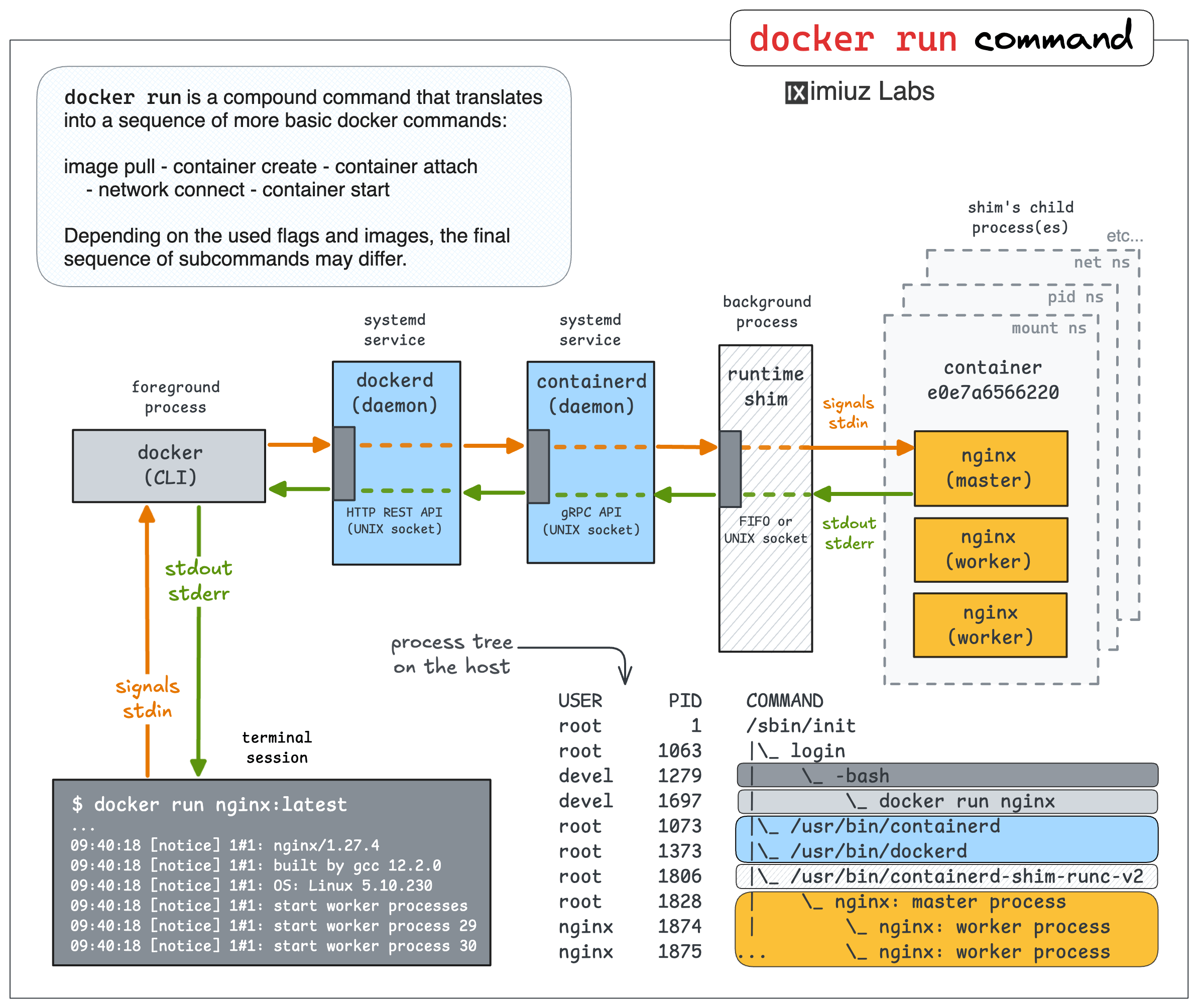
What happens when you “docker run” a container? On the surface, it may feel like starting a regular foreground process with the stdio streams connected directly to the terminal’s shell. But the reality is way more elaborate. Learn more at: https://labs.iximiuz.com/challenges/docker-101-container-run-in-background…
Docker 101: Run a Container in Background, Read Logs, and Attach | Challenge
Source: https://labs.iximiuz.com/challenges/docker-101-container-run-in-background
When you run a container using thedocker run <image\>command without any additional flags, the container starts in the foreground - the command blocks the terminal session and the container’s stdout and stderr streams starts being written to the console.
While handy for some use cases (e.g., running a CLI tool in a container, quickly testing a container image, etc.), often you’d want to run the container in the background - i.e., without attaching the current shell to its stdio streams. This way you can continue using the terminal session after the container starts, and the container itself will keep running even after the terminal window is closed.
In this challenge, you’ll practice:
- Running a container in the background
- Accessing the container’s logs
- Re-attaching to a background container
First, start annginxcontainer in the background:
Hint 1This is an easy one - trydocker run \-\-helpand look for a relevant flag.
Once the background Nginx container has started, it will receive and log a request. Can you retrieve thenounceGET parameter from its access log?
Hint 2Regardless of whether a container is started in the foreground or background, its stdout and stderr output is recorded as container logs. Since the containerized Nginx dumps its access logs to stderr, you can browse it using the following command:
docker logs NGINX_CONTAINER
...whereNGINX\_CONTAINERis either ID or name of the Nginx container you started in the previous task.
Hint 3If you haven’t noted the container ID dumped by thedocker run \-dcommand, you can still retrieve it by listing all running containers on your system using the following command:
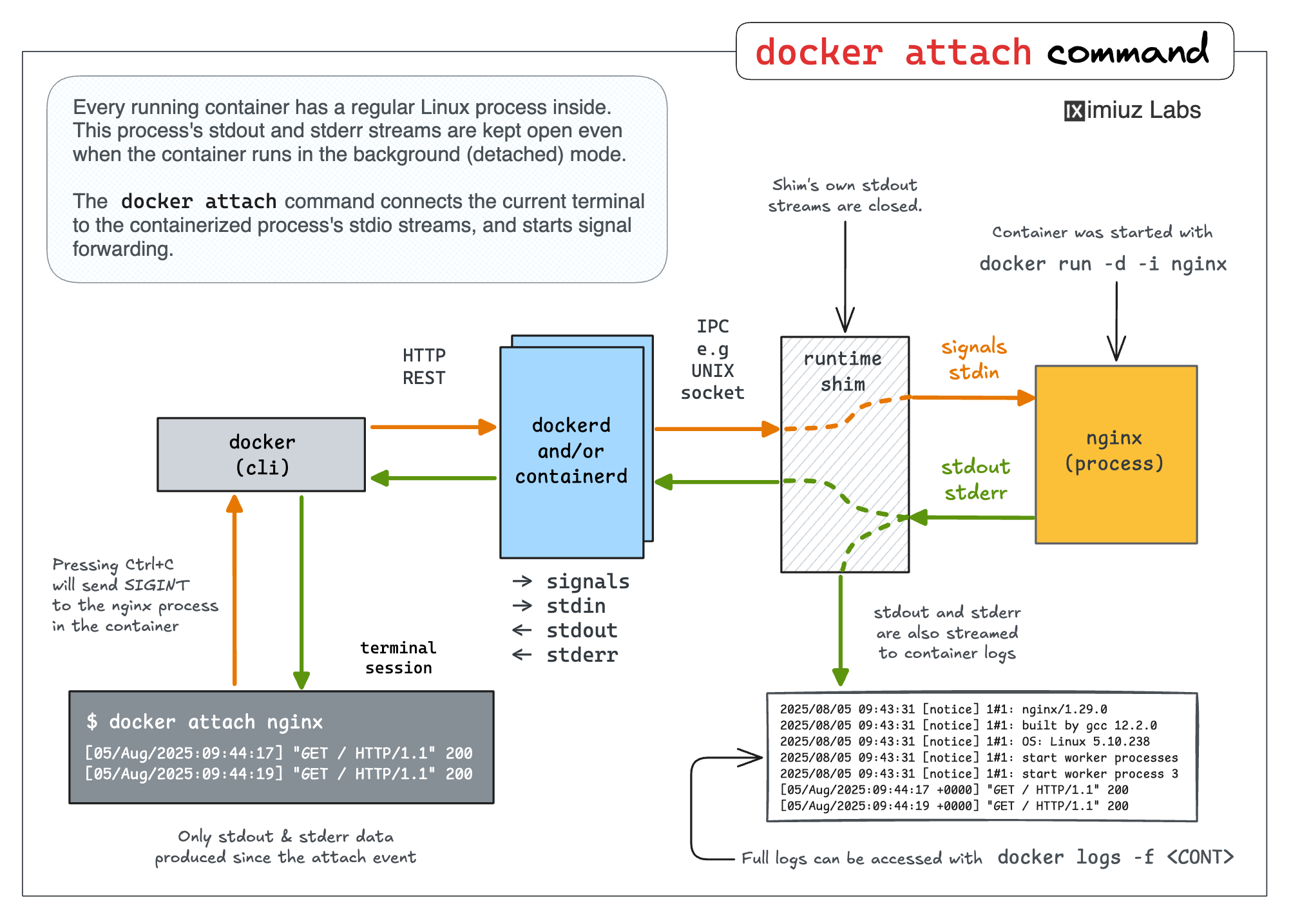
A less frequently used but still sometimes needed operation is to re-attach to a container running in the background. Attach the current shell to the Nginx container using thedocker attachcommand:
Hint 4To re-attach to a background container, use the following command:
docker attach NGINX_CONTAINER
...whereNGINX\_CONTAINERis either ID or name of the Nginx container you started in the previous task.
Once you’ve re-attached to the Nginx container, you should see its access logs being written to the console. However, unlikedocker logs,docker attachshows only the stdout/stderr output from the moment you’ve attached to the container.
Note thatdocker attachalso makes signals forwarded to the container, so you can kill it using^C(which may often happen accidentally until you get used to thedocker attachbehavior).
Press^Cto terminate the container:
Similar Articles
@iximiuz: How Container Networking Works: Building a Bridge Network From Scratch To really understand Docker and Kubernetes netwo…
A tutorial explaining how to build a bridge network for containers from scratch using standard Linux tools like network namespaces, veth pairs, bridges, and NAT, to demystify Docker and Kubernetes networking.
@alexgiantwhale: https://x.com/alexgiantwhale/status/2079342482593309022
A detailed technical article on how to build a Dev Container from scratch, including writing Dockerfile, devcontainer.json, configuring security options, and lifecycle commands to solidify the Go development environment and restrict container permissions.
@DataScienceDojo: Your LLM agent can call tools, write files, and hit APIs on its own — which means it needs somewhere safe to do that. J…
DataScienceDojo hosts a Docker-sponsored webinar on running LLM agents safely with Docker sandboxes, featuring a hands-on session by Docker Developer Success Advocate Dan Ndombe.
macOS Container Machines
Apple has released 'container', an open-source tool that lets macOS users create and run Linux containers as lightweight virtual machines, optimized for Apple silicon and supporting OCI-compatible images.
How Docker Desktop Networking Works Under the Hood (2022)
A deep-dive into Docker Desktop's networking internals, explaining how container networking is implemented on macOS and Windows.