@AIatAMD: Can @PyTorch + ROCm run an LLM? Start with the stack: model, framework, ROCm software, driver, OS and supported AMD har…
Summary
AMD publishes an AI Playbook guiding developers through running LLMs like gpt-oss-20b and qwen3.5-4B locally with PyTorch and ROCm, including memory configuration on Windows and Linux and building a document summarizer.
View Cached Full Text
Cached at: 11/22/26, 04:30 AM
Can @PyTorch + ROCm run an LLM? Start with the stack: model, framework, ROCm software, driver, OS and supported AMD hardware. This AMD AI Playbook takes you from setup to GPT-OSS-20B inference and a document summarizer. Explore it and others: https://developer.amd.com/playbooks/pytorch-rocm-llms/?utm_campaign=thallosocial&utm_source=twitter&utm_medium=Organic_Social&utm_content=1794860535…
Running LLMs on PyTorch with AMD ROCm™ Software | AMD AI Playbooks
Source: https://developer.amd.com/playbooks/pytorch-rocm-llms/?utm_campaign=thallosocial&utm_source=twitter&utm_medium=Organic_Social&utm_content=1794860535 Learn to run powerful language models on your PC with PyTorch and AMD ROCm™ software to summarize documents quickly and easily.
Overview
Want to run powerful AI language models on your own hardware? This guide shows you how. This tutorial uses PyTorch powered by AMD ROCm™ software to run models that can summarize documents, answer questions, generate text, and more, all running locally.
What You’ll Learn
- Run LLMs like gpt-oss-20b and qwen3.5-4B locally using PyTorch and ROCm
- Create a document summarization tool using LLMs
Setting the Memory Configuration
Install AMD Software: Adrenalin Edition
Download and install the latestAMD Software: Adrenalin Editionfromamd.com/en/products/software/adrenalin.html.
if command -v rocminfo >/dev/null 2>&1 && rocminfo | grep -q gfx; then echo "OK: GPU visible to ROCm"else echo "GPU not visible via rocminfo" >&2 exit 1fi
Advanced: Increasing GPU memory (Optional)
You may need to increase the memory allocated to the GPU to run certain larger models or longer contexts. These devices use unified memory — the GPU shares system RAM — so this means letting the GPU claim more of that shared pool. Leave roughly 20% of system RAM for the operating system. This step is optional; the default allocation is enough for most workloads.
On Windows, adjust the memory inAMD Software: Adrenalin Edition: open it and navigate toPerformance → Tuning → AMD Variable Graphics Memory. Set the value you need and reboot for the change to take effect.
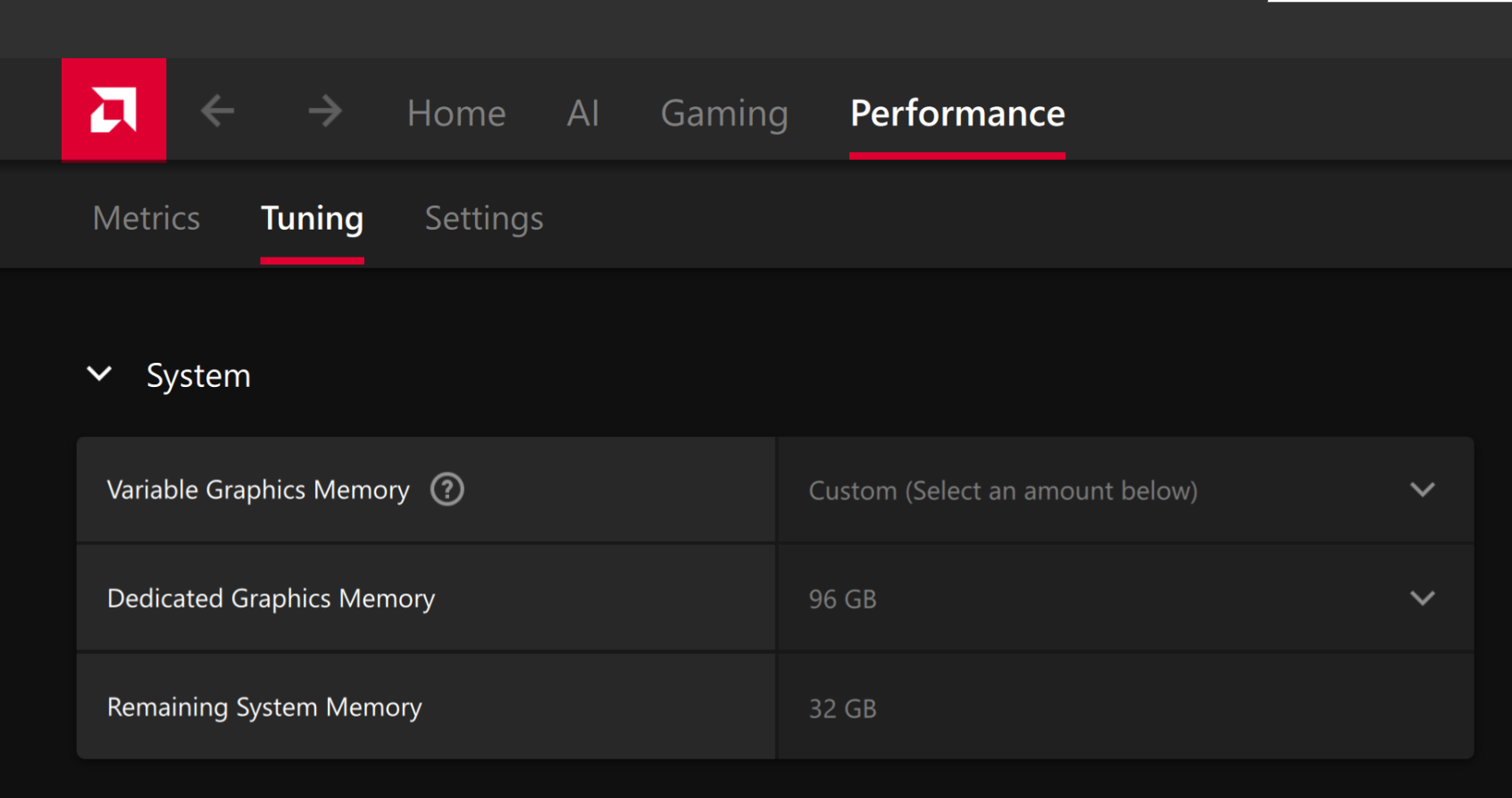
Backup method (BIOS).If your system does not show the Variable Graphics Memory option in Adrenalin (some OEM systems hide it), set theUMA Frame Buffer Sizein the system BIOS/UEFI instead: reboot, enter setup (usuallyDel,F2, orEsc), findUMA Frame Buffer Size— also labeledIntegrated Graphicsordedicated GPU memory, often underAdvancedorAMD CBS → NBIO Common Options— set it to the size you need, save, and reboot. Menu names vary by vendor, and some BIOS do not expose it either.
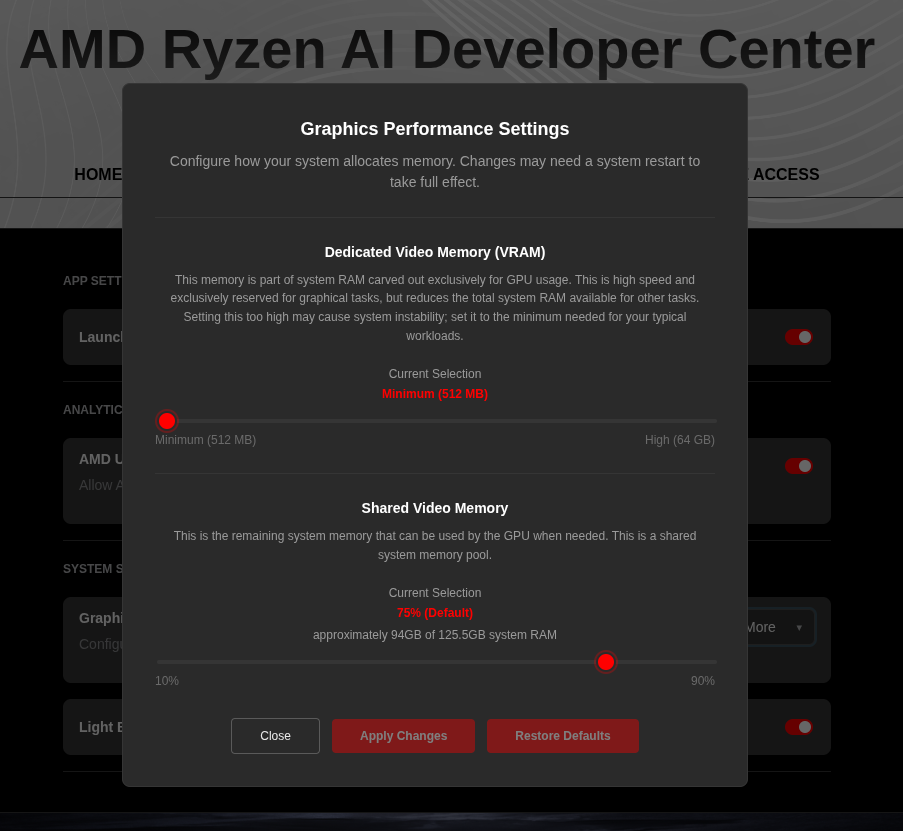
On the AMD Ryzen™ AI Halo, adjust the shared memory in the pre-installedAMD Ryzen™ AI Developer Center: open it, go to theSettingstab, and underGraphics Performance Settingsincrease theShared Video Memoryslider. ClickApply Changesand reboot for the change to take effect.
On Linux, raise the sharedGTT/TTMpool so the GPU can map more system memory. AMD recommends setting the minimum dedicated VRAM in the BIOS (0.5 GB) so the maximum is available as shared memory.
- Install the
amd\-debug\-toolshelper:sudo apt install pipxpipx ensurepathpipx install amd-debug-tools - Query the current shared-memory limit:
- Raise it (value in GB — pick a size that leaves headroom for the OS):
- Reboot for the change to take effect.
Check for Software Updates
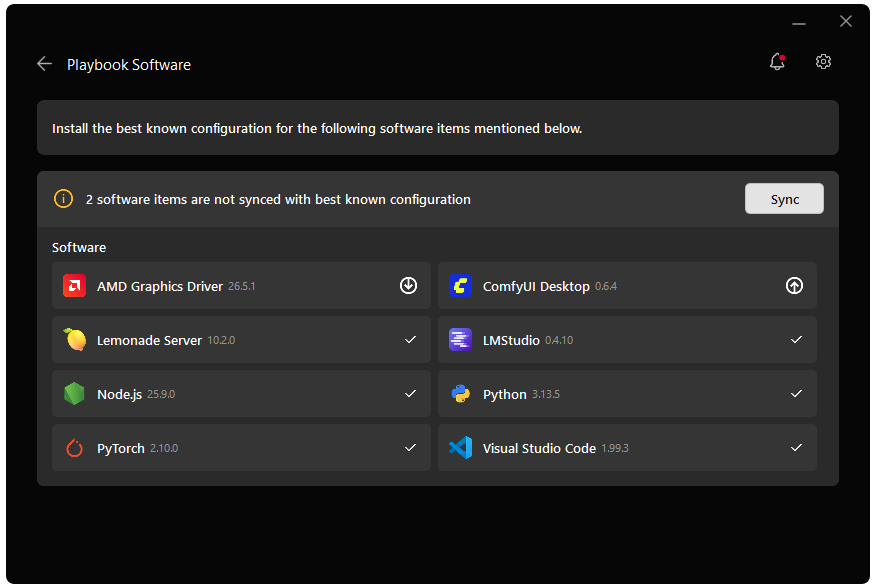
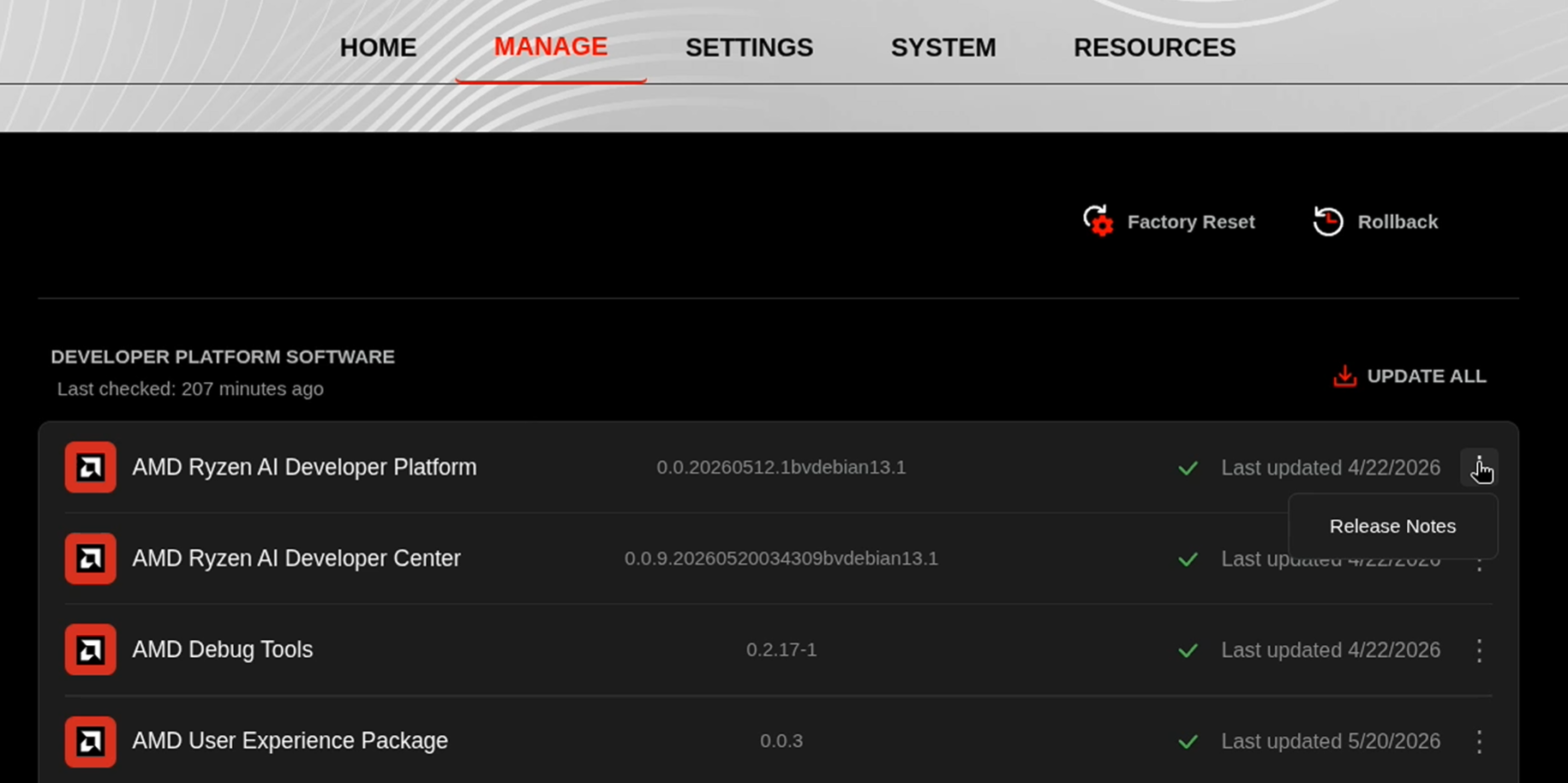
Before starting, ensure your Ryzen AI Halo has the latest software installed. Open theAMD Ryzen™ AI Developer Centerand check for available updates, both to the app itself and additional software.
Go to theUpdatestab. If updates are available, install them and reboot before continuing.
Go to theManagetab. If updates are available, install them and reboot before continuing.
Installing Software Prerequisites
Create a Virtual Environment
On Linux, open a terminal in the directory of your choice and follow the commands to create a venv with ROCm+Pytorch already installed.
sudo apt updatesudo apt install -y python3-venvpython3 -m venv pytorch-env --system-site-packagessource pytorch-env/bin/activate
Grant your user access to GPU devices(log out and back in for this to take effect):
sudo usermod -aG render,video $LOGNAME
On Linux, open a terminal in the directory of your choice and follow the commands to create a venv.
sudo apt updatesudo apt install -y python3-venvpython3 -m venv pytorch-envsource pytorch-env/bin/activate
On Windows, open a terminal in the directory of your choice and follow the commands to create a venv with ROCm+Pytorch already installed.
python -m venv pytorch-env --system-site-packagespytorch-env\Scripts\activate
On Windows, open a terminal in the directory of your choice and follow the commands to create a venv.
python -m venv pytorch-envpytorch-env\Scripts\activate
Installing Basic Dependencies
AMD GPU Driver
Update to the latest AMD GPU driver usingAMD Software: Adrenalin Edition™.
- Open
AMD Software: Adrenalin Editionfrom your Start menu or system tray. - Navigate toDriver and Software, clickManage Updates.
- If an update is available, follow the prompts to download and install.
PyTorch
Install PyTorch with AMD ROCm™ software supportin the created virtual environment:
python -m pip install --index-url https://stable.repo.amd.com/rocm/whl-next/ "torch[device-gfx1151]==2.14.0+rocm10.1.0" "torchvision[device-gfx1151]==0.29.0a0+rocm10.1.0" "torchaudio==2.11.0.3+rocm10.1.0"
python -m pip install --index-url https://stable.repo.amd.com/rocm/whl-next/ "torch[device-gfx1150]==2.14.0+rocm10.1.0" "torchvision[device-gfx1150]==0.29.0a0+rocm10.1.0" "torchaudio==2.11.0.3+rocm10.1.0"
python -m pip install --index-url https://stable.repo.amd.com/rocm/whl-next/ "torch[device-gfx1152]==2.14.0+rocm10.1.0" "torchvision[device-gfx1152]==0.29.0a0+rocm10.1.0" "torchaudio==2.11.0.3+rocm10.1.0"
python -m pip install --index-url https://stable.repo.amd.com/rocm/whl-next/ "torch[device-gfx1100]==2.14.0+rocm10.1.0" "torchvision[device-gfx1100]==0.29.0a0+rocm10.1.0" "torchaudio==2.11.0.3+rocm10.1.0"
python -m pip install --index-url https://stable.repo.amd.com/rocm/whl-next/ "torch[device-gfx1201]==2.14.0+rocm10.1.0" "torchvision[device-gfx1201]==0.29.0a0+rocm10.1.0" "torchaudio==2.11.0.3+rocm10.1.0"
For other devices, please refer toROCm 10.1.0 Documentationfor full instructions.
Installing Additional Dependencies
pip install transformers==5.10.1 safetensors accelerate sentencepiece protobuf
pip install transformers==5.10.1 safetensors accelerate sentencepiece protobuf
pip install transformers==5.10.1 safetensors accelerate sentencepiece protobuf
pip install transformers==5.10.1 safetensors accelerate sentencepiece protobuf
Quick Start with Example Scripts
This playbook includes ready-to-use scripts. Click them to preview and download them to the same directory as the environment you created.
Both scripts support:
- Model selection via
\-\-modelflag - Chat template formatting for proper model prompting, especially useful for document summarization
Loading and Running Your First LLM
The included script shows how to generate text with LLMs using PyTorch and AMD ROCm.
The snippet below shows how to use the model and customize the questions asked.
model_name = "${hf_model}"tokenizer = AutoTokenizer.from_pretrained(model_name)model = AutoModelForCausalLM.from_pretrained( model_name, torch_dtype=torch.bfloat16, device_map="auto",)prompt = "Explain what a large language model is in 2 brief sentences."print(f"Prompt: {prompt}\n")messages = [ {"role": "system", "content": "You are a helpful technology assistant"}, {"role": "user", "content": f"{prompt}"},]
Try out the downloaded script:
python run_llm.py --model ${hf_model}
Building a Document Summarizer
Now that you’ve generated local LLM output, you can build on that by making a practical document summarizer. In this section, you will use the script to feed in a .txt file and automatically generate a concise summary, all running locally on your GPU.
The script is designed to work out of the box. Open the script in an editor to explore the code, customize prompts, and tweak parameters like length and temperature.
Usage Examples
# Summarize the built-in example text (defaults to openai/gpt-oss-20b)python summarizer.py --model ${hf_model}# Summarize a text filepython summarizer.py --file example_document.txt# Adjust creativity with temperaturepython summarizer.py --file document.txt --temperature 0.5# Longer summaries with more tokenspython summarizer.py --file document.txt --max-length 400
Learn about Generation Parameters
Real-World Applications
- Research Paper Analysis: Extract key findings from complex publications for quick review
- News Aggregation: Summarize news articles into brief daily digests or highlights
- Meeting Notes: Condense transcripts into actionable items and concise summaries
- Legal Document Review: Extract relevant clauses or obligations from long legal texts quickly
- Code Documentation: Generate concise repository overviews and function explanations
Next Steps
- Fine-tuning: Adapt models to your specific field or jargon for better accuracy (see Fine-tuning Playbooks)
- RAG Systems: Combine LLMs with document retrieval for context-aware answers and search
- Model Exploration: Experiment with new models like Llama 3, Phi-3, or Qwen for better results
- Production Deployment: Use tools like vLLM for scalable LLM serving in organizations
Your system gives you the power to run sophisticated language models locally. Experiment with different models, prompts, and parameters to discover what works best for your applications.
Need help with this playbook?
Run into an issue or have a question? Open a GitHub issue and our team will take a look.
Similar Articles
@PyTorch: Explore how @AMD is helping developers build and optimize #AI with ROCm across cloud and client environments. Visit the…
AMD promotes its ROCm platform at PyTorch Conference North America 2026 in San Jose (Oct 20-21), featuring hands-on labs, technical sessions, and open-source AI innovation across cloud and client environments.
@PyTorch: RL post-training has become a critical stage in modern LLM development, but deploying an end-to-end pipeline requires m…
The article promotes a poster presentation at PyTorch Conference North America on enabling the open-source vime RL post-training framework on AMD Instinct GPUs using ROCm, and provides registration details for the conference.
ROCm vs Vulkan vs vLLM on Dual R9700's
A comparison of AI inference frameworks ROCm, Vulkan, and vLLM running on dual AMD Radeon 9700 GPUs, likely benchmarking performance for large language models.
vLLM ROCm has been added to Lemonade as an experimental backend
Lemonade has added an experimental ROCm backend for vLLM, allowing users to easily run safetensors LLMs on AMD GPUs with a simple command.
Bringing PyTorch Monarch to AMD GPUs: Single-Controller Distributed Training on ROCm (13 minute read)
The article describes the porting of PyTorch Monarch, a distributed training runtime, to AMD GPUs with ROCm, enabling single-controller fault-tolerant training at scale and addressing reliability challenges in large-scale LLM training.