Cached at:
05/16/26, 06:41 PM
# You don’t know HTML Lists
Source: [https://blog.frankmtaylor.com/2026/05/13/you-dont-know-html-lists/](https://blog.frankmtaylor.com/2026/05/13/you-dont-know-html-lists/)
Reading Time:13minutes
This second installment in the “You don’t know HTML” series is going to be all about the ways that we put collections of things together\. We’re skipping over the MDN and W3Schools introductory pages and instead we’re going into the kind of stuff you discover after accidentally taking your cousin’s Ritalin right before you open up the W3C specs\. Let’s dive deep into lists\.
[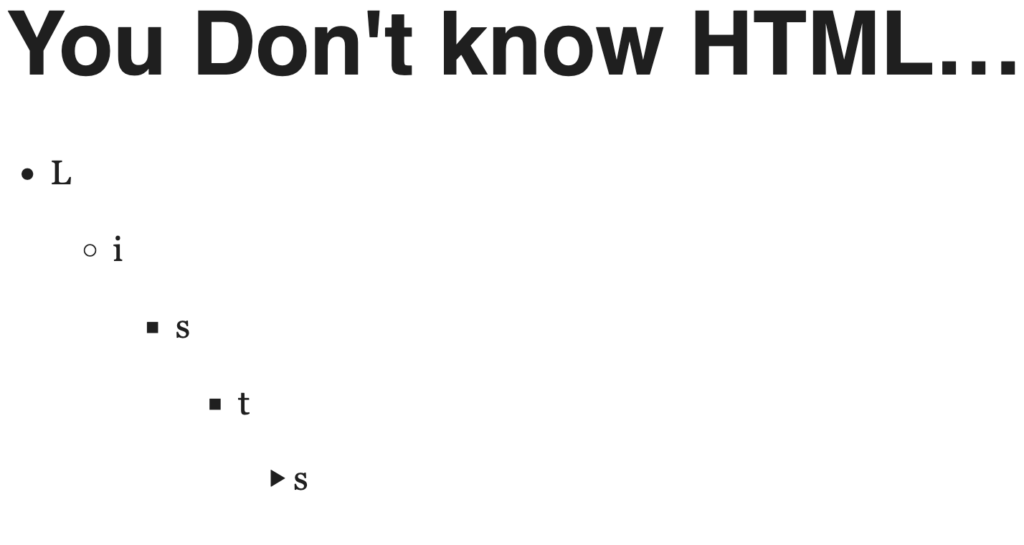](https://blog.frankmtaylor.com/wp-content/uploads/2026/05/image.png)We’re not even talking about the ways you can style them\.## This isn’t an introduction\!
I’m assuming you’ve got real\-world experience writing HTML and this isn’t your first time searching “How to make a list\.” What I’m going to cover are*all of the ways*you can put collections of content together\. So I’m talking about these kinds of lists:
- Ordered
- Unordered
- Description
- Menu
- Control
And if you didn’t know there were five different kinds of lists in HTML,*perfect*\. That must mean*you don’t know HTML*\!
## How Do we Decide Which to Use?
No need to ask AI for a summary; I’ll just give you the ending up front\. Here’s how you’ll decide which kind of list to use:
1. If the items in the list are for a single control field where you’re getting data from a user, you either want a`<select\>`\+`<option\>`mashup or an`<input\>`\+`<datalist\>`combo
2. If changing the order of the items would change the meaning of the*list*, then use an ordered list \(`<ol\>`\)
3. If the items are key\-value pairs, or keys\-to\-value pairs, use a description list \(`<dl\>`\)
4. If the items are controls that will perform actions in the user interface, use a menu \(`<menu\>`\)
5. Use an unordered list \(`<ul\>`\)
## Control Lists with`<select\>`and`<option\>`or`<input\>`and`<datalist\>`
When we think of lists, we don’t usually throw user control fields into the mix\. And that’s weird, because we construct our navigations using lists, and those are lists of*links*that the user…uh…can control\. So we tend to have a bias with what we think lists are\.
But I’m here to bring that to the forefront of your mind: when we’re building forms, sometimes we’re building*lists*that our users will interact with\.
### If it’s a fixed list, use`<select\>`and`<option\>`
When I say “fixed”, I mean that the user can*only*choose the items from that list\. If that’s the case, let’s use`select`and`option`
Suppose we want a list of languages to talk in:
```
<select name="languages">
<option value="">Select a Language</option>
<option value="en">English</option>
<option value="fr">French</option>
<option value="es">Spanish</option>
<option value="pt">Portuguese</option>
</select>
```
This gives the user exactly one choice to make\.
But if the user were also multilingual, maybe they’d like to choose more than one\. Easy enough with the`multiple`attribute\! The*list*will display differently\. Now all the options will be visible so we canshiftorcmd\+clickthe ones we want:
```
<select name="languages" multiple>
<option value="">Select a Language</option>
<option value="en">English</option>
<option value="fr">French</option>
<option value="es">Spanish</option>
<option value="pt">Portuguese</option>
<option value="en">Irish</option>
<option value="cy">Welsh</option>
</select>
```
So long as you’re doing this with an actual`select`element and an`option`, you don’t have to use the`aria\-multiselectable`attribute on a list element with the`role="listbox"`attribute\. Native browser semantics bakes that in for you\.
#### Put related options together with`<optgroup\>`
What if we wanted to group languages by language\-families? We can do that with`optgroup`which lets us group a*list*of options together:
```
<select name="languages">
<optgroup label="Germanic">
<option value="en">English</option>
</optgroup>
<optgroup label="Romance">
<option value="fr">French</option>
<option value="es">Spanish</option>
<option value="pt">Portuguese</option>
</optgroup>
<optgroup label="Celtic">
<option value="en">Irish</option>
<option value="cy">Welsh</option>
</optgroup>
</select>
```
What if there’s a bunch of options, but for \[reasons\] we don’t want a user to be able to select a subset of them? Let’s add the`disabled`attribute to an`optgroup`:
```
<select name="languages">
<optgroup label="Germanic">
<option value="en">English</option>
</optgroup>
<optgroup label="Romance">
<option value="fr">French</option>
<option value="es">Spanish</option>
<option value="pt">Portuguese</option>
</optgroup>
<optgroup label="Celtic" disabled>
<option value="en">Irish</option>
<option value="cy">Welsh</option>
</optgroup>
</select>
```
#### Use native HTML options first for improving the list
Sometimes we may want a visual break between your groups\. If we don’t want to fiddle with CSS, we’re in luck\! An`<hr\>`is an approved item in a`select`\. Not only does that make our`select`look a little sharper, we can also use the`size`attribute to control how many items will be displayed at once — making this useful for especially long lists\.
We just gotta watch out with`size`if we’re*also*using`optgroup`because those group labels will take up some of that space we were probably hoping for:
```
<select name="languages" size="4" multiple>
<optgroup label="Germanic">
<option value="en">English</option>
</optgroup>
<hr />
<optgroup label="Romance">
<option value="fr">French</option>
<option value="es">Spanish</option>
<option value="pt">Portuguese</option>
</optgroup>
<hr />
<optgroup label="Celtic">
<option value="en">Irish</option>
<option value="cy">Welsh</option>
</optgroup>
<hr />
<optgroup label="Afroasiatic">
<option value="he">Hebrew</option>
<option value="ar">Arabic</option>
</optgroup>
</select>
```
### If it’s a*suggested list*, use`<datalist\>`
Let’s suppose we have a control where we want to*suggest*a list options to a user\. This is where we get the`datalist`involved\.
Using a`datalist`is a two\-step process because we have to tell the`input`to use a`datalist`\.
1. Create a`datalist`and give it an`id`\.
2. Put the value of that`id`in the`list`attribute of a corresponding`input`
```
<datalist id="languages">
<option>English</option>
<option>French</option>
<option>Spanish</option>
<option>Portuguese</option>
<option>Irish</option>
<option>Welsh</option>
<option>Hebrew</option>
<option>Arabic</option>
</datalist>
<input name="language" list="languages">
```
EnglishFrenchSpanishPortugueseIrishWelshHebrewArabic
**We need to watch out for using a`value`attribute on the`<option\>`of a`<datalist\>`**\!
This isn’t a`datalist`problem but an`option`problem: The default value for an`option`is the text it wraps\. A`value`attribute*overrides*that and then the text acts like a label\. This is no big deal for a`select`list because the user only sees the text\.
But if we put a`value`on an`<option\>`*in a`datalist`*the user will see the “label” in the list, but when they select it they’ll see the`value`in the`input`\. It’s a confusing experience\.
Start typingwin this input and then select “Welsh” to see what I mean:
```
<datalist id="languages">
<option value="en">English</option>
<option value="fr">French</option>
<option value="es">Spanish</option>
<option value="pt">Portuguese</option>
<option value="en">Irish</option>
<option value="cy">Welsh</option>
<option value="he">Hebrew</option>
<option value="ar">Arabic</option>
</datalist>
<input name="language" list="languages">
```
EnglishFrenchSpanishPortugueseIrishWelshHebrewArabic
So if we’re going to use a`datalist`, we need to work with the understanding that the*`value`*is what gets inserted — not the label\.
#### We can use a`datalist`for any kind of input
We tend to think of the`datalist`as being useful for text options\. But that ain’t how it has to work\.
Suppose we had a calendar widget and we wanted to gently suggest a particular range of weeks in the year\. We could do that with a`datalist`:
```
<label for="camp-week">Choose a week</label>
<input
type="week"
name="week"
id="camp-week"
min="2026-W2"
max="2026-W51"
list="preferred-weeks"
/>
<datalist id="preferred-weeks">
<option>2026-W22</option>
<option>2026-W23</option>
<option>2026-W24</option>
<option>2026-W25</option>
</datalist>
```
Choose a week:2026\-W222026\-W232026\-W242026\-W25
##### `<datalist\>`and`<input type="range"\>`can work together
`<datalist\>`isn’t limited to stringy values; it works with numbers\. Which means we could pair it with a range input and create labeled stops along the range\.
The only thing we have to watch out for in this approach is that**not all browsers are guaranteed to work the same way\.**In Chrome and friends, we could display these stops with very programmatic and simple CSS\. In Firefox…shenanigans are involved\. But it starts with the big idea that you can`display`a`datalist`:
```
<div class="rangeField">
<label for="tips">Tip Percentage</label>
<input
type="range"
name="tips"
id="tips"
min="0"
max="50"
step="1"
list="recommended-tips"
/>
<datalist id="recommended-tips">
<option value="10" label="10%"></option>
<option value="18" label="18%"></option>
<option value="30" label="30%"></option>
<option value="45" label="45%"></option>
</datalist>
<style>
.rangeField {
/*
container for the two things
ch is the width of the 0 in computed font.
Very precise for numbers */
width: 50ch;
}
/*same width for input and datalist*/
#recommended-tips,
#tips {
width: 100%;
margin: 0;
padding: 0;
}
#recommended-tips {
position: relative;
display: block;
writing-mode: vertical-lr;
}
</style>
</div>
```
Tip Percentage
Our programmatic styles which will work in Chrome and friends will involve using the`attr\(\)`function, casting it to a percent, and some math\.
```
@supports (x: attr(x type(percentage))) {
/* For browsers that let you set a type on an attr()
1. get value from the label with attr()
2. use the type() function to declare the value as percent
3. make it absolute
4. max of input is 50, not 100. Set left to be closeish to left x 2,
and subtract based on the character width
*/
/* set datalist to display, and be a positioning root
add a vertical writing mode */
#recommended-tips option{
--percent: attr(label type(<percentage>));
position: absolute;
left: calc((var(--percent) * 1.9) - .1ch);
}
}
```
For this to work in Firefox, we have to go in a different and more annoying direction\. We will need to manually set these as separate rulesets\. And we will target a pseudo\-element instead\. And our math gets weirder\. This is not guaranteed to display well on your screen:
```
@supports not (x: attr(x type(percentage))) {
/*
In firefox, the values display as a ::before
Also, explicitly set the height of the option, otherwise it will be too big
so set the ::before to position absolute
Also, don't set length with percent as it's wildly off
instead, use the same unit set on the container (ch)
*/
#recommended-tips option {
height: 1ch;
margin:0;
padding:0;
}
#recommended-tips option::before {
position: absolute;
top: .5ex;
}
#recommended-tips option[value="10"]::before {
left: calc(5ch + 2ex)
}
#recommended-tips option[value="18"]::before {
left: calc(9ch + 2.5ex );
}
#recommended-tips option[value="30"]::before {
left: calc(15ch + 4ex);
}
#recommended-tips option[value="45"]::before {
left: calc(22.5ch + 6.5ex);
}
}
```
## Ordered Lists with`<ol\>`
Any time we have a collection of items that must be read in a particular order, we should use an ordered list\.**We should not let visual presentation dictate this choice**\. It’s not about whether the items should have numbers next to them\. It’s about whether their sequence matters\.
These are the kinds of collections that should be an ordered list:
- An algorithm
- Series of events
- Items that have an incremental continuum
- A recipe \(which is a series of events and also an algorithm\)
- An alphabetic list \(which is letters arranged along their continuum\)
And the reason these should be an ordered list is because*changing the order of the items would change the meaning of the list*\.
Our bread will bake differently if it’s not in an ordered list\!
```
<ol>
<li>Pre-heat oven to 350 degrees and grease a 9x5 pan.</li>
<li>Combine flour, baking soda, and salt in large bowl with beaten brown sugar, butter, eggs, and mashed bananas</li>
<li>If oven is pre-heated, pour batter into pan</li>
<li>Bake for 60 minutes or until a toothpick inserted into the center comes out clean.</li>
<li>Let cool on a wire rack</li>
</ol>
```
1. Pre\-heat oven to 350 degrees and grease a 9×5 pan\.
2. Combine flour, baking soda, and salt in large bowl with beaten brown sugar, butter, eggs, and mashed bananas
3. If oven is pre\-heated, pour batter into pan
4. Bake for 60 minutes or until a toothpick inserted into the center comes out clean\.
5. Let cool on a wire rack
And if we say something is alphabetical, it’d be weird to suggest it could be ordered differently\!
```
<h3>Ingredients (alphabetical)</h3>
<ol>
<li>baking soda (1 teaspoon)</li>
<li>bananas (2) (mashed)</li>
<li>brown sugar (¾ cup)</li>
<li>butter (½ cup)</li>
<li>eggs (2)</li>
<li>flour (2 cups)</li>
<li>salt (¼ teaspoon)</li>
</ol>
```
### Ingredients \(alphabetical\)
1. baking soda \(1 teaspoon\)
2. bananas \(2\) \(mashed\)
3. brown sugar \(¾ cup\)
4. butter \(½ cup\)
5. eggs \(2\)
6. flour \(2 cups\)
7. salt \(¼ teaspoon\)
### Nest ordered and unordered lists as appropriate
The great thing about a well\-structured ordered list is that*we don’t need to see it rendered to follow along*\. We can read this all on our own without a browser and see what things need to happen:
```
<ol>
<li>Prepare:
<ul>
<li>Preheat oven to 350 degrees</li>
<li>Lightly grease a 9x5 pan</li>
<li>Gather all ingredients</li>
</ul>
</li>
<li>Mix:
<ol>
<li>Prepare bowl 1: Combine flour, baking soda, and salt in a large bowl
</li>
<li>Prepare bowl 2:
<ol>
<li>Beat brown sugar and butter</li>
<li>Stir in eggs and mashed bananas</li>
</ol>
</li>
<li>Stir bowl 2 into bowl 1</li>
</ol>
</li>
<li>Pour: Batter goes into pre-greased pan</li>
<li>Bake:
<ul>
<li>Bake for 60 minutes…</li>
<li>Or when a toothpick inserted in the center comes out clean</li>
</ul>
</li>
<li>Cool:
<ol>
<li>let cool in the pan for 10 minutes</li>
<li>Place on wire rack to finish cooling</li>
</ol>
</li>
</ol>
```
1. Prepare:- Preheat oven to 350 degrees - Lightly grease a 9×5 pan - Gather all ingredients
2. Mix:1. Prepare bowl 1: Combine flour, baking soda, and salt in a large bowl 2. Prepare bowl 2:1. Beat brown sugar and butter 2. Stir in eggs and mashed bananas 3. Stir bowl 2 into bowl 1
3. Pour: Batter goes into pre\-greased pan
4. Bake:- Bake for 60 minutes… - Or when a toothpick inserted in the center comes out clean
5. Cool:1. let cool in the pan for 10 minutes 2. Place on wire rack to finish cooling
### Attributes we should consider
So there’s a reason I’ve really gone hard on stressing that an ordered list is about anything that has a prescribed sequence\. And it’s because there are two attributes specifically for an`<ol\>`
#### `reversed`reverses
The reversed attribute changes the numbering sequence from ascending to descending\. But it*doesn’t change the order of the list*\.
This is useful if you’re showing something from “most to least” like…ingredients and quantities:
```
<h3>Ingredients (most to least)</h3>
<ol reversed>
<li>eggs (2)</li>
<li>flour (2 cups)</li>
<li>bananas (2) (mashed)</li>
<li>brown sugar (¾ cup)</li>
<li>butter (½ cup)</li>
<li>baking soda (1 teaspoon)</li>
<li>salt (¼ teaspoon)</li>
</ol>
```
### Ingredients \(most to least\)
1. eggs \(2\)
2. flour \(2 cups\)
3. bananas \(2\) \(mashed\)
4. brown sugar \(¾ cup\)
5. butter \(½ cup\)
6. baking soda \(1 teaspoon\)
7. salt \(¼ teaspoon\)
Now, we*could*add just a little dab o’ JavaScript to this that could make this list truly*reversy*:
```
function reverseList(list) {
const children = [...list.querySelectorAll('li')].reverse();
list.innerHTML = '';
list.append(...children);
list.toggleAttribute('reversed');
}
orderedList.addEventListener('dblclick', (evt) =>{reverseList(orderedList)})
```
#### `start`sets the starting point
What if our banana bread were a series of ordered lists, instead of one mega list? The`start`attribute is here to help by letting us tell the list where to start the numbering\. It’s a useful tool for establishing continuity across our lists\.
```
<h2>1: Prepare</h2>
<ul>
<li>Preheat oven to 350 degrees</li>
<li>Lightly grease a 9x5 pan</li>
<li>Gather all ingredients</li>
</ul>
<h2>Mix</h2>
<ol start=2>
<li>Prepare bowl 1: Combine flour, baking soda, and salt in a large bowl
</li>
<li>Prepare bowl 2:
<ol>
<li>Beat brown sugar and butter
</li>
<li>Stir in eggs and mashed bananas
</li>
</ol>
</li>
<li>Stir bowl 2 into bowl 1
</li>
</ol>
<h2>Pour</h2>
<ol start=5>
<li> Batter goes into a pre-greased pan</li>
</li>
</ol>
<h2>6: Bake</h2>
<ul>
<li>Bake for 60 minutes…
</li>
<li>Or when a toothpick inserted in the center comes out clean
</li>
</ul>
<h2>Cool</h2>
<ol start=7>
<li>let cool in the pan for 10 minutes
</li>
<li>Place on wire rack to finish cooling
</li>
</ol>
```
## 1: Prepare
- Preheat oven to 350 degrees
- Lightly grease a 9×5 pan
- Gather all ingredients
## Mix
1. Prepare bowl 1: Combine flour, baking soda, and salt in a large bowl
2. Prepare bowl 2:1. Beat brown sugar and butter 2. Stir in eggs and mashed bananas
3. Stir bowl 2 into bowl 1
## Pour
1. Batter goes into a pre\-greased pan
## 6: Bake
- Bake for 60 minutes…
- Or when a toothpick inserted in the center comes out clean
## Cool
1. let cool in the pan for 10 minutes
2. Place on wire rack to finish cooling
## Description Lists with`<dl\>`,`<dt\>`, and`<dd\>`
I like to refer to the description list as the “forgotten list” because…well…it is\. We spend most of our time trying to fit everything into an ordered list or an unordered list and the whole time description lists have been hanging out in the back corner\.
### When it was a definition list
In HTML 4, this was called a*definition list*instead of a description list; its purpose was a bit more narrow as it was meant for only providing definitions\.
The*definition list*contained a`<dt\>`which was a definition*term*and then a`<dd\>`which was a …definition*definition*\.
So the classic usage of yesteryear could’ve been something like this\. Take note that true semantic accuracy means we wrap the terms that are being defined in`<dfn\>`
```
<dl>
<dt><dfn>throw</dfn></dt>
<dt><dfn>yeet</dfn></dt>
<dd>Verb. To discard at a high velocity</dd>
<dt><dfn>no cap</dfn></dt>
<dd>Interjection. Expresses authenticity and truthfulness, sometimes surprise.</dd>
<dt><dfn>bet</dfn></dt>
<dd>Interjection. Expresses agreement and affirmation.</dd>
</dl>
```
throwyeetVerb\. To discard at a high velocityno capInterjection\. Expresses authenticity and truthfulness, sometimes surprise\.betInterjection\. Expresses agreement and affirmation\.
### HTML5 made it better, semantically and otherwise
HTML5 came along and decided that this was a*description list*\. So this isn’t just confined to the very narrow use\-case of listing definitions\. This is what we use*any time we have some set of terms and values*\.
Not only that, in HTML5 they realized it was kinda annoying that the spec didn’t allow us to clump the terms and definitions together\. So*now*a`<div\>`is permitted as a non\-semantic wrapper to help us clump those terms and definitions together:
```
<dl>
<div class="dl-item">
<dt>Chrome</dt>
<dt>Opera</dt>
<dt>Brave</dt>
<dt>Edge</dt>
<dd>Blink-based browsers</dd>
</div>
<div class="dl-item">
<dt>Firefox</dt>
<dt>Tor</dt>
<dt>Librewolf</dt>
<dd>Gecko-based browsers</dd>
</div>
</dl>
```
ChromeOperaBraveEdgeBlink\-based browsersFirefoxTorLibrewolfGecko\-based browsers
### Use`<dl\>`for metadata
We should be using a description list for displaying*any kind of metadata*\. If it’s a series of facts and labels,*that’s a description list\!*
A user profile belongs in a`<dl\>`\. And if we don’t like the indented nature, we can fix this with a few lines of CSS:
```
<dl>
<dt>First</dt>
<dd>Frank</dd>
<dt>Last</dt>
<dd>Taylor</dd>
<dt>Age</dt>
<dd>44</dt>
<dt>Job</dt>
<dd>Writer</dd>
<dt>Handle</dt>
<dd>Paceaux</dd>
</dl>
```
```
dl {
display: flex;
flex-direction: row;
flex-wrap: wrap;
width: 10em;
}
dt, dd {
flex-grow: 1;
flex-basis: 40%;
}
```
FirstFrankLastTaylorAge44JobWriterHandlePaceaux
### Use`<dl\>`for displaying or debugging JSON
I*personally*think that one of the best applications for a description list is debugging\.*If*I want to debug a chunk of JSON in a single\-page application, I do that with a`<dl\>`\. I often put a debug\.vue template in my single\-page apps for showing me a JSON object and*of course*it uses`<dl\>`\. But it really isn’t that much code to have a small utility that renders your \(least\) favorite objects with a description list:
```
class DebugJson {
constructor(json, containerSelector) {
this.json = json;
this.containerSelector = containerSelector;
}
get containerEl () {
return document.querySelector(this.containerSelector)
}
static createDt(text) {
const dtEl = document.createElement('dt');
dtEl.innerHTML = `<var>${text}</var>`;
return dtEl;
}
static createDd(value) {
const ddEl = document.createElement('dd');
if (typeof value === 'object' && !Array.isArray(value)) {
ddEl.append(DebugJson.createDl(value))
} else {
ddEl.innerHTML = `<code>${value.toString()}</code>`;
}
return ddEl;
}
static createDl(obj) {
const dl = document.createElement('dl');
Object.entries(obj).forEach(([key,value]) => {
const dtEl = DebugJson.createDt(key);
const ddEl = DebugJson.createDd(value);
dl.append(dtEl);
dl.append(ddEl);
});
return dl;
}
render(json = this.json) {
this.containerEl.append(DebugJson.createDl(json));
}
}
const debugJson = new DebugJson({foo: 'bar', arr: ['a', 'b'], car: 1}, '.container')
debugJson.render();
```
We should be using more description lists, y’all\.
## Making Application Menus with`<menu\>`
This one is more for the interactive side of the web than the content\-rendering side\.`menu`is specifically a list of commands;*it exists to be yet another reason not to use`<ul\>`*\.
If we had a rich text editor that had some controls for modifying text, that would belong in a`menu`:
```
<menu>
<li><button onclick="strong()">Strong</button></li>
<li><button onclick="emphasize()">Emphasize</button></li>
<li><button onclick="strike()">Strike</button></li>
</menu>
```
The HTML specification says that this is meant to be a*toolbar*\. As you’re making an interactive web page, look around at all of the places where you’ve got buttons for*tools*\. Those probably belong in a menu\.
So if you were making a lightweight set of controls for a video,*that would also belong in a`menu`*:
```
<div class="player player--video">
<video source="whatever.mp4" id="vid-123"></video>
<menu>
<li><button commandfor="vid-123" command="--play">Play</button></li>
<li><button commandfor="vid-123" command="--mute">Mute</button></li>
<li><button commandfor="vid-123" command="--fullscreen">Fullscreen</button></li>
</menu>
</div>
```
Using`menu`means you don’t have to add`aria\-role="menu"`to an unordered list\.
### We shouldn’t have our CSS assume a`<li\>`will be in only two containers
If we don’t want list items to look list\-itemy in our navigations then we don’t want that for our`menu`s, either\. You probably want something like this high up in your stylesheet:
```
nav li,
menu li {
list-style-type: none;
text-indent: 0;
margin: 0;
}
```
### `<nav\> \!= <menu\>`
Quite confusingly, the`nav`element isn’t merely the linky variety of the`menu`element\. They have different semantics and*different permitted content*\.
#### The`nav`element is a*sectioning*element
- It tells the user,*“*here’s a*bunch of stuff*about going somewhere\.”
- A`nav`element allows all sorts of stuff like paragraphs and headings \(`<p\>`,`<h1\-6\>`\) and*also*lists \(`<ul\>`,`<ol\>`,`<menu\>`\)
#### The`menu`element is a*list*element
- It tells the user, “here’s a*list*of stuff you can do\.”
- The`menu`element only allows list items \(`<li\>`\)
It’s tempting to think that the differences between the two elements is*purely*semantics\. It isn’t\. One is a sectioning element that*just so happens to wrap a list most of the time*and the other is a listing element that’ll only ever wrap list items\. And
**`Menu`and`nav`are*not*mutually exclusive choices\.**A`menu`could go in a`nav`, but a`nav`could never go in a`menu`\.
## Unordered Lists with`<ul\>`
We’ve got four lists and a wannabe \(nav\) that have pretty well\-defined semantics\. But now we’ve finally made it to the junk drawer: the unordered list\. The “well if you need to put your crap somewhere you might as well put it here,” list\. The catchall for all your other listy needs\.
In the time long ago when HTML wasn’t as concerned about semantics, the only difference between ordered and unordered lists was the visual aspect: do you get numbers or bullets?
But we don’t live in that time any more\. Now we care about accessibility and screen readers and search engine optimization\. So we ignore the visual aspect and focus on the*meaning*\. It’s not about what lil’ auto\-generated characters are added to the list item\. It’s about whether the order of the items matters\.
So a list of band members should be an unordered list:
```
<h3>Beatles</h3>
<ul>
<li>John Lennon</li>
<li>Paul McCartney</li>
<li>Ringo Star</li>
<li>George Harrison</li>
</ul>
```
As should a list of bands:
```
<ul>
<li>Beatles</li>
<li>Rolling Stones</li>
<li>Van Halen</li>
<li>Foo Fighters</li>
</ul>
```
## Do we know lists now?
Well… we should know*more*\. We’ve talked about the five different kinds of lists:
- Control lists
- Ordered Lists
- Description lists
- Menus
- Unordered lists
And we’ve learned some cool things we can do with our lists
- Data list is more than just an autocomplete / auto\-suggest; we can put it on*any*input
- The ordered list isn’t truly reversible, but could be
- Description lists are for all our key\-value\-pair needs
- Menus are for all our control needs
At the very least, we can say that*we know what we don’t know*about HTML lists\.