A tutorial demonstrating four ways to set up development shells using Nix, including interactive one-offs, config files, and hermetic Nix Flakes, using GoCV and OpenCV as an example.
<p>I wanted to use <a href="https://gocv.io/">GoCV</a> for one of my projects (to find and
extract paper documents from within a larger scan), without permanently having
OpenCV on my system.</p>
<p>This seemed like a good example use-case to demonstrate a couple of Nix commands
I like to use, covering quick interactive one-off dev shells to fully
declarative, hermetic, reproducible, shareable dev shells.</p>
<p>Notably, you don’t need to use NixOS to run these commands! You can <a href="/posts/2025-06-01-nixos-installation-declarative/#setup-nix">install and
use Nix</a> on any
Linux system like Debian, Arch, etc., as long as you set a Nix path or use
Flakes (see <a href="#setup">setup</a>).</p>
<h2 id="debian-way">For comparison: The Debian Way</h2>
<p>Before we start looking at Nix, I will show how to get GoCV running on Debian.</p>
<p>Let’s create a minimal Go program which uses a GoCV function like
<code>gocv.NewMat()</code>, just to verify that we can compile this program:</p>
<div class="highlight"><pre tabindex="0" style="background-color:#f0f0f0;-moz-tab-size:4;-o-tab-size:4;tab-size:4;"><code class="language-go" data-lang="go"><span style="display:flex;"><span><span style="color:#007020;font-weight:bold">package</span><span style="color:#bbb"> </span>main<span style="color:#bbb">
</span></span></span><span style="display:flex;"><span><span style="color:#bbb">
</span></span></span><span style="display:flex;"><span><span style="color:#bbb"></span><span style="color:#007020;font-weight:bold">import</span><span style="color:#bbb"> </span><span style="color:#4070a0">"gocv.io/x/gocv"</span><span style="color:#bbb">
</span></span></span><span style="display:flex;"><span><span style="color:#bbb">
</span></span></span><span style="display:flex;"><span><span style="color:#bbb"></span><span style="color:#007020;font-weight:bold">func</span><span style="color:#bbb"> </span><span style="color:#06287e">main</span>()<span style="color:#bbb"> </span>{<span style="color:#bbb">
</span></span></span><span style="display:flex;"><span><span style="color:#bbb"> </span>gocv.<span style="color:#06287e">NewMat</span>()<span style="color:#bbb">
</span></span></span><span style="display:flex;"><span><span style="color:#bbb"></span>}<span style="color:#bbb">
</span></span></span></code></pre></div><p>If we try to build this on a Debian system, we get:</p>
<pre tabindex="0"><code>debian % mkdir -p /tmp/minimal
debian % cd /tmp/minimal
debian % cat > minimal.go <<'EOT'
package main
import "gocv.io/x/gocv"
func main() { gocv.NewMat(); }
EOT
debian % go mod init minimal
go: creating new go.mod: module minimal
go: to add module requirements and sums:
go mod tidy
debian % go mod tidy
go: finding module for package gocv.io/x/gocv
go: downloading gocv.io/x/gocv v0.41.0
go: found gocv.io/x/gocv in gocv.io/x/gocv v0.41.0
debian % go build
# gocv.io/x/gocv
# [pkg-config --cflags -- opencv4]
Package opencv4 was not found in the pkg-config search path.
Perhaps you should add the directory containing `opencv4.pc'
to the PKG_CONFIG_PATH environment variable
Package 'opencv4', required by 'virtual:world', not found
</code></pre><p>On Debian, we can install OpenCV as follows:</p>
<pre tabindex="0"><code>debian % sudo apt install libopencv-dev
[…]
Summary:
Upgrading: 7, Installing: 512, Removing: 0, Not Upgrading: 27
Download size: 367 MB
Space needed: 1590 MB / 281 GB available
Continue? [Y/n]
</code></pre><p>Saying “yes” to this prompt downloads and installs over 500 packages (takes a
few minutes).</p>
<p>Now the build works:</p>
<pre tabindex="0"><code>debian % go build
debian % file minimal
minimal: ELF 64-bit LSB executable, x86-64, version 1 (SYSV), […]
</code></pre><p>…but we have over 500 extra packages on our system that will now need to be
updated in all eternity, therefore I would like to separate this one-off
experiment from my usual system.</p>
<p>We could use Docker to start a Debian container and work inside that container,
but, depending on the task, this can be cumbersome precisely because it’s a
separate environment. For this example, I would need to specify a volume mount
to make my input files available to the Docker container, and I would need to
set up environment variables before programs inside the Docker container can
open graphical windows on the host…</p>
<p>Let’s look at how we can use Nix to help us with that!</p>
<h2 id="setup">Setup: Nix-on-Debian (or Nix-on-Arch, or…)</h2>
<p>Users of NixOS can skip this section, as NixOS systems include a ready-to-use
Nix.</p>
<p>Before you can try the examples on your own computer, you need to complete these
three steps:</p>
<ol>
<li>Install Nix</li>
<li>Enable Flakes</li>
<li>Set a Nix path</li>
</ol>
<h3 id="setup-install">Step 1: Install Nix</h3>
<p>Users of Debian, Arch, Fedora, or other Linux systems first need to install
Nix. Luckily, Nix is available for many popular Linux distributions:</p>
<ul>
<li>Debian ships <a href="https://packages.debian.org/trixie/nix-setup-systemd">nix-setup-systemd</a></li>
<li>Arch Linux packages <a href="https://archlinux.org/packages/extra/x86_64/nix/">nix</a>
and provides documentation <a href="https://wiki.archlinux.org/title/Nix">on the Nix Arch Wiki
page</a>. In practice, I installed the
package and <a href="/posts/2025-06-01-nixos-installation-declarative/#setup-nix">configured a couple of <code>nixbld</code>
users</a>.</li>
<li>More generally, there are Nix builds (rpm, deb, pacman) available for a number
of distributions: <a href="https://github.com/nix-community/nix-installers">https://github.com/nix-community/nix-installers</a></li>
</ul>
<h3 id="setup-flakes">Step 2: Enable Flakes</h3>
<p>Nix flakes are <a href="https://determinate.systems/posts/flake-schemas/">“a generic way to package Nix
artifacts”</a>.</p>
<p>Examples 3 and 4 use Nix flakes to pin dependencies, so we need to <a href="/posts/2025-06-01-nixos-installation-declarative/#enabling-flakes">enable Nix
flakes</a>.</p>
<h3 id="setup-nix-path">Step 3: Set a Nix path</h3>
<p>For example 1 and 2, we want to use the Nix expression <code>import <nixpkgs></code>.</p>
<p>On NixOS, this expression will follow the system version, meaning if you use
<code>import <nixpkgs></code> on a NixOS 25.05 installation, that will reference <a href="https://github.com/NixOS/nixpkgs/tree/nixos-25.05/">nixpkgs
in version nixos-25.05</a>.</p>
<p>On other Linux systems, you’ll see an error message like this:</p>
<pre tabindex="0"><code>debian-server % nix-shell -p pkg-config opencv
error: file 'nixpkgs' was not found in the Nix search path (add it using $NIX_PATH or -I)
at «string»:1:25:
1| {...}@args: with import <nixpkgs> args; (pkgs.runCommandCC or pkgs.runCommand) "shell" { buildInputs = [ (pkg-config) (opencv) ]; } ""
| ^
(use '--show-trace' to show detailed location information)
</code></pre><p>We need to tell Nix which version of <code>nixpkgs</code> to use by setting the <a href="https://nixos.org/guides/nix-pills/15-nix-search-paths.html">Nix search
path</a>:</p>
<pre tabindex="0"><code>debian-server % export NIX_PATH=nixpkgs=channel:nixos-25.05
debian-server % nix-shell -p pkg-config opencv
[nix-shell:/tmp/opencv]#
</code></pre><p>Alright! Now we are set up. Let’s jump into the first example!</p>
<h2 id="nix-shell">Example 1: Interactive one-offs: nix-shell</h2>
<p>Nix provides a middle-ground between installing OpenCV on your system (<code>apt install</code> like in the example above) and installing OpenCV in a separate Docker
container: Nix can make available OpenCV without permanently installing it.</p>
<p>We can run <a href="https://manpages.debian.org/nix-shell.1"><code>nix-shell(1)</code></a>
to start a bash shell in
which the specified packages are available. To successfully build Go code that
uses GoCV, we need to have OpenCV available:</p>
<pre tabindex="0"><code>% nix-shell -p pkg-config opencv
these 194 paths will be fetched (175.80 MiB download, 764.10 MiB unpacked):
/nix/store/ig2nk0hsha9xaailhaj69yv677nv95q4-abseil-cpp-20210324.2
/nix/store/yw5xqn8lqinrifm9ij80nrmf0i6fdcbx-alsa-lib-1.2.13
[…]
[nix-shell:/tmp/opencv]$ pkg-config --cflags opencv4
-I/nix/store/mh5b1dx2ifv4jkp9a8lgssxwhzxssb96-opencv-4.11.0/include/opencv4
</code></pre><p>In case you were wondering: Yes, we do need to specify <code>pkg-config</code> in this
<code>nix-shell</code> command explicitly, otherwise running <code>pkg-config</code> will run the host
version (outside the dev shell), which cannot find <code>opencv4.pc</code>.</p>
<h2 id="shell.nix">Example 2: nix-shell config file: shell.nix</h2>
<p>Once we have a combination of packages that work for our project (in our
example, just <code>pkg-config</code> and <code>opencv</code>), we can create a <code>shell.nix</code> (in any
directory, but usually in the root of a project) which <code>nix-shell</code> (without the
<code>-p</code> flag) will read:</p>
<div class="highlight"><pre tabindex="0" style="background-color:#f0f0f0;-moz-tab-size:4;-o-tab-size:4;tab-size:4;"><code class="language-nix" data-lang="nix"><span style="display:flex;"><span>{
</span></span><span style="display:flex;"><span> pkgs <span style="color:#666">?</span> <span style="color:#007020;font-weight:bold">import</span> <span style="color:#235388"><nixpkgs></span> { }<span style="color:#666">,</span>
</span></span><span style="display:flex;"><span>}:
</span></span><span style="display:flex;"><span>pkgs<span style="color:#666">.</span>mkShell {
</span></span><span style="display:flex;"><span> packages <span style="color:#666">=</span> <span style="color:#007020;font-weight:bold">with</span> pkgs; [
</span></span><span style="display:flex;"><span> <span style="color:#60a0b0;font-style:italic"># Explicitly list pkg-config so that mkShell will arrange</span>
</span></span><span style="display:flex;"><span> <span style="color:#60a0b0;font-style:italic"># for the PKG_CONFIG_PATH to find the .pc files.</span>
</span></span><span style="display:flex;"><span> pkg-config
</span></span><span style="display:flex;"><span> opencv
</span></span><span style="display:flex;"><span> ];
</span></span><span style="display:flex;"><span>}
</span></span></code></pre></div><p>…and then, we just run <code>nix-shell</code>:</p>
<pre tabindex="0"><code>% nix-shell
[nix-shell:/tmp/opencv]$ pkg-config --cflags opencv4
-I/nix/store/mh5b1dx2ifv4jkp9a8lgssxwhzxssb96-opencv-4.11.0/include/opencv4
</code></pre><p>If you’re curious, here are a couple of documentation pointers regarding the
boilerplate around the list of packages:</p>
<ul>
<li>Line 1 to 3 <a href="https://nixos.org/guides/nix-pills/05-functions-and-imports.html">declare a
function</a>
with an argument set — this is the required structure for <code>nix-shell</code> to be
able to call your <code>shell.nix</code> file.</li>
<li><a href="https://nixos.org/manual/nixpkgs/stable/#sec-pkgs-mkShell"><code>pkgs.mkShell</code></a> is
a convenience helper for use with <code>nix-shell</code>.</li>
<li>The <code>with pkgs;</code> part allows us to write <code>opencv</code> instead of <code>pkgs.opencv</code>.</li>
</ul>
<p>By the way: With the <a href="https://github.com/nix-community/nixd">nixd language
server</a>, editors with <a href="https://en.wikipedia.org/wiki/Language_Server_Protocol">LSP
support</a> can show the
versions that packages resolve to, point out your spelling mistakes, or provide
features like “jump to definition”.</p>
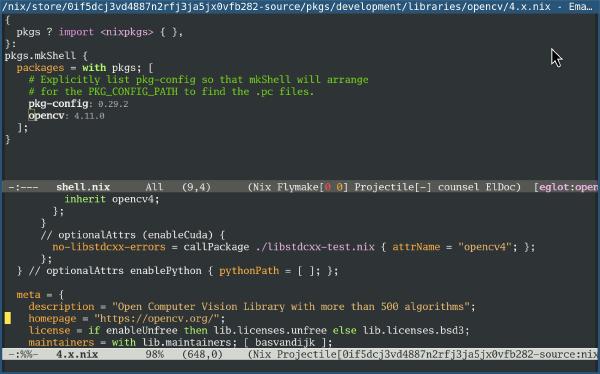
<p>For example, in this screenshot, I was editing <code>shell.nix</code> in Emacs and was
curious how the Nix source of the <code>opencv</code> package looked like. By pressing
<code>M-.</code> (<code>xref-find-definitions</code>) with
<a href="https://www.gnu.org/software/emacs/manual/html_node/elisp/Point.html">“point”</a>
over <code>opencv</code>, I got to <code>opencv/4.x.nix</code> in my local Nix store:</p>
<a href="https://michael.stapelberg.ch/posts/2025-07-27-dev-shells-with-nix-4-quick-examples/2025-07-19-emacs-nix-shell.jpg"><img
srcset="https://michael.stapelberg.ch/posts/2025-07-27-dev-shells-with-nix-4-quick-examples/2025-07-19-emacs-nix-shell_hu_6ca6f897c44d3994.jpg 2x,https://michael.stapelberg.ch/posts/2025-07-27-dev-shells-with-nix-4-quick-examples/2025-07-19-emacs-nix-shell_hu_ebe840dd6e5fb84c.jpg 3x"
src="https://michael.stapelberg.ch/posts/2025-07-27-dev-shells-with-nix-4-quick-examples/2025-07-19-emacs-nix-shell_hu_9fd651da07f25ae.jpg"
alt="Emacs showing opencv/4.x.nix after jumping to definition of opencv" title="Emacs showing opencv/4.x.nix after jumping to definition of opencv"
width="600"
height="374"
style="
border: 1px solid #000;
"
loading="lazy"></a>
<h2 id="nix-flakes">Example 3: Hermetic, pinned devShells: Nix Flakes</h2>
<p>The previous examples used nixpkgs from your system (or Nix path), which means
you don’t need to change the <code>.nix</code> file when you upgrade your system —
depending on the use-case, I see this behavior as either convenient or
terrifying.</p>
<p>For use-cases where it is important that the <code>.nix</code> file is built exactly the
same way, no matter what version the surrounding OS uses, we can use <a href="https://wiki.nixos.org/wiki/Flakes">Nix
Flakes</a> to build in a hermetic way, with
dependency versions pinned in the <code>flake.lock</code> file.</p>
<p>A <code>flake.nix</code> contains the same <code>mkShell</code> expression as above, but declares
structure around it: The <code>mkShell</code> expression goes into the
<code>outputs.devShells.x86_64-linux.default</code> attribute and the <code>inputs</code> attribute
contains <a href="https://nix.dev/manual/nix/2.28/command-ref/new-cli/nix3-flake.html#flake-references">Flake
references</a>
that are available to this build:</p>
<div class="highlight"><pre tabindex="0" style="background-color:#f0f0f0;-moz-tab-size:4;-o-tab-size:4;tab-size:4;"><code class="language-nix" data-lang="nix"><span style="display:flex;"><span>{
</span></span><span style="display:flex;"><span> inputs<span style="color:#666">.</span>nixpkgs<span style="color:#666">.</span>url <span style="color:#666">=</span> <span style="color:#4070a0">"github:NixOS/nixpkgs/nixos-25.05"</span>;
</span></span><span style="display:flex;"><span>
</span></span><span style="display:flex;"><span> outputs <span style="color:#666">=</span>
</span></span><span style="display:flex;"><span> { self<span style="color:#666">,</span> nixpkgs }:
</span></span><span style="display:flex;"><span> {
</span></span><span style="display:flex;"><span> devShells<span style="color:#666">.</span>x86_64-linux<span style="color:#666">.</span>default <span style="color:#666">=</span>
</span></span><span style="display:flex;"><span> <span style="color:#007020;font-weight:bold">let</span>
</span></span><span style="display:flex;"><span> pkgs <span style="color:#666">=</span> nixpkgs<span style="color:#666">.</span>legacyPackages<span style="color:#666">.</span>x86_64-linux;
</span></span><span style="display:flex;"><span> <span style="color:#007020;font-weight:bold">in</span>
</span></span><span style="display:flex;"><span> pkgs<span style="color:#666">.</span>mkShell {
</span></span><span style="display:flex;"><span> packages <span style="color:#666">=</span> <span style="color:#007020;font-weight:bold">with</span> pkgs; [
</span></span><span style="display:flex;"><span> <span style="color:#60a0b0;font-style:italic"># Explicitly list pkg-config so that mkShell will arrange</span>
</span></span><span style="display:flex;"><span> <span style="color:#60a0b0;font-style:italic"># for the PKG_CONFIG_PATH to find the .pc files.</span>
</span></span><span style="display:flex;"><span> pkg-config
</span></span><span style="display:flex;"><span> opencv
</span></span><span style="display:flex;"><span> ];
</span></span><span style="display:flex;"><span> };
</span></span><span style="display:flex;"><span> };
</span></span><span style="display:flex;"><span>}
</span></span></code></pre></div><p>By the way: Despite the name, it is a best practice to use
<code>nixpkgs.legacyPackages</code>, which conceptually provides a single <code>import nixpkgs</code>
result (<a href="https://discourse.nixos.org/t/using-nixpkgs-legacypackages-system-vs-import/17462/8">for
efficiency</a>).</p>
<p>Now, I can use <code>nix develop</code> to get a shell with OpenCV:</p>
<pre tabindex="0"><code>% nix develop
michael@midna$ pkg-config --cflags opencv4
-I/nix/store/mh5b1dx2ifv4jkp9a8lgssxwhzxssb96-opencv-4.11.0/include/opencv4
</code></pre><p>The first <code>nix develop</code> run creates a <code>flake.lock</code> file, so running <code>nix develop</code> later will get us exactly the same environment. To update to newer
versions, use <code>nix flake update</code>.</p>
<p><strong>Tip:</strong> Instead of a shell, <code>nix develop --command=emacs</code> is also a useful variant.</p>
<h2 id="system-indep-flake">Example 4: Making the Flake system-independent</h2>
<p>Unfortunately, the above <code>flake.nix</code> hard-codes <code>x86_64-linux</code>, so it will not
be usable on, say, an <code>aarch64-linux</code> (ARM) computer, or on a <code>x86_64-darwin</code>
(Mac).</p>
<p>Having to explicitly specify the <code>system</code> by default is a long-standing
criticism of Nix Flakes.</p>
<p>There are a number of workarounds. For example, we can use
<a href="https://github.com/numtide/flake-utils">numtide/flake-utils</a> and refactor our
<code>flake.nix</code> to use its
<a href="https://github.com/numtide/flake-utils?tab=readme-ov-file#eachdefaultsystem--system---attrs"><code>eachDefaultSystem</code></a>
convenience function:</p>
<div class="highlight"><pre tabindex="0" style="background-color:#f0f0f0;-moz-tab-size:4;-o-tab-size:4;tab-size:4;"><code class="language-nix" data-lang="nix"><span style="display:flex;"><span>{
</span></span><span style="display:flex;"><span> inputs <span style="color:#666">=</span> {
</span></span><span style="display:flex;"><span> nixpkgs<span style="color:#666">.</span>url <span style="color:#666">=</span> <span style="color:#4070a0">"github:nixos/nixpkgs/nixos-25.05"</span>;
</span></span><span style="display:flex;"><span> flake-utils<span style="color:#666">.</span>url <span style="color:#666">=</span> <span style="color:#4070a0">"github:numtide/flake-utils"</span>;
</span></span><span style="display:flex;"><span> };
</span></span><span style="display:flex;"><span>
</span></span><span style="display:flex;"><span> outputs <span style="color:#666">=</span>
</span></span><span style="display:flex;"><span> {
</span></span><span style="display:flex;"><span> self<span style="color:#666">,</span>
</span></span><span style="display:flex;"><span> nixpkgs<span style="color:#666">,</span>
</span></span><span style="display:flex;"><span> flake-utils<span style="color:#666">,</span>
</span></span><span style="display:flex;"><span> }:
</span></span><span style="display:flex;"><span> flake-utils<span style="color:#666">.</span>lib<span style="color:#666">.</span>eachDefaultSystem (
</span></span><span style="display:flex;"><span> system:
</span></span><span style="display:flex;"><span> <span style="color:#007020;font-weight:bold">let</span>
</span></span><span style="display:flex;"><span> pkgs <span style="color:#666">=</span> nixpkgs<span style="color:#666">.</span>legacyPackages<span style="color:#666">.</span><span style="color:#70a0d0">${</span>system<span style="color:#70a0d0">}</span>;
</span></span><span style="display:flex;"><span> <span style="color:#007020;font-weight:bold">in</span>
</span></span><span style="display:flex;"><span> {
</span></span><span style="display:flex;"><span> formatter <span style="color:#666">=</span> pkgs<span style="color:#666">.</span>nixfmt-tree;
</span></span><span style="display:flex;"><span> devShells<span style="color:#666">.</span>default <span style="color:#666">=</span> pkgs<span style="color:#666">.</span>mkShell {
</span></span><span style="display:flex;"><span> packages <span style="color:#666">=</span> <span style="color:#007020;font-weight:bold">with</span> pkgs; [
</span></span><span style="display:flex;"><span> <span style="color:#60a0b0;font-style:italic"># Explicitly list pkg-config so that mkShell will arrange</span>
</span></span><span style="display:flex;"><span> <span style="color:#60a0b0;font-style:italic"># for the PKG_CONFIG_PATH to find the .pc files.</span>
</span></span><span style="display:flex;"><span> pkg-config
</span></span><span style="display:flex;"><span> opencv
</span></span><span style="display:flex;"><span> ];
</span></span><span style="display:flex;"><span> };
</span></span><span style="display:flex;"><span> }
</span></span><span style="display:flex;"><span> );
</span></span><span style="display:flex;"><span>}
</span></span></code></pre></div><p>Or we could use <a href="https://github.com/numtide/blueprint">numtide/blueprint</a>,
its spiritual successor.</p>
<p>LucPerkins’s dev-templates <a href="https://github.com/the-nix-way/dev-templates/blob/main/go/flake.nix">have effectively
inlined</a> a
version of this technique.</p>
<p>For a solution that isn’t part of Nix, but Nix-adjacent:
<a href="https://devenv.sh/">devenv</a> is a separate tool that is built on Nix (no longer
using the CppNix implementation, but <a href="https://devenv.sh/blog/2024/10/22/devenv-is-switching-its-nix-implementation-to-tvix/">tvix
actually</a>),
but with its own .nix files.</p>
<h2 id="profile-install">Tip: Keeping packages around</h2>
<p>If you notice that <code>nix develop</code> or similar commands fetch packages despite the
<code>flake.lock</code> not having changed, you can install the Flake into your profile to
<a href="https://nixos.org/guides/nix-pills/11-garbage-collector.html">declare it as a gcroot to
Nix</a>:</p>
<pre tabindex="0"><code>% nix profile install .#devShells.x86_64-linux.default
</code></pre><p>But wait, isn’t that getting us into the same state as <a href="#debian-way">with The Debian
Way</a>? No! While OpenCV will remain available indefinitely if you
install the flake into your profile, there still is a layer of separation:
Within your system, OpenCV isn’t available, only when you start a development
shell with <code>nix-shell</code> or <code>nix develop</code>.</p>
<h2 id="conclusion">Conclusion</h2>
<p>How do the four examples above compare? Here’s an overview:</p>
<table>
<thead>
<tr>
<th>Example</th>
<th>Boilerplate</th>
<th>Pinned?</th>
<th>System-dependent?</th>
</tr>
</thead>
<tbody>
<tr>
<td><a href="#nix-shell">Ex 1</a>: <code>nix-shell -p …</code></td>
<td>😊</td>
<td>no</td>
<td>no</td>
</tr>
<tr>
<td><a href="#shell.nix">Ex 2</a>: <code>shell.nix</code></td>
<td>🙂</td>
<td>no</td>
<td>no</td>
</tr>
<tr>
<td><a href="#nix-flakes">Ex 3</a>: <code>flake.nix</code></td>
<td>😲</td>
<td>yes</td>
<td>yes</td>
</tr>
<tr>
<td><a href="#system-indep-flake">Ex 4</a>: system-independent <code>flake.nix</code></td>
<td>🤨</td>
<td>yes</td>
<td>no</td>
</tr>
</tbody>
</table>
<p>For personal one-off experiments, I use <code>nix-shell</code>.</p>
<p>Once the experiment works, I typically want to pin the dependencies, so I use a
<code>flake.nix</code>.</p>
<p>If this is software that isn’t just versioned, but also published (or worked on
with multiple people/systems), I go through the effort of making it a
system-independent <code>flake.nix</code>.</p>
<p>I hope in the future, it will become easier to write a system-independent flake.</p>
<p>Despite the rough edges, I appreciate the reproducibility and control that Nix
gives me!</p>
# Development shells with Nix: four quick examples
Source: [https://michael.stapelberg.ch/posts/2025-07-27-dev-shells-with-nix-4-quick-examples/](https://michael.stapelberg.ch/posts/2025-07-27-dev-shells-with-nix-4-quick-examples/)
Table of contents- [For comparison: The Debian Way](https://michael.stapelberg.ch/posts/2025-07-27-dev-shells-with-nix-4-quick-examples/#debian-way)
- [Setup: Nix\-on\-Debian \(or Nix\-on\-Arch, or…\)](https://michael.stapelberg.ch/posts/2025-07-27-dev-shells-with-nix-4-quick-examples/#setup)- [Step 1: Install Nix](https://michael.stapelberg.ch/posts/2025-07-27-dev-shells-with-nix-4-quick-examples/#setup-install) - [Step 2: Enable Flakes](https://michael.stapelberg.ch/posts/2025-07-27-dev-shells-with-nix-4-quick-examples/#setup-flakes) - [Step 3: Set a Nix path](https://michael.stapelberg.ch/posts/2025-07-27-dev-shells-with-nix-4-quick-examples/#setup-nix-path)
- [Example 1: Interactive one\-offs: nix\-shell](https://michael.stapelberg.ch/posts/2025-07-27-dev-shells-with-nix-4-quick-examples/#nix-shell)
- [Example 2: nix\-shell config file: shell\.nix](https://michael.stapelberg.ch/posts/2025-07-27-dev-shells-with-nix-4-quick-examples/#shell.nix)
- [Example 3: Hermetic, pinned devShells: Nix Flakes](https://michael.stapelberg.ch/posts/2025-07-27-dev-shells-with-nix-4-quick-examples/#nix-flakes)
- [Example 4: Making the Flake system\-independent](https://michael.stapelberg.ch/posts/2025-07-27-dev-shells-with-nix-4-quick-examples/#system-indep-flake)
- [Tip: Keeping packages around](https://michael.stapelberg.ch/posts/2025-07-27-dev-shells-with-nix-4-quick-examples/#profile-install)
- [Conclusion](https://michael.stapelberg.ch/posts/2025-07-27-dev-shells-with-nix-4-quick-examples/#conclusion)
I wanted to use[GoCV](https://gocv.io/)for one of my projects \(to find and extract paper documents from within a larger scan\), without permanently having OpenCV on my system\.
This seemed like a good example use\-case to demonstrate a couple of Nix commands I like to use, covering quick interactive one\-off dev shells to fully declarative, hermetic, reproducible, shareable dev shells\.
Notably, you don’t need to use NixOS to run these commands\! You can[install and use Nix](https://michael.stapelberg.ch/posts/2025-06-01-nixos-installation-declarative/#setup-nix)on any Linux system like Debian, Arch, etc\., as long as you set a Nix path or use Flakes \(see[setup](https://michael.stapelberg.ch/posts/2025-07-27-dev-shells-with-nix-4-quick-examples/#setup)\)\.
## For comparison: The Debian Way
Before we start looking at Nix, I will show how to get GoCV running on Debian\.
Let’s create a minimal Go program which uses a GoCV function like`gocv\.NewMat\(\)`, just to verify that we can compile this program:
```
package main
import "gocv.io/x/gocv"
func main() {
gocv.NewMat()
}
```
If we try to build this on a Debian system, we get:
```
debian % mkdir -p /tmp/minimal
debian % cd /tmp/minimal
debian % cat > minimal.go <<'EOT'
package main
import "gocv.io/x/gocv"
func main() { gocv.NewMat(); }
EOT
debian % go mod init minimal
go: creating new go.mod: module minimal
go: to add module requirements and sums:
go mod tidy
debian % go mod tidy
go: finding module for package gocv.io/x/gocv
go: downloading gocv.io/x/gocv v0.41.0
go: found gocv.io/x/gocv in gocv.io/x/gocv v0.41.0
debian % go build
# gocv.io/x/gocv
# [pkg-config --cflags -- opencv4]
Package opencv4 was not found in the pkg-config search path.
Perhaps you should add the directory containing `opencv4.pc'
to the PKG_CONFIG_PATH environment variable
Package 'opencv4', required by 'virtual:world', not found
```
On Debian, we can install OpenCV as follows:
```
debian % sudo apt install libopencv-dev
[…]
Summary:
Upgrading: 7, Installing: 512, Removing: 0, Not Upgrading: 27
Download size: 367 MB
Space needed: 1590 MB / 281 GB available
Continue? [Y/n]
```
Saying “yes” to this prompt downloads and installs over 500 packages \(takes a few minutes\)\.
Now the build works:
```
debian % go build
debian % file minimal
minimal: ELF 64-bit LSB executable, x86-64, version 1 (SYSV), […]
```
…but we have over 500 extra packages on our system that will now need to be updated in all eternity, therefore I would like to separate this one\-off experiment from my usual system\.
We could use Docker to start a Debian container and work inside that container, but, depending on the task, this can be cumbersome precisely because it’s a separate environment\. For this example, I would need to specify a volume mount to make my input files available to the Docker container, and I would need to set up environment variables before programs inside the Docker container can open graphical windows on the host…
Let’s look at how we can use Nix to help us with that\!
## Setup: Nix\-on\-Debian \(or Nix\-on\-Arch, or…\)
Users of NixOS can skip this section, as NixOS systems include a ready\-to\-use Nix\.
Before you can try the examples on your own computer, you need to complete these three steps:
1. Install Nix
2. Enable Flakes
3. Set a Nix path
### Step 1: Install Nix
Users of Debian, Arch, Fedora, or other Linux systems first need to install Nix\. Luckily, Nix is available for many popular Linux distributions:
- Debian ships[nix\-setup\-systemd](https://packages.debian.org/trixie/nix-setup-systemd)
- Arch Linux packages[nix](https://archlinux.org/packages/extra/x86_64/nix/)and provides documentation[on the Nix Arch Wiki page](https://wiki.archlinux.org/title/Nix)\. In practice, I installed the package and[configured a couple of`nixbld`users](https://michael.stapelberg.ch/posts/2025-06-01-nixos-installation-declarative/#setup-nix)\.
- More generally, there are Nix builds \(rpm, deb, pacman\) available for a number of distributions:[https://github\.com/nix\-community/nix\-installers](https://github.com/nix-community/nix-installers)
### Step 2: Enable Flakes
Nix flakes are[“a generic way to package Nix artifacts”](https://determinate.systems/posts/flake-schemas/)\.
Examples 3 and 4 use Nix flakes to pin dependencies, so we need to[enable Nix flakes](https://michael.stapelberg.ch/posts/2025-06-01-nixos-installation-declarative/#enabling-flakes)\.
### Step 3: Set a Nix path
For example 1 and 2, we want to use the Nix expression`import <nixpkgs\>`\.
On NixOS, this expression will follow the system version, meaning if you use`import <nixpkgs\>`on a NixOS 25\.05 installation, that will reference[nixpkgs in version nixos\-25\.05](https://github.com/NixOS/nixpkgs/tree/nixos-25.05/)\.
On other Linux systems, you’ll see an error message like this:
```
debian-server % nix-shell -p pkg-config opencv
error: file 'nixpkgs' was not found in the Nix search path (add it using $NIX_PATH or -I)
at «string»:1:25:
1| {...}@args: with import <nixpkgs> args; (pkgs.runCommandCC or pkgs.runCommand) "shell" { buildInputs = [ (pkg-config) (opencv) ]; } ""
| ^
(use '--show-trace' to show detailed location information)
```
We need to tell Nix which version of`nixpkgs`to use by setting the[Nix search path](https://nixos.org/guides/nix-pills/15-nix-search-paths.html):
```
debian-server % export NIX_PATH=nixpkgs=channel:nixos-25.05
debian-server % nix-shell -p pkg-config opencv
[nix-shell:/tmp/opencv]#
```
Alright\! Now we are set up\. Let’s jump into the first example\!
## Example 1: Interactive one\-offs: nix\-shell
Nix provides a middle\-ground between installing OpenCV on your system \(`apt install`like in the example above\) and installing OpenCV in a separate Docker container: Nix can make available OpenCV without permanently installing it\.
We can run[`nix\-shell\(1\)`](https://manpages.debian.org/nix-shell.1)to start a bash shell in which the specified packages are available\. To successfully build Go code that uses GoCV, we need to have OpenCV available:
```
% nix-shell -p pkg-config opencv
these 194 paths will be fetched (175.80 MiB download, 764.10 MiB unpacked):
/nix/store/ig2nk0hsha9xaailhaj69yv677nv95q4-abseil-cpp-20210324.2
/nix/store/yw5xqn8lqinrifm9ij80nrmf0i6fdcbx-alsa-lib-1.2.13
[…]
[nix-shell:/tmp/opencv]$ pkg-config --cflags opencv4
-I/nix/store/mh5b1dx2ifv4jkp9a8lgssxwhzxssb96-opencv-4.11.0/include/opencv4
```
In case you were wondering: Yes, we do need to specify`pkg\-config`in this`nix\-shell`command explicitly, otherwise running`pkg\-config`will run the host version \(outside the dev shell\), which cannot find`opencv4\.pc`\.
## Example 2: nix\-shell config file: shell\.nix
Once we have a combination of packages that work for our project \(in our example, just`pkg\-config`and`opencv`\), we can create a`shell\.nix`\(in any directory, but usually in the root of a project\) which`nix\-shell`\(without the`\-p`flag\) will read:
```
{
pkgs ? import <nixpkgs> { },
}:
pkgs.mkShell {
packages = with pkgs; [
# Explicitly list pkg-config so that mkShell will arrange
# for the PKG_CONFIG_PATH to find the .pc files.
pkg-config
opencv
];
}
```
…and then, we just run`nix\-shell`:
```
% nix-shell
[nix-shell:/tmp/opencv]$ pkg-config --cflags opencv4
-I/nix/store/mh5b1dx2ifv4jkp9a8lgssxwhzxssb96-opencv-4.11.0/include/opencv4
```
If you’re curious, here are a couple of documentation pointers regarding the boilerplate around the list of packages:
- Line 1 to 3[declare a function](https://nixos.org/guides/nix-pills/05-functions-and-imports.html)with an argument set — this is the required structure for`nix\-shell`to be able to call your`shell\.nix`file\.
- [`pkgs\.mkShell`](https://nixos.org/manual/nixpkgs/stable/#sec-pkgs-mkShell)is a convenience helper for use with`nix\-shell`\.
- The`with pkgs;`part allows us to write`opencv`instead of`pkgs\.opencv`\.
By the way: With the[nixd language server](https://github.com/nix-community/nixd), editors with[LSP support](https://en.wikipedia.org/wiki/Language_Server_Protocol)can show the versions that packages resolve to, point out your spelling mistakes, or provide features like “jump to definition”\.
For example, in this screenshot, I was editing`shell\.nix`in Emacs and was curious how the Nix source of the`opencv`package looked like\. By pressing`M\-\.`\(`xref\-find\-definitions`\) with[“point”](https://www.gnu.org/software/emacs/manual/html_node/elisp/Point.html)over`opencv`, I got to`opencv/4\.x\.nix`in my local Nix store:
[](https://michael.stapelberg.ch/posts/2025-07-27-dev-shells-with-nix-4-quick-examples/2025-07-19-emacs-nix-shell.jpg)
## Example 3: Hermetic, pinned devShells: Nix Flakes
The previous examples used nixpkgs from your system \(or Nix path\), which means you don’t need to change the`\.nix`file when you upgrade your system — depending on the use\-case, I see this behavior as either convenient or terrifying\.
For use\-cases where it is important that the`\.nix`file is built exactly the same way, no matter what version the surrounding OS uses, we can use[Nix Flakes](https://wiki.nixos.org/wiki/Flakes)to build in a hermetic way, with dependency versions pinned in the`flake\.lock`file\.
A`flake\.nix`contains the same`mkShell`expression as above, but declares structure around it: The`mkShell`expression goes into the`outputs\.devShells\.x86\_64\-linux\.default`attribute and the`inputs`attribute contains[Flake references](https://nix.dev/manual/nix/2.28/command-ref/new-cli/nix3-flake.html#flake-references)that are available to this build:
```
{
inputs.nixpkgs.url = "github:NixOS/nixpkgs/nixos-25.05";
outputs =
{ self, nixpkgs }:
{
devShells.x86_64-linux.default =
let
pkgs = nixpkgs.legacyPackages.x86_64-linux;
in
pkgs.mkShell {
packages = with pkgs; [
# Explicitly list pkg-config so that mkShell will arrange
# for the PKG_CONFIG_PATH to find the .pc files.
pkg-config
opencv
];
};
};
}
```
By the way: Despite the name, it is a best practice to use`nixpkgs\.legacyPackages`, which conceptually provides a single`import nixpkgs`result \([for efficiency](https://discourse.nixos.org/t/using-nixpkgs-legacypackages-system-vs-import/17462/8)\)\.
Now, I can use`nix develop`to get a shell with OpenCV:
```
% nix develop
michael@midna$ pkg-config --cflags opencv4
-I/nix/store/mh5b1dx2ifv4jkp9a8lgssxwhzxssb96-opencv-4.11.0/include/opencv4
```
The first`nix develop`run creates a`flake\.lock`file, so running`nix develop`later will get us exactly the same environment\. To update to newer versions, use`nix flake update`\.
**Tip:**Instead of a shell,`nix develop \-\-command=emacs`is also a useful variant\.
## Example 4: Making the Flake system\-independent
Unfortunately, the above`flake\.nix`hard\-codes`x86\_64\-linux`, so it will not be usable on, say, an`aarch64\-linux`\(ARM\) computer, or on a`x86\_64\-darwin`\(Mac\)\.
Having to explicitly specify the`system`by default is a long\-standing criticism of Nix Flakes\.
There are a number of workarounds\. For example, we can use[numtide/flake\-utils](https://github.com/numtide/flake-utils)and refactor our`flake\.nix`to use its[`eachDefaultSystem`](https://github.com/numtide/flake-utils?tab=readme-ov-file#eachdefaultsystem--system---attrs)convenience function:
```
{
inputs = {
nixpkgs.url = "github:nixos/nixpkgs/nixos-25.05";
flake-utils.url = "github:numtide/flake-utils";
};
outputs =
{
self,
nixpkgs,
flake-utils,
}:
flake-utils.lib.eachDefaultSystem (
system:
let
pkgs = nixpkgs.legacyPackages.${system};
in
{
formatter = pkgs.nixfmt-tree;
devShells.default = pkgs.mkShell {
packages = with pkgs; [
# Explicitly list pkg-config so that mkShell will arrange
# for the PKG_CONFIG_PATH to find the .pc files.
pkg-config
opencv
];
};
}
);
}
```
Or we could use[numtide/blueprint](https://github.com/numtide/blueprint), its spiritual successor\.
LucPerkins’s dev\-templates[have effectively inlined](https://github.com/the-nix-way/dev-templates/blob/main/go/flake.nix)a version of this technique\.
For a solution that isn’t part of Nix, but Nix\-adjacent:[devenv](https://devenv.sh/)is a separate tool that is built on Nix \(no longer using the CppNix implementation, but[tvix actually](https://devenv.sh/blog/2024/10/22/devenv-is-switching-its-nix-implementation-to-tvix/)\), but with its own \.nix files\.
## Tip: Keeping packages around
If you notice that`nix develop`or similar commands fetch packages despite the`flake\.lock`not having changed, you can install the Flake into your profile to[declare it as a gcroot to Nix](https://nixos.org/guides/nix-pills/11-garbage-collector.html):
```
% nix profile install .#devShells.x86_64-linux.default
```
But wait, isn’t that getting us into the same state as[with The Debian Way](https://michael.stapelberg.ch/posts/2025-07-27-dev-shells-with-nix-4-quick-examples/#debian-way)? No\! While OpenCV will remain available indefinitely if you install the flake into your profile, there still is a layer of separation: Within your system, OpenCV isn’t available, only when you start a development shell with`nix\-shell`or`nix develop`\.
## Conclusion
How do the four examples above compare? Here’s an overview:
ExampleBoilerplatePinned?System\-dependent?[Ex 1](https://michael.stapelberg.ch/posts/2025-07-27-dev-shells-with-nix-4-quick-examples/#nix-shell):`nix\-shell \-p …`😊nono[Ex 2](https://michael.stapelberg.ch/posts/2025-07-27-dev-shells-with-nix-4-quick-examples/#shell.nix):`shell\.nix`🙂nono[Ex 3](https://michael.stapelberg.ch/posts/2025-07-27-dev-shells-with-nix-4-quick-examples/#nix-flakes):`flake\.nix`😲yesyes[Ex 4](https://michael.stapelberg.ch/posts/2025-07-27-dev-shells-with-nix-4-quick-examples/#system-indep-flake): system\-independent`flake\.nix`🤨yesnoFor personal one\-off experiments, I use`nix\-shell`\.
Once the experiment works, I typically want to pin the dependencies, so I use a`flake\.nix`\.
If this is software that isn’t just versioned, but also published \(or worked on with multiple people/systems\), I go through the effort of making it a system\-independent`flake\.nix`\.
I hope in the future, it will become easier to write a system\-independent flake\.
Despite the rough edges, I appreciate the reproducibility and control that Nix gives me\!
Did you like this post?[Subscribe to this blog’s RSS feed](https://michael.stapelberg.ch/feed.xml)to not miss any new posts\!
I run a blog since 2005, spreading knowledge and experience for over 20 years\! :\)
The NNN Stack combines NixOS, Niri compositor, and Noctalia shell to create a declarative, scrollable, and reproducible desktop environment, inviting users to contribute their dotfiles.
A guide on declaratively installing NixOS over the network using tools like nixos-anywhere, with an emphasis on managing configuration files under version control.
A detailed comparison between Nix Flakes and their equivalents in the Guix package management system, covering dependency declarations, pinning, purity, outputs, development environments, and system configuration.
devenv 2.1 introduces native support for zsh, fish, and nushell shells, replaces direnv with built-in auto-activation hooks, and integrates libghostty for improved terminal handling and coding agent support.
This tutorial explains how to create statically-linked executables for Haskell projects using Nix, covering configuration of GHC for static builds and integration with Docker.