@LinearUncle: 如果你要追求终极的coding agent自由,目前只有pi才能给你安心。 如果你一直想试试 pi + deepseek,但是不知道怎么配置,强烈推荐新手查看这篇老外小哥的blog: https://deepakness.com/blog…
摘要
这条推文推荐将Pi编码代理与DeepSeek配合使用,并链接到详细的设置指南博客。
查看缓存全文
缓存时间: 2026/06/13 01:06
如果你要追求终极的coding agent自由,目前只有pi才能给你安心。 如果你一直想试试 pi + deepseek,但是不知道怎么配置,强烈推荐新手查看这篇老外小哥的blog: https://deepakness.com/blog/pi-agent-setup/… 耐心花半小时, 逐字逐段耐心看完,你将彻底入门pi.
Setting Up and Using the Pi Coding Agent | DeepakNess
Source: https://deepakness.com/blog/pi-agent-setup/
I have been using AI coding tools for a while now. At the time of writing this, I am subscribed to both Cursor and OpenAI Codex. They are great at what they do and I use them for most of my main project work.
But over 2 weeks ago, I came acrossPi– an open-source terminal coding agent. It has a small core and lets you add features through extensions and packages, instead of packing everything in by default. I liked the idea, so I decided to set it up and see where it fits.
I am still figuring out the right balance, but Pi has already found a place for my side projects and experiments. In this post, I’ll share how I installed it, what my setup looks like, and my honest experience so far.
What is Pi?
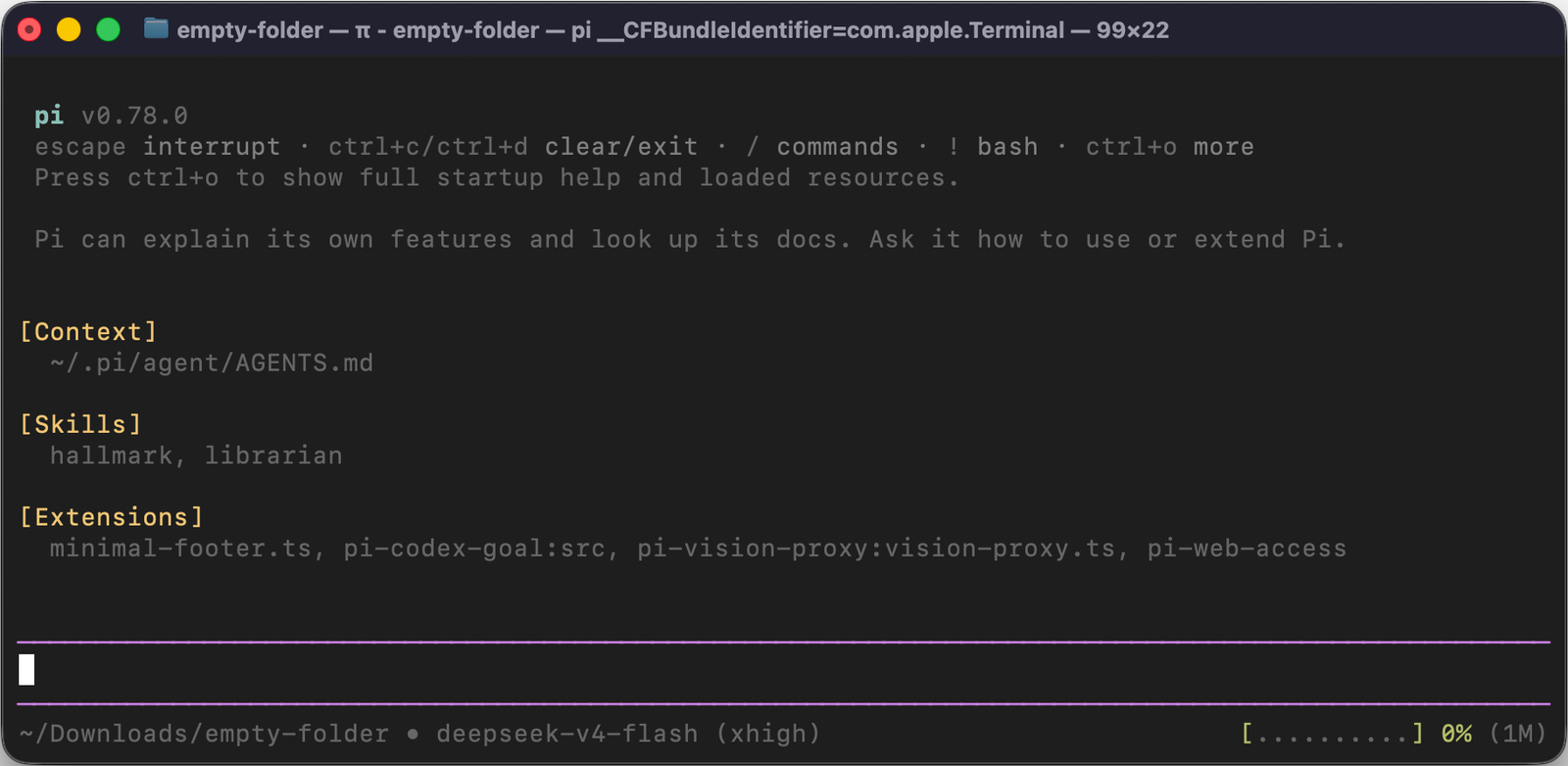
Pi is an open-source terminal coding agent created byMario Zechner. It works in your terminal and gives the AI model four tools by default –read,write,edit, andbash– to work with your codebase.
There is no built-in plan mode, no sub-agents, no MCP, and no permission popups. Instead, you can add these things through extensions, skills, and packages. This keeps the core small and lets you build exactly the setup you want.
Pi works with many AI providers – Anthropic, OpenAI, DeepSeek, Google Gemini, Groq, xAI, OpenRouter, Kimi, and more. You can use an API key or log in with an existing subscription.
How I use Pi alongside other tools
Right now, I use different tools for different kinds of work:
- OpenAI Codexfor complex tasks on my main projects
- Cursorfor simpler day-to-day coding on those same projects
- Pifor side projects, experiments, and one-off tasks – usually paired with open-source models like DeepSeek and Kimi
Pi feels right for side projects because it’s fast, lightweight, and I can use cheaper models without burning through expensive subscriptions.
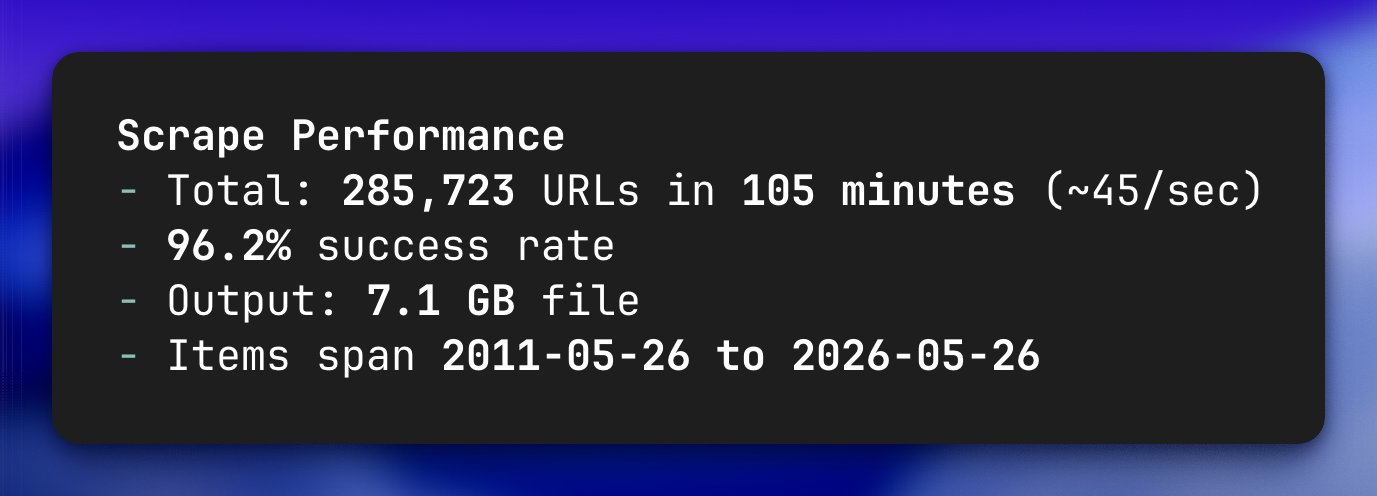
One example: I recently used Pi with the DeepSeek v4 Flash model to scrape 285K URLs from a website. It ran for about 1.5 hours and cost me just $1 through the official DeepSeek API. I used thepi\-codex\-goalextension to track the long-running task and it worked without issues. You canread more about this on X.
Installing Pi
Installation is one command:
curl -fsSL https://pi.dev/install.sh | sh
Once installed, start it by typingpiin your terminal. But first, you need to set up a provider and API key.
Setting up DeepSeek as the provider
Pi has a built-in/logincommand that makes setting up any provider easy. Here is what I did:
- Opened Pi by typing
piin the terminal - Typed
/loginand choseUse an API key - SelectedDeepSeekfrom the providers list
- Entered my DeepSeek API key when asked
That’s it. Pi saves the key and you’re ready to go. After logging in, use/modelto pick your model – I chosedeepseek\-v4\-prowithxhighthinking.
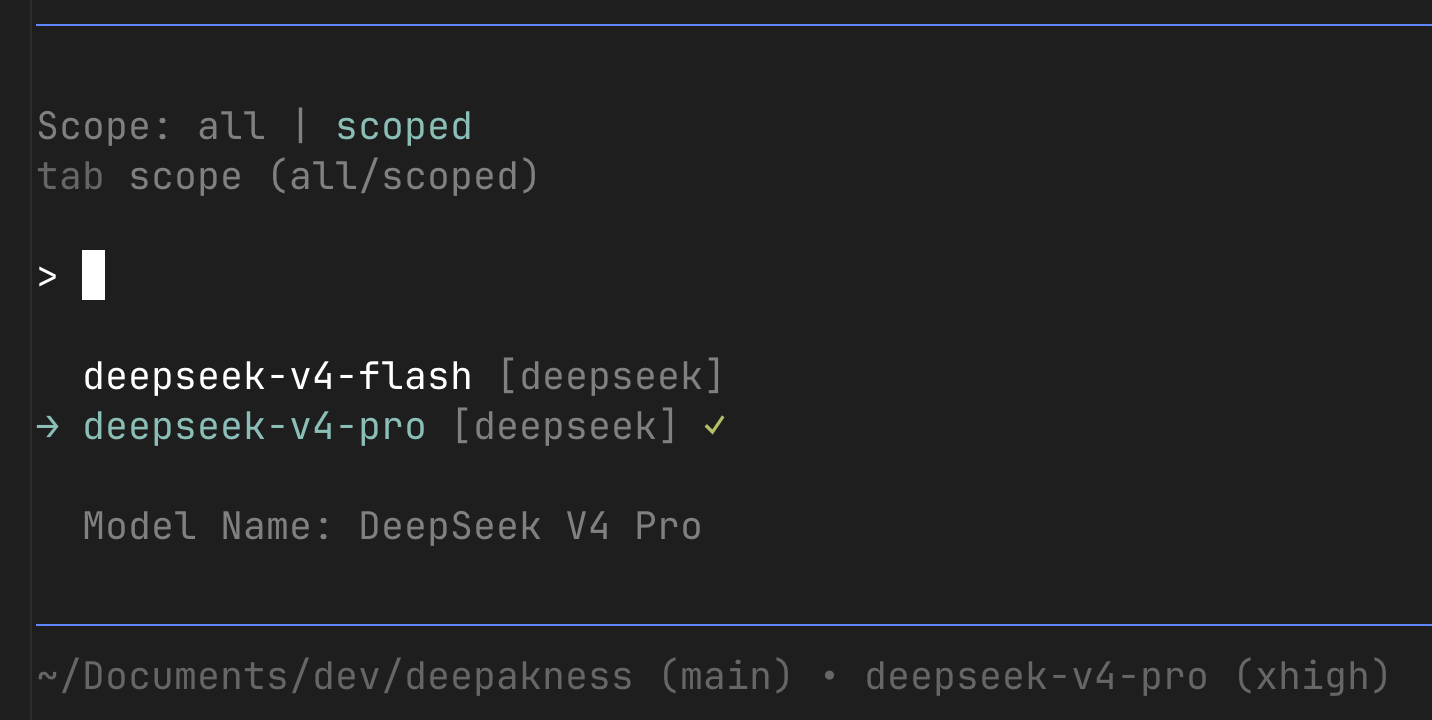
I default toxhighthinking because I want the model to think deeply before making changes. For lighter tasks like the URL scraping, I switch to the faster and even cheaperdeepseek\-v4\-flashmodel.
You can open the model picker withCtrl\+L, cycle through your scoped models withCtrl\+P, and change the thinking level withShift\+Tab.
I also sometimes use the Kimi For Coding model through Pi, which has been working well. I like that I can try different models without changing tools.
The interface and my custom footer
When you open Pi, the interface is clean. The editor is at the bottom, the conversation in the middle, and the footer shows your working directory, git branch, current model, thinking level, and context window usage.
One thing I customized early on was the footer. The default footer shows more information than I need. So I asked Pi itself to build me a custom minimal footer. I described what I wanted – current folder, git branch with a dirty marker, model name, thinking level, and a compact context bar – and it wrote the TypeScript extension for me.

The extension lives at~/\.pi/agent/extensions/minimal\-footer\.tsand Pi loads it automatically on every startup. It was a small change but it made the experience feel personal. I also learned a bit about how Pi extensions work in the process.
Packages I installed
Pi packages are npm or git packages that bundle extensions, skills, prompts, and themes. You install them withpi install. Here are the ones I use:
1. pi-web-access
This package gives Pi the ability to search the web, fetch page content, extract YouTube video transcripts, and explore GitHub repos. You can find it atpi.dev/packages/pi-web-access.
pi install npm:pi-web-access
It works out of the box with Exa search (no API key needed), and you can optionally add API keys for Perplexity, Exa, or Gemini for more control. I configured it to use Exa as the default search provider by creating a~/\.pi/web\-search\.jsonfile:
{
  "provider": "exa",
  "summaryModel": "deepseek/deepseek-v4-flash",
  "workflow": "none"
}
With this package, Pi can search the web, read documentation, understand YouTube videos, and clone and explore GitHub repositories – all without leaving the terminal.
2. pi-codex-goal
This package adds goal tracking to Pi. It’s built byMitch Fultz. It gives the model three new tools –get\_goal,create\_goal, andupdate\_goal– that let you create long-running tasks and track progress.
pi install npm:pi-codex-goal
I use this whenever I have a bigger task that spans multiple prompts. Instead of repeating the context each time, I create a goal once and Pi keeps track of what needs to be done. It was especially useful during the 285K URL scraping task – the goal kept the task on track even when the session got long.
3. pi-vision-proxy
DeepSeek cannot look at images – it has no vision capabilities. Thepi\-vision\-proxypackage fixes that by proxying images to another model that does have vision.
pi install npm:pi-vision-proxy
I have set up Kimi K2.6 as my vision model. Now, whenever I paste an image into Pi, it sends the image to Kimi with some context, and then DeepSeek uses what Kimi saw to finish the task. It works well for the occasional screenshot or design reference I throw at it. You canread more about this setup on X, and I also have a short video in the X post as well.
Project instructions with AGENTS.md and APPEND_SYSTEM.md
Pi has two ways to give the model instructions:AGENTS\.mdfor project-specific context, andAPPEND\_SYSTEM\.mdfor global behavioral rules.
AGENTS.md (project context)
Pi loadsAGENTS\.mdfiles at startup and injects them into the system prompt. There are three discovery locations – a global one at~/\.pi/agent/AGENTS\.md, then parent directories walking up, and finally the current directory – and they’re all concatenated together.
I keep my global AGENTS.md minimal. It only describes what stack I typically work with:
# Global Pi Instructions

- Projects commonly use Laravel (PHP/Inertia/React), Next.js
  (TypeScript/Tailwind), or Astro. Check the project-root AGENTS.md for
  stack-specific rules – if none exists, ask.
The “if none exists, ask” part is important. When I’m working in a plain HTML/CSS/JS folder or some other stack, the agent doesn’t force a framework on me – it just asks.
Most of my projects also have their own AGENTS.md with framework-specific rules, but I rarely write them by hand. They’re generated by the framework tooling (like Laravel Boost) with the exact package versions and conventions for that project.
APPEND_SYSTEM.md (global behavioral rules)
AGENTS.md is for project context, but some rules apply across every project regardless of stack. That’s whereAPPEND\_SYSTEM\.mdcomes in. It lives at~/\.pi/agent/APPEND\_SYSTEM\.mdand gets appended directly to the system prompt – which means these rules carry higher authority than AGENTS.md instructions.
Here’s what I put in mine:
- If the default provider doesn't have vision capabilities, use
  pi-vision-proxy for images.
- Read relevant local files first when the answer is available in the
  codebase. If not, research online via pi-web-access. Before making a
  big change based on online research findings, confirm with me first.
- Explain risky file edits and destructive commands before executing.
- Write simply. Avoid AI-slop language – no flowery adjectives,
  unnecessary adverbs, or overly formal phrasing.
- Use en dashes (–) not em dashes (—).
A few notes on these rules:
- The vision proxy rule is now provider-agnostic. I might use Kimi, DeepSeek, or another model as my default, so instead of hardcoding a provider name, it checks whether the current model has vision capabilities.
- The second rule is more explicit than my earlier version. Instead of just saying “don’t search for things you already know”, it tells the agent to read local files first, search online only when needed, and confirm before making big changes based on online research.
- The en dash rule is a simple mechanical preference that keeps my writing style consistent across all sessions.
Keyboard shortcuts and commands I use
Pi has many shortcuts. Here are the ones I use regularly:
KeyWhat it doesCtrl\+LOpen the model selectorCtrl\+PCycle through scoped modelsShift\+TabChange thinking levelCtrl\+C(twice)Quit PiEscapeCancel or abort the current actionEnterSend as a steering message (interrupts current work)Alt\+EnterSend as a follow-up message (delivered after work finishes)The difference between Enter and Alt+Enter took some time to get used to. If I want Pi to change direction mid-work, I press Enter. If I just want to add a note for after it finishes, I use Alt+Enter.
And these are the commands I use, often by typing/in the editor:
/model– Switch models without remembering the shortcut/settings– Change thinking level, theme, and other settings/resume– Pick up from a previous session/new– Start a fresh session/tree– See the full session history and jump to any point/compact– Summarize old messages to free up context/session– Show current session info like tokens and cost
The/treecommand is especially useful. You can see your entire conversation history like a tree, jump to any branch, and continue from there. It’s great when you want to try a different approach without losing what you had before. I got very curious about it after coming acrossthis shared Pi sessionfrom Dillon Mulroy. I later wrote down everything I learned from that session inmy raw notes.
A few things I learned while using Pi
Long sessions fill up the context window. Pi has automatic compaction that summarizes older messages when you’re running out of space. You can also do it manually with/compact. And I love thepi \-\-continuecommand, that directly opens the last chat in the repo/folder.
Another thing I like is the steering system. While Pi is working (running bash commands, editing files, etc.), you can type a new message and press Enter. This queues a steering message that gets delivered after the current tool finishes. I use this when I notice Pi going in the wrong direction mid-work and want to correct it quickly. Sometimes, instead of a steering message, I also doOption\+Enterthat sends the message after previous output is completely finished generating.
While I don’t use it, you can use your Codex subscription inside Pi, Cursor subscription viathis SDK, 100s of models via OpenRouter, xAI, Claude and many more providers via API.
Things I like about Pi
After using Pi for a few weeks, here’s what stands out:
- **Simple and fast:**The terminal interface is snappy. No Electron, no UI lag.
- **Customizable:**I built the exact footer I wanted, picked the packages I need, and the rest stays minimal.
- **Works with any provider:**I use DeepSeek and Kimi regularly, and switching between them is one shortcut away. I also learn a lot when using it – you get closer to how things actually work, unlike more polished tools where everything is hidden.
- **Session tree is brilliant:**Being able to branch conversations and go back to any point is something I miss when using other tools.
- **Open source (MIT):**I like that no company decides what features I get or how much I pay.
- **Compaction just works:**I don’t think about context limits. Pi handles it in the background, and faster and better than others.
Final thoughts
I am still using Cursor and Codex for my main project work, and I don’t see that changing anytime soon. They are polished tools that do their jobs well.
But Pi has earned a permanent place for my side projects and experiments. It’s fast, it’s cheap (especially with open-source models), and the combination of Pi + DeepSeek + a few well-chosen packages has been solid so far.
Here’s what my current setup looks like:
- DeepSeek v4 Pro with
xhighthinking (default) - DeepSeek v4 Flash for lighter tasks
- Kimi For Coding as an alternative model
- pi-web-access for web search and content extraction
- pi-codex-goal for tracking longer tasks
- pi-vision-proxy to handle images via Kimi K2.6
- A custom minimal footer extension
That’s it. I tried more packages but kept only what I actually use.
If you are comfortable in the terminal and like the idea of a minimal, extensible agent,give Pi a try. Start with the basics and add packages as you feel the need.
I have been using Pi for a few weeks now and the setup is stable. I uninstalled a few extensions that didn’t add enough value. The simpler the setup, the better.
I will keep updating this post as I discover new things about Pi.
相似文章
@9hills: 经过好几周的摸索和各种尝试,pi agent 的配置基本稳定,之前发了一个 list,没有解释不太友好,这次发个全量带注释的。 避雷:如果需要开箱即用的 Coding Agent,请不要用 Pi,Claude Code/Codex 更适合…
作者分享了pi agent的稳定配置(全量带注释),并提醒如果需要开箱即用的Coding Agent,Claude Code/Codex更适合。
@tech_shrimp: Pi 大道至简,超越Codex和Claude Code的极简Agent,保姆级全攻略, 一文精通
本文提供了Pi AI Agent的完整教程,介绍其安装、配置和使用方法,并展示其在编程任务中的效率和性能优势,超越其他主流编码代理。
@realchendahuang: 我整理了一套 Pi Agent 的完整配置方案,包含 17 个插件、18 个全局 Skill、2 个 MCP server,配一键安装脚本。 Pi 出厂只有读写文件和跑命令四个功能。这套配置不是简单把插件堆上去,而是围绕实际编码流程做了完…
一份实用的 Pi Coding Agent 完整配置方案,包含 17 个插件、18 个全局 Skill 和 2 个 MCP server,带一键安装脚本,旨在将其打造成强大的终端编码代理。
@indie_maker_fox: 给大家推荐一本非常值得阅读的 Pi Agent 电子书 https://dgzhuya.com/modules/ch01-overview… 众所周知,我很喜欢 Pi agent,极简的设计,丰富的扩展。我也很喜欢 Craft agent…
作者推荐Pi Agent电子书及Learn Claude Code教程,剖析Pi Agent的极简设计、四层架构和核心原理,并提到自己基于其开发的MkAgent。
@yelowtutu: Pi 装好后,建议先补上的不是多 Agent,而是联网能力 推荐工具:pi-web-access 它不只能搜索网页,还能: 搜索最新资料 读取网页和 PDF 分析 GitHub 仓库 理解 YouTube 视频 分析本地视频 安装:pi …
这篇文章推荐使用 pi-web-access 工具为 Pi 添加联网能力,使其能够搜索网页、读取 PDF、分析 GitHub 仓库等。