A guide on using macvdmtool, a tool from the AsahiLinux project, to perform DFU restores on Apple Silicon and T2 Macs via a terminal command instead of keyboard shortcuts.
# Perform DFU Restores on Apple Silicon Macs with macvdmtool
Source: [https://www.bkurtz.io/posts/macvdmtool/](https://www.bkurtz.io/posts/macvdmtool/)
It is a tool written by[marcan](https://github.com/marcan)under the[AsahiLinux project](https://asahilinux.org/)\. macvdmtool lets you put any Apple Silicon or Intel Macs with the T2 chip \(2018 and forward\) in DFU mode with an easy terminal command instead of requiring awkward keyboard gymnastics\.
> **Note**: macvdmtool requires that the**host machine**is**Apple Silicon**based, Intel macs do not seem to support this tool as a host\.
## Prerequisites
- You need 2 Macs to utilize`macvdmtool`\.- One Mac will act as the “host Mac”\. This machine needs to be fully functional\. - The second “target Mac” does not need to be functional as long as it powers on and boots to either a question mark or recovery mode\.
1. On the host Mac, Install[Xcode](https://developer.apple.com/xcode/)and then run this in terminal to install Xcode command\-line tools: Check that it installed properly:
2. Install[Apple Configurator 2](https://apps.apple.com/us/app/apple-configurator-2/id1037126344?mt=12)from the Mac App Store\.
3. Clone[macvdmtool](https://github.com/AsahiLinux/macvdmtool.git) ``` git clone https://github.com/AsahiLinux/macvdmtool.git ```
4. Change into the macvdmtool directory and compile the tool
5. Copy macvdmtool to path\. ``` sudo cp macvdmtool /usr/local/bin ``` Run below command to see if its installed and added to path
6. Launch Apple Configurator 2 and install the “Automation Tools”\. 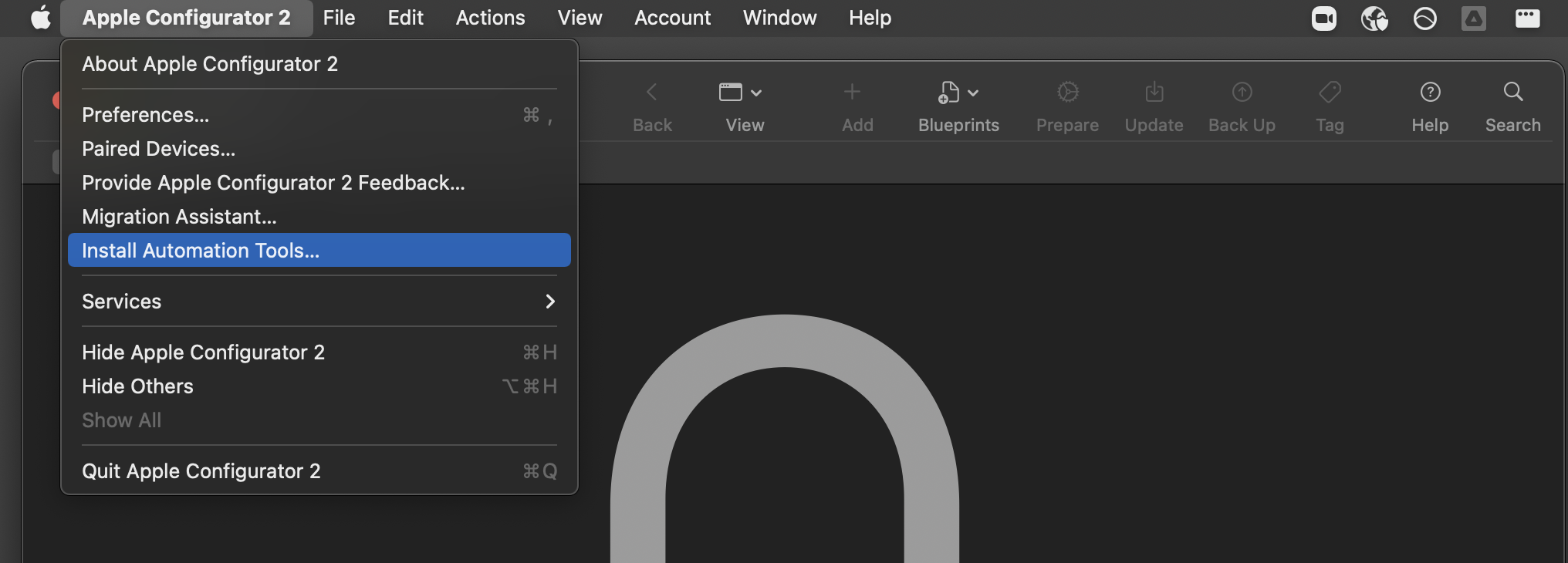 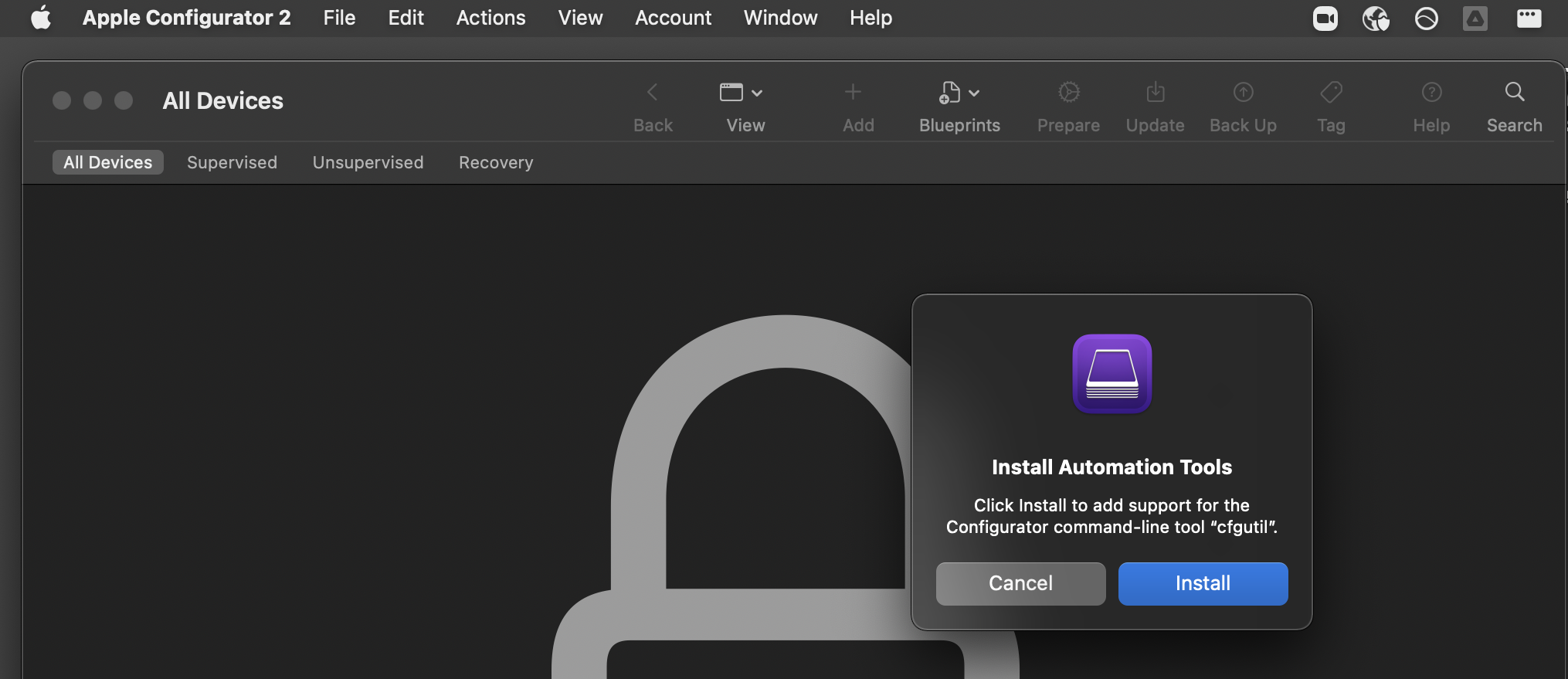 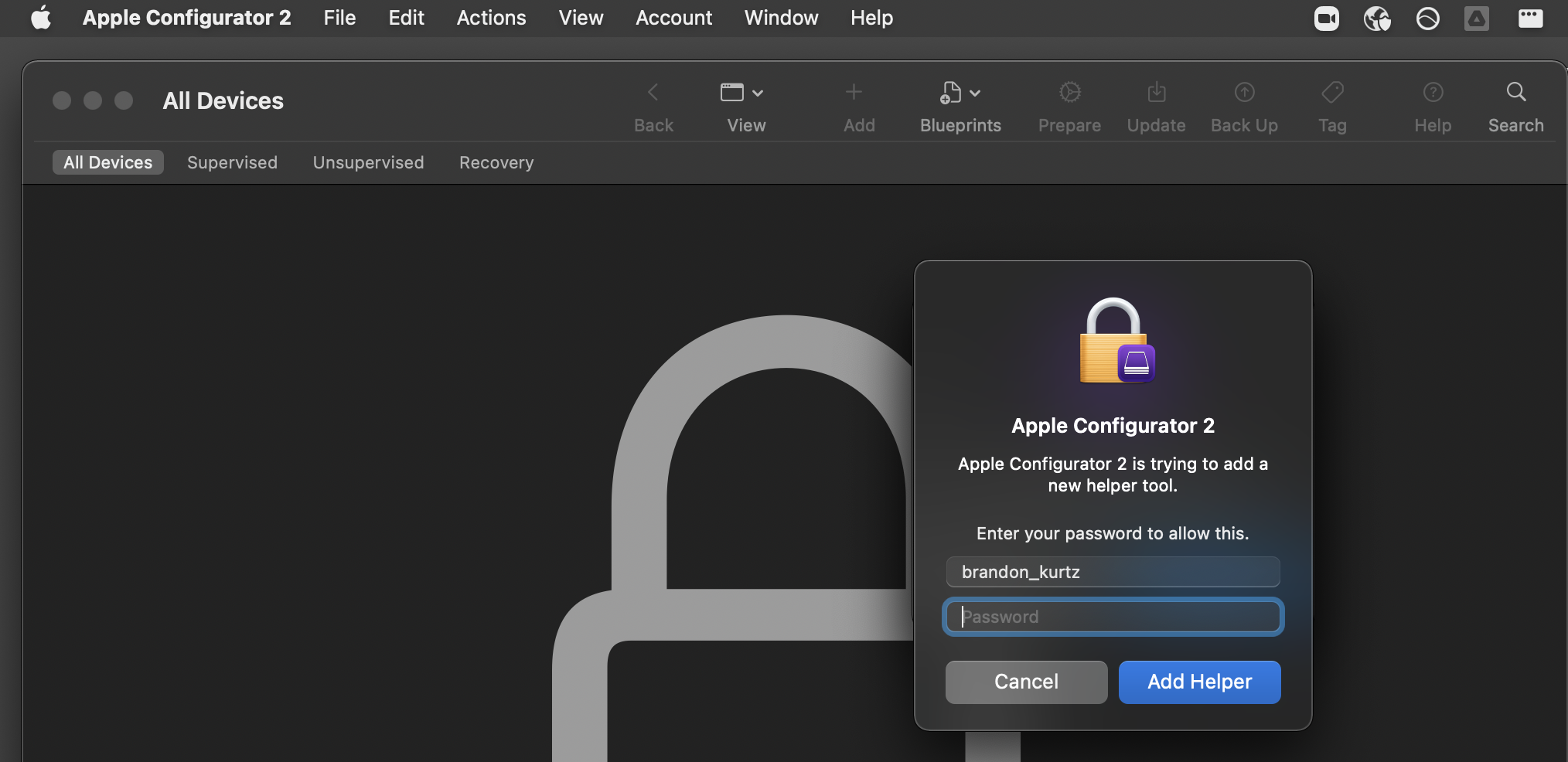
7. Connect the host Mac and target Mac together via an official Apple USB\-C charging cable or a TB3/TB4 cable\. The cable must be plugged into the*DFU port*on both ends and support data transfer\.
> On Apple Silicon machines, the DFU port is closest to the screen on the left side\.
> On Intel machines, the DFU port is closest to the trackpad on the left side\.
1. Put the target Mac in DFU mode\. Above command should return below: ``` Mac type: J313AP Looking for HPM devices... Found: IOService:/AppleARMPE/arm-io@10F00000/AppleT810xIO/i2c0@35010000/AppleS5L8940XI2CController/hpmBusManager@6B/AppleHPMBusController/hpm0/AppleHPMARM Connection: Source Status: APP Unlocking... OK Entering DBMa mode... Status: DBMa Rebooting target into DFU mode... OK Exiting DBMa mode... OK ```
## Restoring/reviving with cfgutil
> Alternatively you can use Apple Configurator 2 or[Finder](https://www.macrumors.com/2023/08/15/macos-sonoma-dfu-mode/)to restore/revive your Mac\.
> **Note**: This method with`cfgutil`only works if the target Mac is Apple Silicon\.
1. Confirm the device is in DFU mode by launching Apple Configurator 2\. It should look like this\. \(If it does not appear, try unplugging and plugging back in the cable between the host and target\) 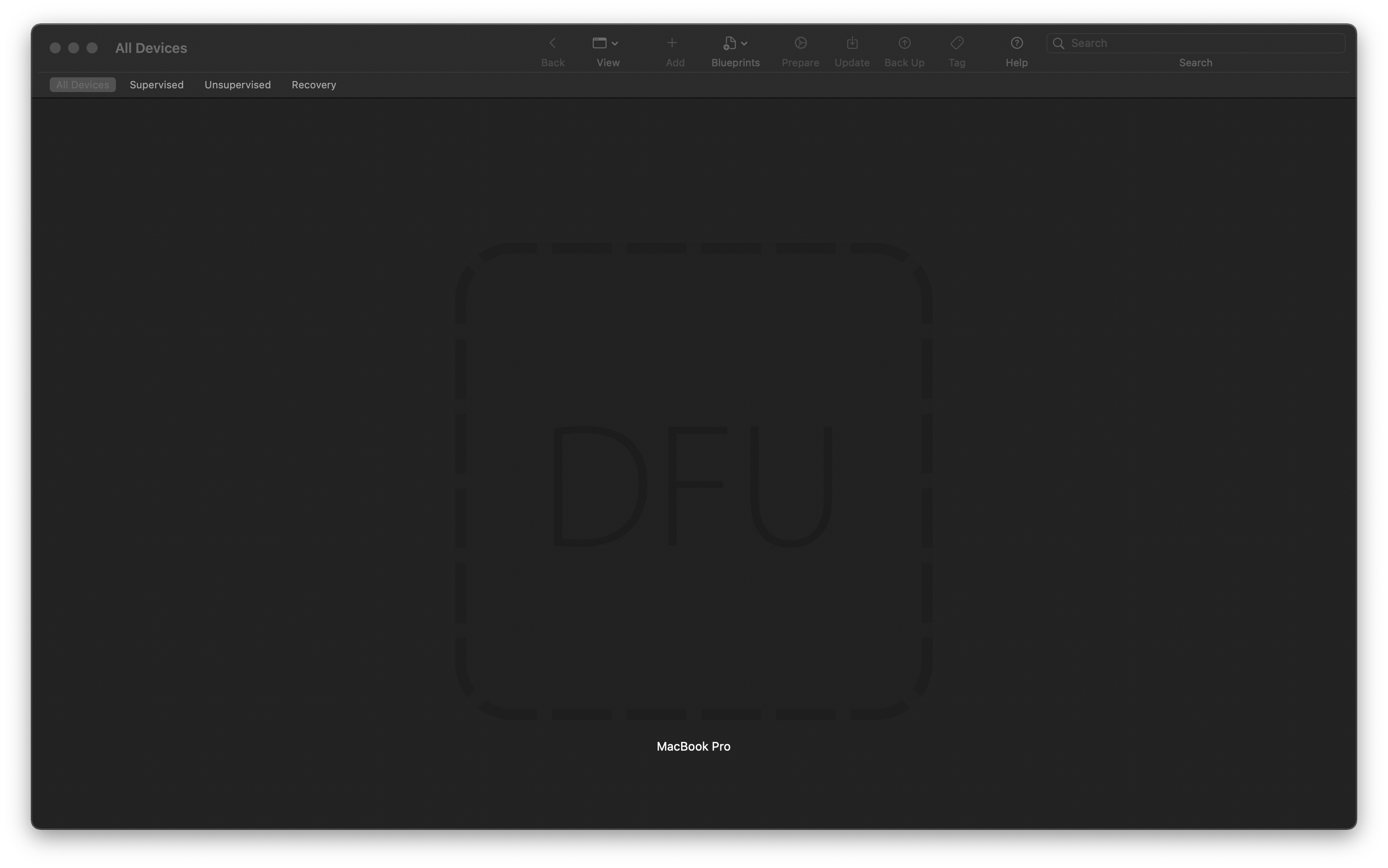
2. Grab the IPSW you want to restore from[Mr\. Macintosh’s database](https://mrmacintosh.com/apple-silicon-m1-full-macos-restore-ipsw-firmware-files-database/)\.
3. Use`cfgutil`to restore that IPSW\. ``` cfgutil restore -I ~/Downloads/UniversalMac_12.1_21C5021h_Restore.ipsw ``` Should result in something like this: ``` objc[53015]: Class AMSupportURLConnectionDelegate is implemented in both /usr/lib/libauthinstall.dylib (0x1da64c9e8) and /Library/Apple/System/Library/PrivateFrameworks/MobileDevice.framework/Versions/A/MobileDevice (0x104d782c8). One of the two will be used. Which one is undefined. objc[53015]: Class AMSupportURLSession is implemented in both /usr/lib/libauthinstall.dylib (0x1da64ca38) and /Library/Apple/System/Library/PrivateFrameworks/MobileDevice.framework/Versions/A/MobileDevice (0x104d78318). One of the two will be used. Which one is undefined. cfgutil: restore: target OS is 12.1 Waiting for the device [1/2] [*******************************************] 100% Step 2 of 2: Installing System [2/2] [**********************************>] 99% ```
At this point you should see an Apple logo and a loading bar on the target Mac\.
After a few minutes, the Mac will reboot and launch the standard Setup Assistant experience\.
That’s it\! Enjoy\.
## Future[automation](https://xkcd.com/1319/)enhancements
- Once Apple adds 12\.X IPSWs to the[com\_apple\_macOSIPSW\.xml](https://mesu.apple.com/assets/macos/com_apple_macOSIPSW/com_apple_macOSIPSW.xml)feed, I could write a script to download the latest IPSW and then execute macvdmtool and cfgutil\.
- Autopkg recipe to download latest IPSW and package it with Munki\. This could be useful to distribute IPSWs to technicians\.
File an issue or PR \(pull request\) against my blog at[https://github\.com/discentem/blog\-content](https://github.com/discentem/blog-content)or reach out via MacAdmins Slack\.
## Further Readings on DFU
See Mr\. Macintosh’s excellent[blog post on DFU restores](https://mrmacintosh.com/restore-macos-firmware-on-an-apple-silicon-mac-boot-to-dfu-mode/)for more information\.
A tutorial explaining how to run Windows-only GOG DOS games on Apple Silicon Macs using DOSBox for Mac, with step-by-step instructions and configuration examples.
Apple added a feature in macOS 26.5 that allows Macs introduced from 2024 onward to automatically boot when power is connected, enabling remote power-on without pressing the physical button — useful for remote labs, CI environments, and mobile setups like road cases.
Unsloth, a popular LLM fine-tuning library, announces upcoming support for Apple Silicon devices, expanding its optimization capabilities beyond NVIDIA GPUs.
Cider is an open-source project designed for Apple Silicon Macs, accelerating local AI inference by fully leveraging the computing power of M-series chips. It is compatible with the MLX ecosystem, supports models like Qwen and Llama, and is easy to install.
A new tool enables converting and running EXL3 quantized models on Apple Silicon Macs, matching or nearly matching RTX conversion quality, making high-fidelity quants more accessible.