Cached at:
04/20/26, 02:52 PM
# Getting started with ChatGPT
Source: [https://openai.com/academy/getting-started/](https://openai.com/academy/getting-started/)
ChatGPT is a conversational AI assistant that helps you think, write, and solve problems by understanding natural language and generating human\-like responses in real time\.
ChatGPT is built on large language models, enabling it to assist with a wide range of tasks\. Learn more about large language models in[What is AI](https://openai.com/academy/what-is-ai/)\.
Take a look at the video below to learn about the different parts of the ChatGPT interface\.
To get started, simply enter a**prompt**\. A prompt is the question or instruction you type or share with ChatGPT to start a conversation\. It is usually text, but it can also be an image, audio, file\. Your prompt guides the model so it can generate a helpful reply\.
Not sure where to begin? Copy and paste this prompt to see what ChatGPT can do for you \(replace the brackets with more information about yourself\):
*Tell me how I can use ChatGPT to make my life easier\. I’m a \[description of you or your job\]\. Give me 5 things I can do right now, and a prompt for each one\.*
Read the response, then refine it by asking follow\-up questions or adding more detail\. If you're ready to start experimenting with different prompt styles, check out our[prompting guide](https://openai.com/academy/prompting/)\.
A good way to find useful ChatGPT use cases is to start with work you already do in chat form: writing a draft, brainstorming ideas, summarizing something long, turning rough notes into a clearer message, or thinking through a problem\. These are good early use cases because they are easy to try, low risk, and immediately useful\. If ChatGPT helps you get to a better first draft faster, organize your thinking, or reduce time spent staring at a blank page, that is usually a strong signal that the task is a good fit\.
From there, stronger use cases tend to be the ones that repeat often, involve multiple steps, or need context over time\. That is where tools like Projects, custom GPTs, or Skills become more useful: they help you organize source materials, keep instructions consistent, and turn one\-off prompts into repeatable workflows\. A good rule of thumb is to start with simple chat tasks, notice what you do more than once, and then build toward more structured setups for work you want to do faster, more consistently, or at a higher quality\.
Speaking is often faster than typing, and listening can make interactions more natural and hands‑free\. Voice features save time during busy days, support accessibility, and unlock new workflows like brainstorming on the go, drafting documents while multitasking, or practicing presentations aloud\.
Voice in ChatGPT allows you to speak directly to ChatGPT and hear responses out loud, or use dictation to convert your spoken words into text\. Using the icons on your chat window, you can choose between**Voice Mode**\(a two‑way conversation where you talk and listen in real time\) or**Dictation**\(speak and see your words appear as text for further refinement\)\.
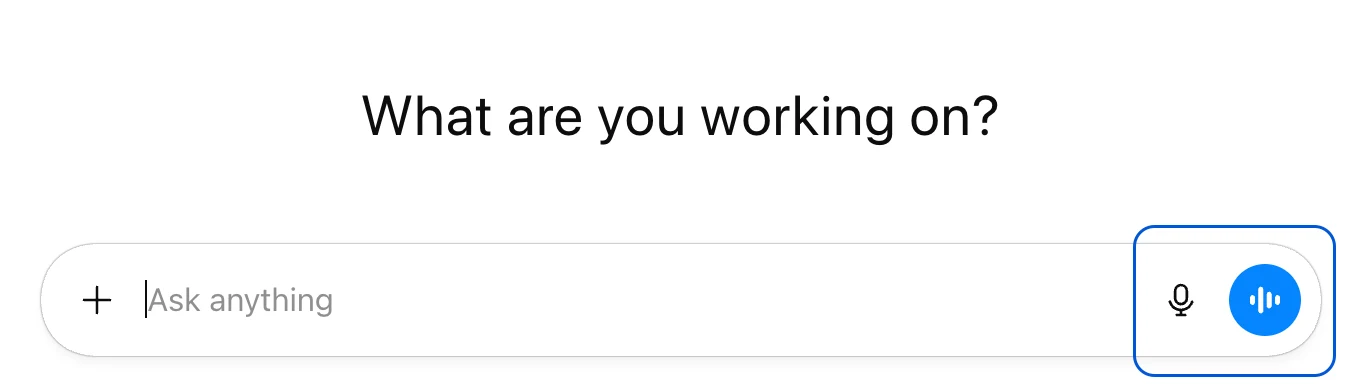
For example, you might ask a question aloud and ChatGPT responds conversationally, or dictate meeting notes to quickly generate a written summary\.
Audio and video clips from your voice chats are stored alongside the transcription in your chat history and are retained as long as the chat remains in your history\.
Learn more in the OpenAI Help Center:
[Voice Mode FAQ\(opens in a new window\)](https://help.openai.com/articles/8400625-voice-mode-faq)