AyanDict 3.0.0 Released
Summary
AyanDict 3.0.0, a cross-platform desktop dictionary application based on Qt and written in Go, has been released. It supports the StarDict dictionary format and is available for Linux, Windows, and macOS.
View Cached Full Text
Cached at: 09/02/26, 06:21 AM
ilius/ayandict
Source: https://github.com/ilius/ayandict
AyanDict
A simple cross-platform desktop dictionary application based on the Qt framework, written in Go, that uses the StarDict dictionary format.
AyanDict targets Linux, Windows, and macOS. Check each release for the binaries currently available for download.
Other Qt 6 desktop platforms are not routinely tested, but may work when built from source with CGO enabled.
StarDict is the only supported format for now, and by default, it reads all StarDict dictionaries in ~/.stardict/dic folder. But you can change the folder or add more folders through configuration.
Installation
If you don’t have Go language on your system, you can check Releases and download the latest binary for your platform if available.
The Windows x86-64 artifact is a standalone executable for Windows 10 1809 or
newer and Windows 11. Qt 6.11.2 and the required plugins are linked into
ayandict.exe, so a separate Qt installation is not required.
The Linux x86-64 GUI release artifact is dynamically linked. It requires glibc 2.35 or newer and Qt 6.4 or newer with the Widgets, Network, Multimedia, and Multimedia Widgets modules. Install the required Qt runtime libraries with the command for your distribution:
Ubuntu 24.04 or newer:
sudo apt install libqt6network6t64 libqt6multimediawidgets6
Fedora:
sudo dnf install qt6-qtbase-gui qt6-qtmultimedia
openSUSE Tumbleweed:
sudo zypper install libQt6Network6 libQt6MultimediaWidgets6
Arch Linux:
sudo pacman -S --needed qt6-base qt6-multimedia
Building the GUI from source requires Go 1.24 or newer, CGO, a C++ compiler, and the Qt 6 Base and Multimedia development files. Install the native dependencies with the command for your distribution:
Ubuntu 24.04 or newer:
sudo apt install build-essential qt6-base-dev qt6-multimedia-dev
Fedora:
sudo dnf install gcc-c++ qt6-qtbase-devel qt6-qtmultimedia-devel
openSUSE Tumbleweed:
sudo zypper install gcc-c++ qt6-base-devel qt6-multimedia-devel
Arch Linux:
sudo pacman -S --needed base-devel qt6-base qt6-multimedia
You can then compile and install the latest code with:
go install github.com/ilius/ayandict/v3@latest
Or clone the repository, cd to it and run go build, which will create the binary (ayandict.exe or ayandict) in this directory.
Web Interface
By setting web_enable = true in config file and running the program, you can use the web interface. The port is set with local_server_ports value (first available port in that list), and the URL is printed in stdout.
If you do not want to use Qt GUI at all and run in web-only mode, you can pass -no-gui flag in command line.
You can also build the standalone web or non-GUI commands without Qt:
go build ./cmd/ayandict-web/
go build ./cmd/ayandict-nogui/
This is especially useful on systems where the Qt GUI cannot be built.
Screenshots
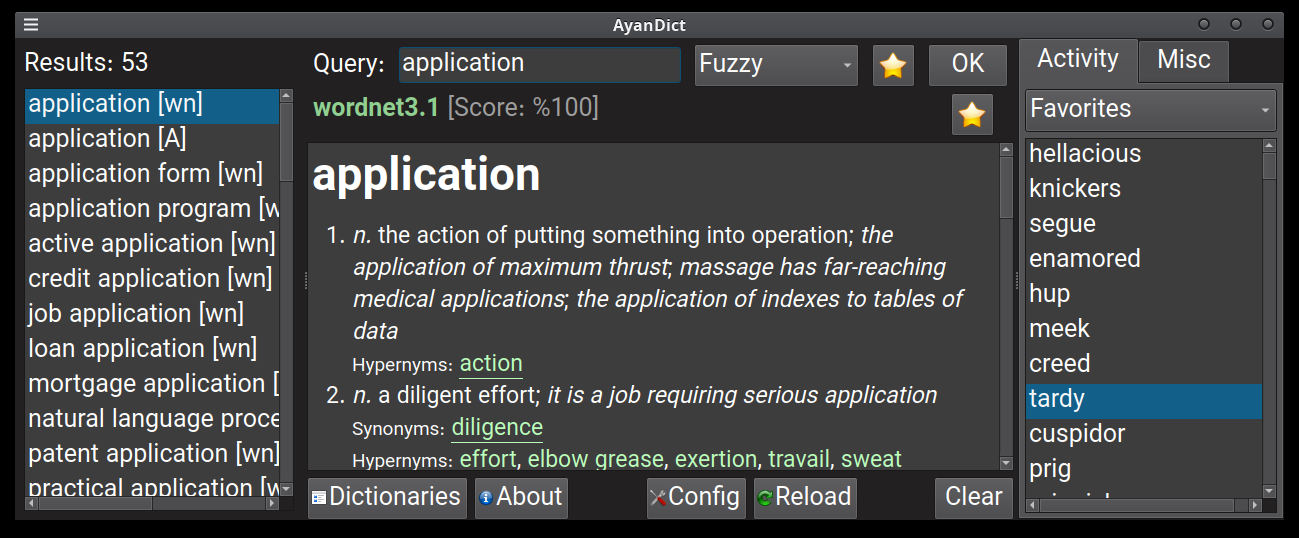
Linux - dark style + Favorites
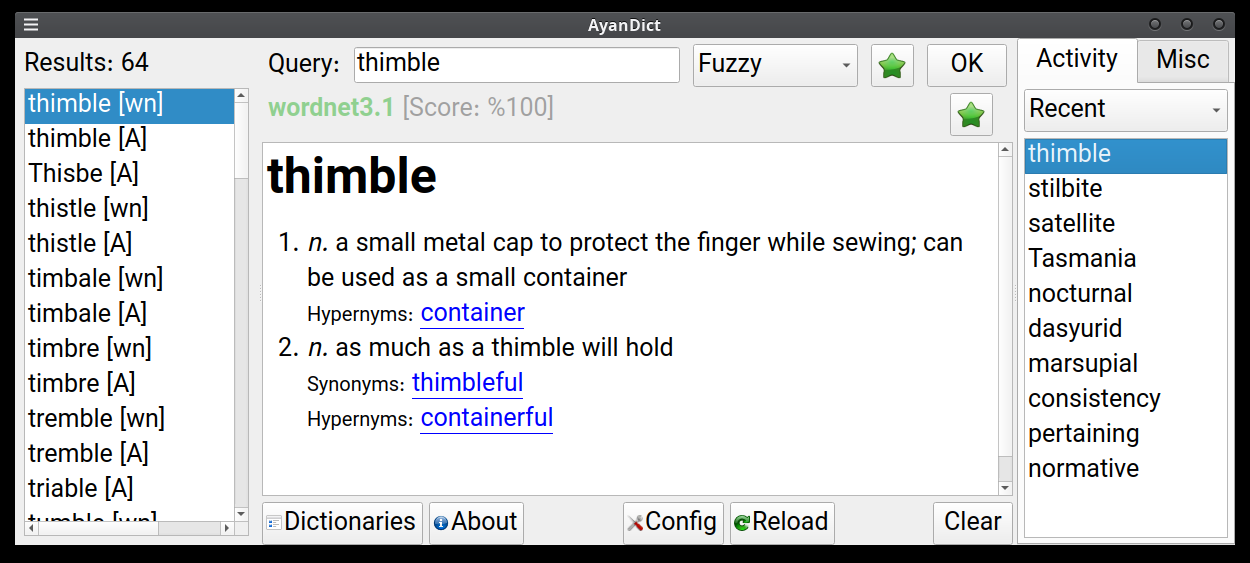
Linux - light style
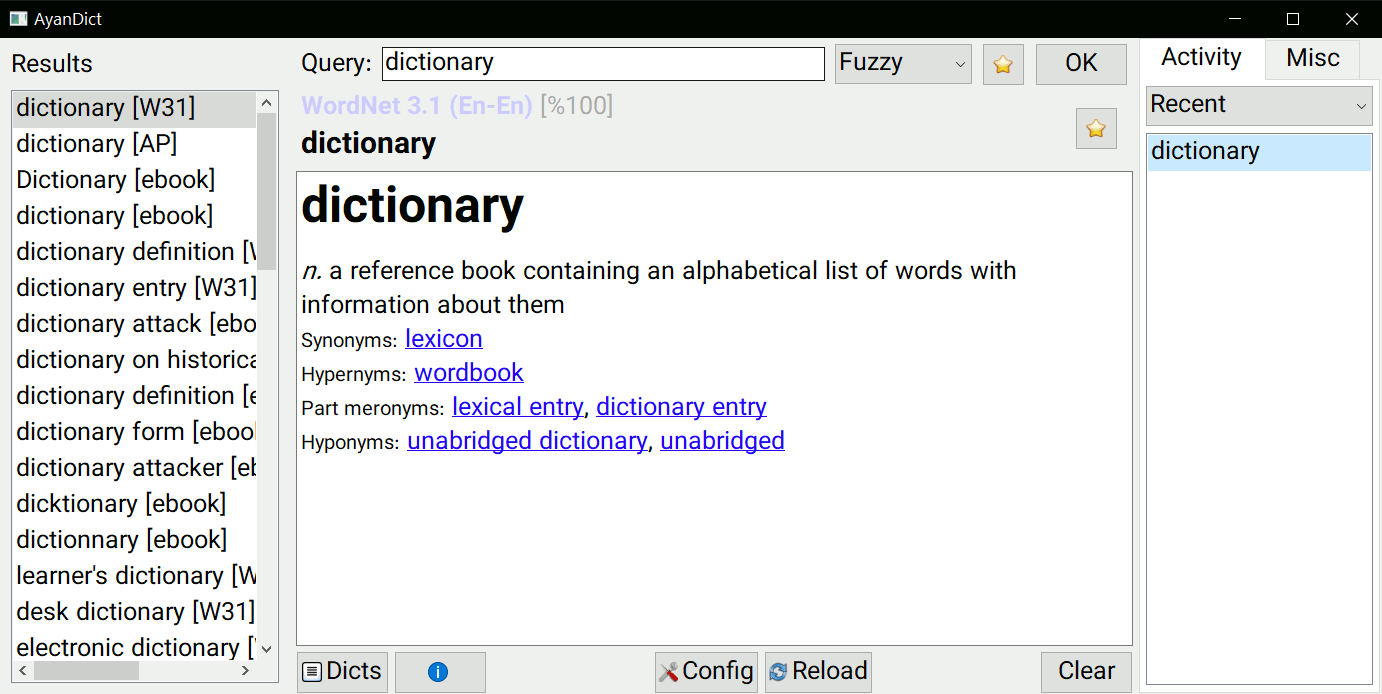
Windows - light style
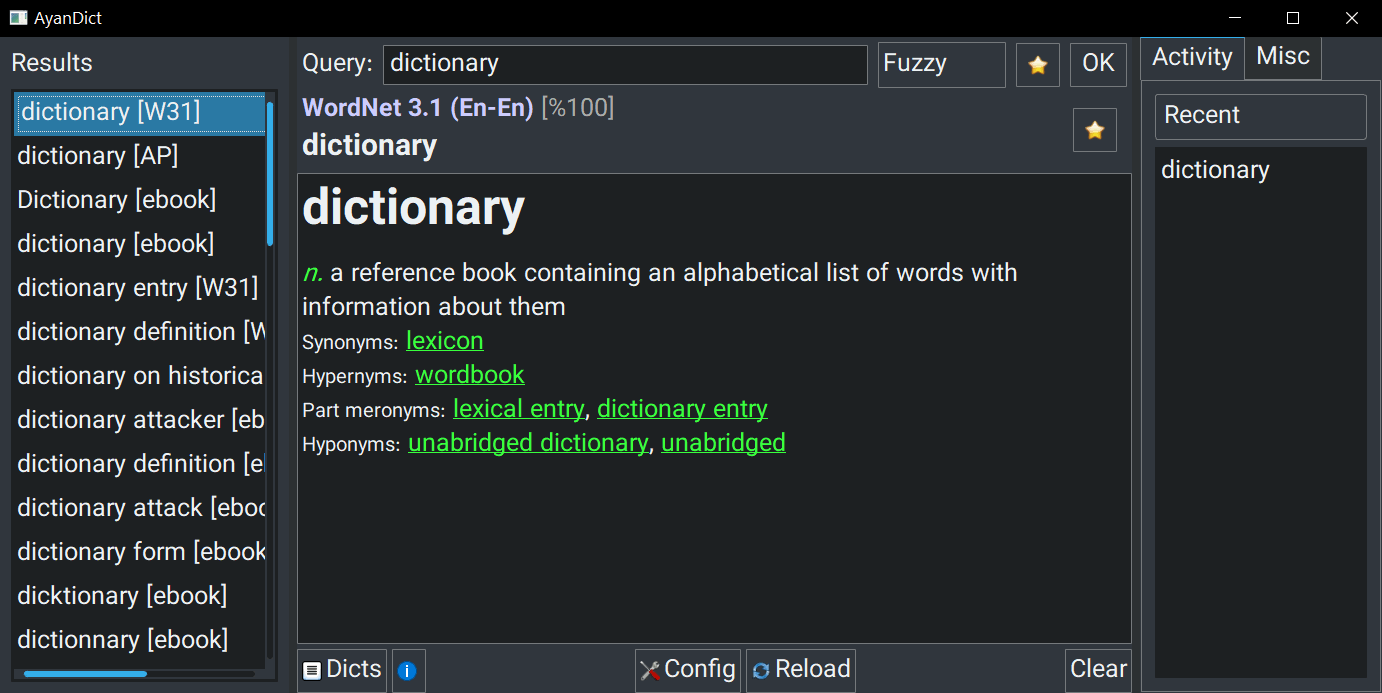
Windows - dark style
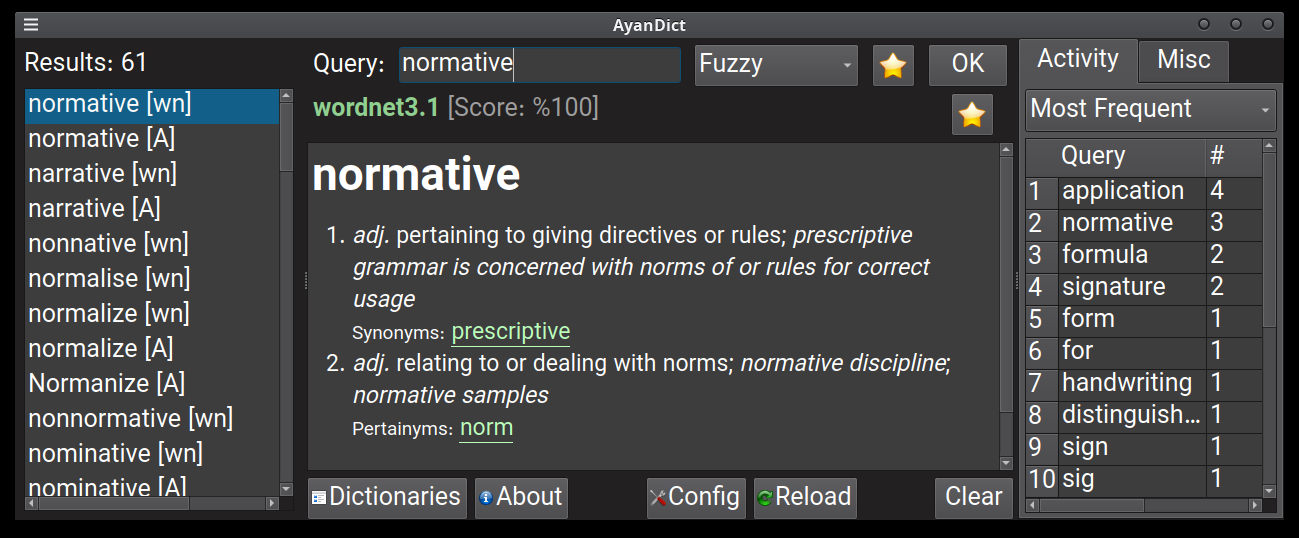
Most Frequent queries
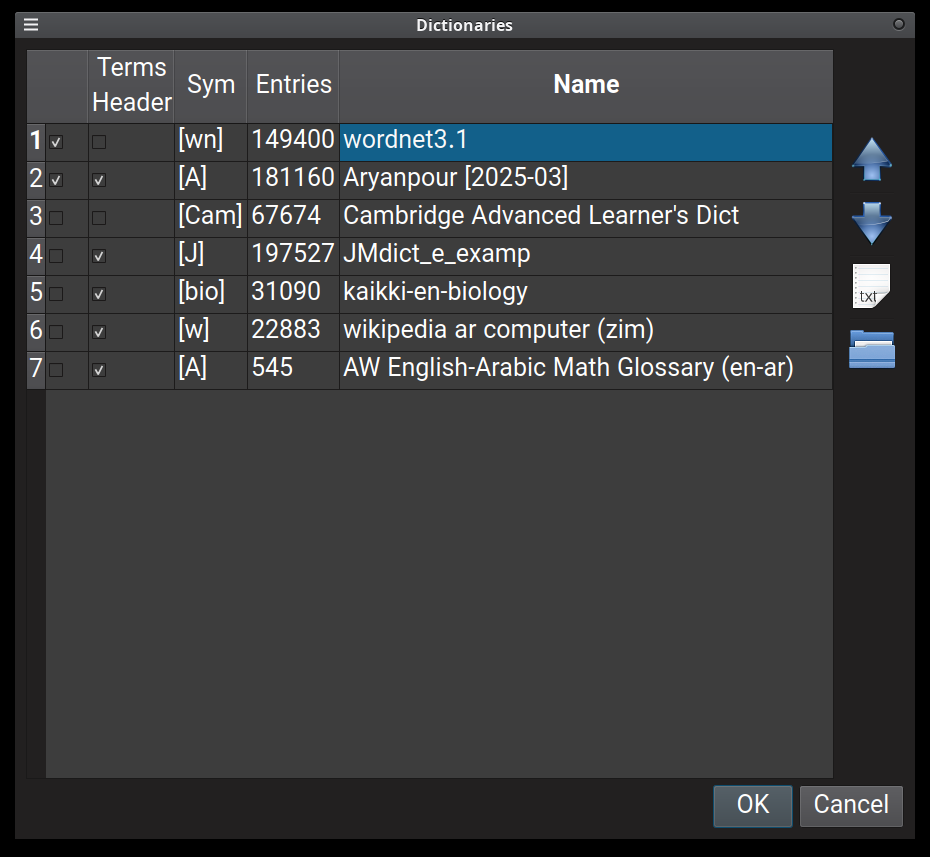
Dictionaries dialog
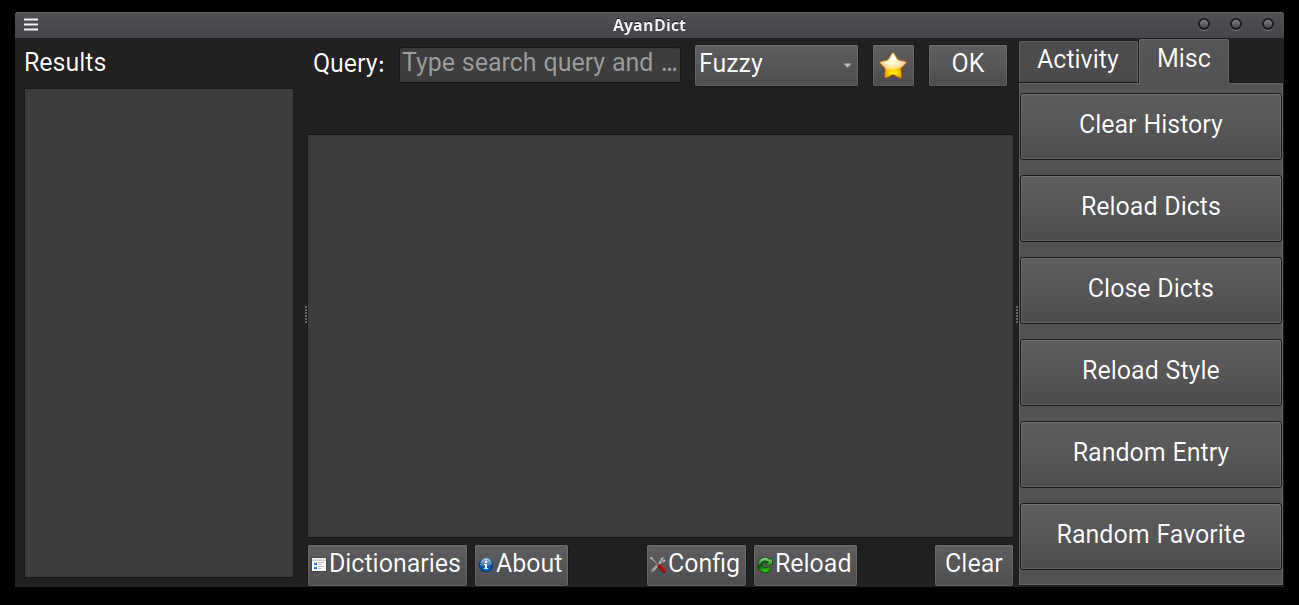
Misc tab
Configuration
To change configuration (which includes most user settings), you have to edit the config file (we do not have GUI for it, and no plan to add it, sorry!).
After you run the program, you can click on “Config” button (as seen in screenshots) and it will open the config.toml file in your default text editor (for TOML files).
If config.toml does not exist, it will be created and filled with default config.
After you modify config.toml, you can click on “Reload” button (next to “Config” button) and it will apply the changes.
The full path for config.toml file:
-
Linux:
~/.config/ayandict/config.toml- If
$XDG_CONFIG_HOMEis set:$XDG_CONFIG_HOME/ayandict/config.toml
- If
-
Windows:
C:\Users\USERNAME\AppData\Roaming\AyanDict\config.toml- More accurately:
%APPDATA%\AyanDict\config.toml
- More accurately:
-
Mac:
~/Library/Preferences/AyanDict/config.toml
Here is a list of all config parameters.
Dictionaries
As you see in screenshots, there is a button called “Dicts” or “Dictionaries”. It opens a dialog and lets you disable, enable and change order of dictionaries.
Each dictionary has a “Symbol” which by default is the first letter of its name in curly brackets (for example [W] for WordNet). This symbol is shown in the list of results that is in the left side of window, as seen in screenshots. It is meant to show you which dictionary it comes from at first glance. You can change this symbol through “Dictionaries” dialog. Symbol can be empty, or be as long as you want (though it is 3 characters by default).
Convert other Dictionary formats
You can use PyGlossary to convert various other formats to StarDict format and use them for this application. A list of supported formats is provided, and if you click on each format’s link, it will lead you to more information about it.
Download Dictionaries
There are tons of web pages that let you download various usable dictionaries, but here is a list I collected (feel free to open a pull request for more):
- kaikki.org
- library.kiwix.org
- freedict.org and @freedict/fd-dictionaries
- wikdict.com: More FreeDict (TEI) dictionaries
- @reader-dict/monolingual: E-book-friendly StarDict dictionaries
- @Vuizur/Wiktionary-Dictionaries
- @xxyzz/wiktionary_stardict: generated monthly (15th) from kaikki.org
- @itkach/slob/wiki/Dictionaries
- goldendict.org
- huzheng.org
- My repositories: @ilius/dict and Persian Aryanpour in FreeDict
- tuxor1337.frama.io
- XDXF on SourceForge
- GoldenDict on SourceForge
- kdr2.com
- BGL file collection on GDrive
- BGL files for Arabic
Keyboard bindings/shortcuts
+or=: Zoom in (article/definition/translation)-: Zoom out (article/definition/translation)- Ctrl + F: Search in article text
- Ctrl﹢G: Goto next match (via Ctrl﹢F)
- Escape:
- While search bar is visible: hide search bar
- While query entry is focused: focus leaves the entry
- None of the above: clears the query and results
- Space: (while query entry is not focused) change keyboard focus to query entry
- Alt + Left or Ctrl + Left: Go back in history (tab “History”)
- Alt + Right or Ctrl + Right: Go forward in history (selected term in tab “History”)
- Alt + Down: Goto next result
- Alt + Up: Goto previous result
- Ctrl + Q: Quit / exit application
- F1: Show About window
Some useful (nonobvious) features
- Click Clear while holding Ctrl / Command to clear history (and query)
- Click Reload while holding Ctrl / Command to reload config, dictionaries and user style
- Click Reload while holding Shift to reload config and user style
- Right-click on Favorite icon (under OK) to see multiple terms and add/remove favorite
- Click About then click Keyboard Shortcuts to view the shortcuts
Search Algorithm
The default search is fuzzy, and it is based on similarity scores that are calculated from Levenshtein distance. We also split entry terms into words, for example if you type “language” (or with with a few misspelled letters, like “languge”), it first shows “language”, and then terms like “language learning”, but may also show terms like “sign language”.
If you specifically want terms with “language” as the second word, you can type “* language”. Pattern matching is not supported in Fuzzy mode, and you can only use * alone (not as part of a pattern).
Anything with at least %70 similarity score is listed (for example “languge” is %87 similar to “language”). But we have a limit of how many results are displayed, and by default it’s 40 results. You can change this with config parameter max_results_total.
This works pretty well in most cases, but the only catch is that first letter of your query must match the first letter of one of your target words. For example if you type “symmetry”, it will not match term “asymmetry” even though they are close enough (high similarity score), because their first letter is different.
But we also have these search modes:
- Start with, shows all terms that start with given query string (added in v2.0)
- Regex (regular expression), for example
symm.*y(added in v2.0) - Glob, for example
symm*y(added in v2.0) - Word Match (added in v2.2.4 and v3.0)
- Exactly matches any word in a term against (single-word) query
In all of these modes, shorter matched terms are given higher score. For example in Regex mode with query symm.*y, term “symmetry” comes before “symmetrically” because of smaller length and higher score.
And an additional search mode “Soundex” is enabled if you set soundex_words_file config parameter. This is to find sound-alike words (mostly for English). Like words that you’ve heard but didn’t figure out how to spell close enough to find with Fuzzy or other modes. More on Wikipedia.
Similar Articles
TongueType for macOS
TongueType is a local dictation app for macOS that does not require a subscription.
Type Switch 3.0 for macOS
Type Switch 3.0 for macOS enables instant language switching for multilingual Mac users.
Gram 2.0.0 released
Gram 2.0.0, a developer-focused code editor, has been released with updated default settings, improved language server management, smooth scrolling, and Mermaid diagram support in Markdown preview.
TextGen is now a native desktop app. Open-source alternative to LM Studio (formerly text-generation-webui).
TextGen, formerly text-generation-webui, has been updated to a native, no-install desktop application for Windows, Linux, and macOS, offering enhanced privacy, ik_llama.cpp support, and native tool-calling capabilities as an open-source alternative to LM Studio.
altic-dev/FluidVoice
FluidVoice is an open-source voice-to-text dictation app for macOS featuring on-device AI enhancement via a separate private local runtime called Fluid Intelligence. Version 1.6.0 brings faster Parakeet support, improved theming, and a refreshed onboarding experience.