@wsl8297: 想把电子书或文档做成有声书?很多工具不是声音太“机器人”,就是不支持字幕同步,折腾一圈还是不满意。 我后来发现了开源项目 Abogen:支持 ePub、PDF、纯文本等,一键转高质量音频,还能自动生成同步字幕。 它底层用 Kokoro 语…
摘要
Abogen 是一个开源工具,可将 ePub、PDF 等文档一键转为高质量音频,并自动生成同步字幕,支持语音混合器和多种部署方式。
查看缓存全文
缓存时间: 2026/05/24 20:37
想把电子书或文档做成有声书?很多工具不是声音太“机器人”,就是不支持字幕同步,折腾一圈还是不满意。
我后来发现了开源项目 Abogen:支持 ePub、PDF、纯文本等,一键转高质量音频,还能自动生成同步字幕。
它底层用 Kokoro 语音模型,听感更自然。实测 3000 字文本,大约 11 秒就能合成约 3 分半的音频,效率很顶。
GitHub:http://github.com/denizsafak/abogen…
更好玩的是内置“语音混合器”,可以把不同声音按比例混合,调出属于自己的独特音色。
字幕也很能打:支持逐句、逐词等模式;还能直接把字幕文件生成配音音频,用来做短视频旁白也省事。
提供桌面端和网页版,并支持 Docker 部署。
如果你要批量把电子书转有声书,或需要批量产出带字幕的配音,Abogen 值得一试。
denizsafak/abogen
Source: https://github.com/denizsafak/abogen
abogen 




&color=blue)


Abogen is a powerful text-to-speech conversion tool that makes it easy to turn ePub, PDF, text, markdown, or subtitle files into high-quality audio with matching subtitles in seconds. Use it for audiobooks, voiceovers for Instagram, YouTube, TikTok, or any project that needs natural-sounding text-to-speech, using Kokoro-82M.
Demo
https://github.com/user-attachments/assets/094ba3df-7d66-494a-bc31-0e4b41d0b865
This demo was generated in just 5 seconds, producing ∼1 minute of audio with perfectly synced subtitles. To create a similar video, see the demo guide.
How to install?
Windows
Go to espeak-ng latest release download and run the *.msi file.
OPTION 1: Install using script
- Download the repository
- Extract the ZIP file
- Run
WINDOWS_INSTALL.batby double-clicking it
This method handles everything automatically - installing all dependencies including CUDA in a self-contained environment without requiring a separate Python installation. (You still need to install espeak-ng.)
You don’t need to install Python separately. The script will install Python automatically.
OPTION 2: Install using uv
First, install uv if you haven’t already.
# For NVIDIA GPUs (CUDA 12.8) - Recommended
uv tool install --python 3.12 abogen[cuda] --extra-index-url https://download.pytorch.org/whl/cu128 --index-strategy unsafe-best-match

# For NVIDIA GPUs (CUDA 12.6) - Older drivers
uv tool install --python 3.12 abogen[cuda126] --extra-index-url https://download.pytorch.org/whl/cu126 --index-strategy unsafe-best-match

# For NVIDIA GPUs (CUDA 13.0) - Newer drivers
uv tool install --python 3.12 abogen[cuda130] --extra-index-url https://download.pytorch.org/whl/cu130 --index-strategy unsafe-best-match

# For AMD GPUs or without GPU - If you have AMD GPU, you need to use Linux for GPU acceleration, because ROCm is not available on Windows.
uv tool install --python 3.12 abogen
Alternative: Install using pip (click to expand)
# Create a virtual environment (optional)
mkdir abogen && cd abogen
python -m venv venv
venv\Scripts\activate

# For NVIDIA GPUs:
# We need to use an older version of PyTorch (2.8.0) until this issue is fixed: https://github.com/pytorch/pytorch/issues/166628
pip install torch==2.8.0+cu128 torchvision==0.23.0+cu128 torchaudio==2.8.0 --index-url https://download.pytorch.org/whl/cu128

# For AMD GPUs:
# Not supported yet, because ROCm is not available on Windows. Use Linux if you have AMD GPU.

# Install abogen
pip install abogen
Mac
First, install uv if you haven’t already.
# Install espeak-ng
brew install espeak-ng

# For Silicon Mac (M1, M2 etc.)
uv tool install --python 3.13 abogen --with "kokoro @ git+https://github.com/hexgrad/kokoro.git,numpy<2"

# For Intel Mac
uv tool install --python 3.12 abogen --with "kokoro @ git+https://github.com/hexgrad/kokoro.git,numpy<2"
Alternative: Install using pip (click to expand)
# Install espeak-ng
brew install espeak-ng

# Create a virtual environment (recommended)
mkdir abogen && cd abogen
python3 -m venv venv
source venv/bin/activate

# Install abogen
pip3 install abogen

# For Silicon Mac (M1, M2 etc.)
# After installing abogen, we need to install Kokoro's development version which includes MPS support.
pip3 install git+https://github.com/hexgrad/kokoro.git
Linux
First, install uv if you haven’t already.
# Install espeak-ng
sudo apt install espeak-ng # Ubuntu/Debian
sudo pacman -S espeak-ng # Arch Linux
sudo dnf install espeak-ng # Fedora

# For NVIDIA GPUs or without GPU - No need to include [cuda] in here.
uv tool install --python 3.12 abogen

# For AMD GPUs (ROCm 6.4)
uv tool install --python 3.12 abogen[rocm] --extra-index-url https://download.pytorch.org/whl/nightly/rocm6.4 --index-strategy unsafe-best-match
Alternative: Install using pip (click to expand)
# Install espeak-ng
sudo apt install espeak-ng # Ubuntu/Debian
sudo pacman -S espeak-ng # Arch Linux
sudo dnf install espeak-ng # Fedora

# Create a virtual environment (recommended)
mkdir abogen && cd abogen
python3 -m venv venv
source venv/bin/activate

# Install abogen
pip3 install abogen

# For NVIDIA GPUs:
# Already supported, no need to install CUDA separately.

# For AMD GPUs:
# After installing abogen, we need to uninstall the existing torch package
pip3 uninstall torch
pip3 install --pre torch torchvision torchaudio --index-url https://download.pytorch.org/whl/nightly/rocm6.4
See How to fix “CUDA GPU is not available. Using CPU” warning?
See How to fix “[WinError 1114] A dynamic link library (DLL) initialization routine failed” error?
Special thanks to @hg000125 for his contribution in #23. AMD GPU support is possible thanks to his work.
Interfaces
Abogen offers two interfaces, but currently they have different feature sets. The Web UI contains newer features that are still being integrated into the desktop application.
| Command | Interface | Features |
|---|---|---|
abogen | PyQt6 Desktop GUI | Stable core features |
abogen-web | Flask Web UI | Core features + Supertonic TTS, LLM Normalization, Audiobookshelf Integration and more! |
Note: The Web UI is under active development. We are working to integrate these new features into the PyQt desktop app. until then, the Web UI provides the most feature-rich experience.
Special thanks to @jeremiahsb for making this possible! I was honestly surprised by his massive contribution (>55,000 lines!) that brought the entire Web UI to life.
🖥️ Desktop Application (PyQt)
How to run?
You can simply run this command to start Abogen Desktop GUI:
abogen
If you installed Abogen using the Windows installer
(WINDOWS_INSTALL.bat), It should have created a shortcut in the same folder, or your desktop. You can run it from there. If you lost the shortcut, Abogen is located inpython_embedded/Scripts/abogen.exe. You can run it from there directly.
How to use?
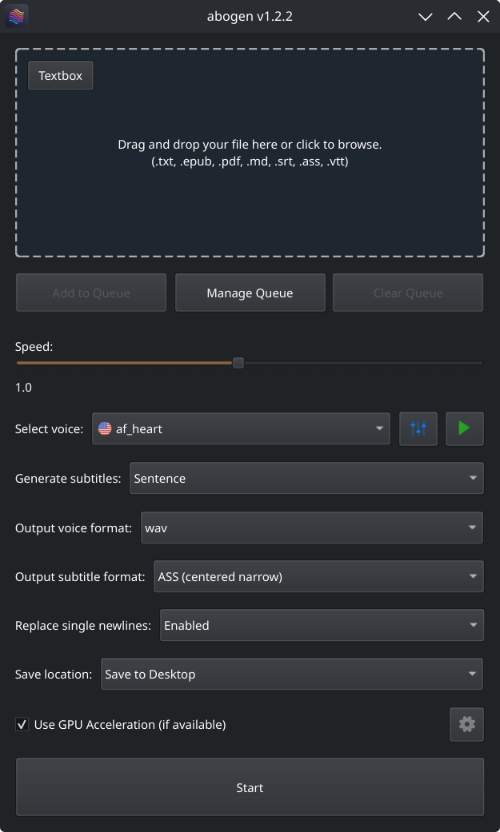
- Drag and drop any ePub, PDF, text, markdown, or subtitle file (or use the built-in text editor)
- Configure the settings:
- Set speech speed
- Select a voice (or create a custom voice using voice mixer)
- Select subtitle generation style (by sentence, word, etc.)
- Select output format
- Select where to save the output
- Hit Start
In action
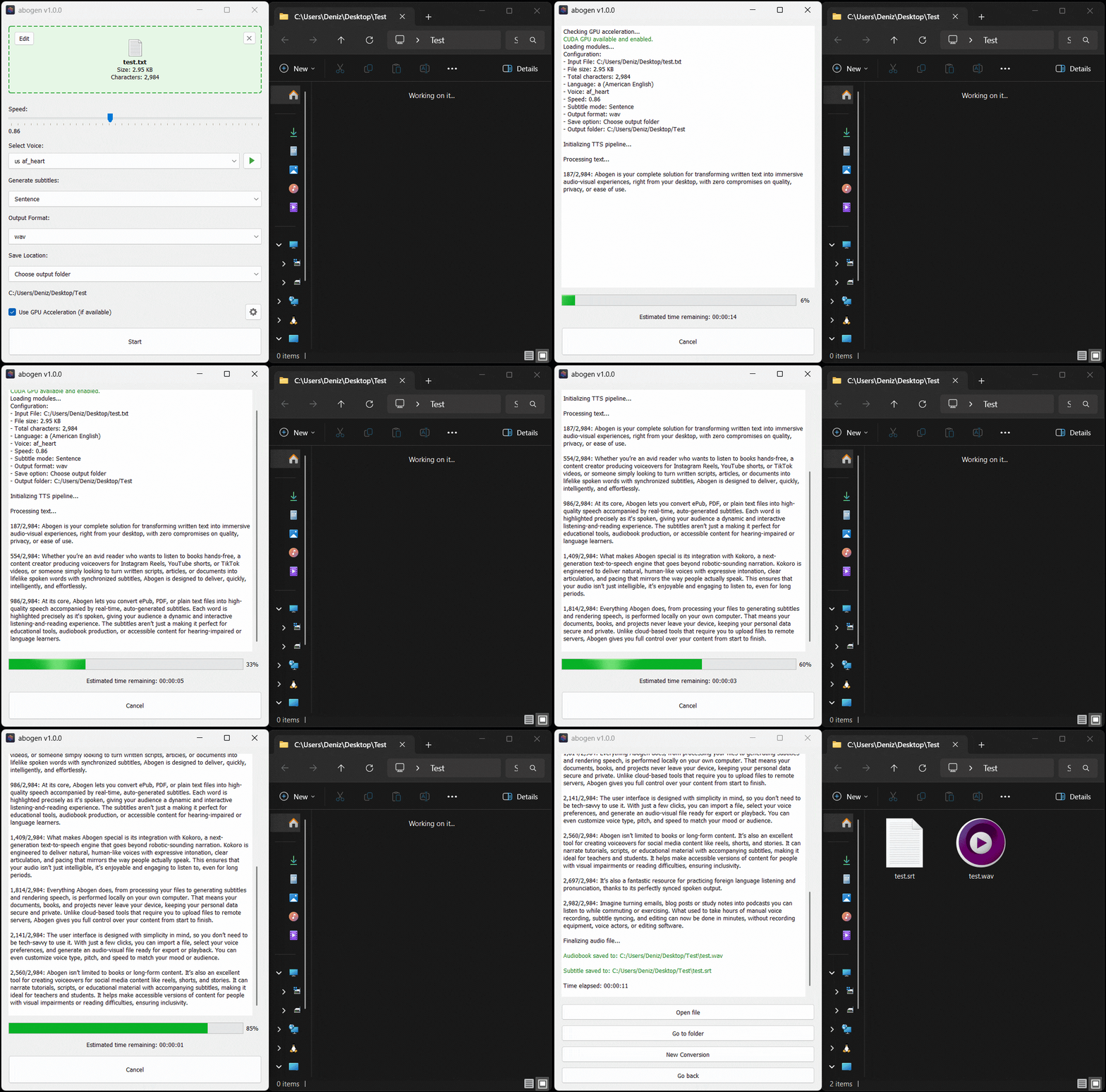
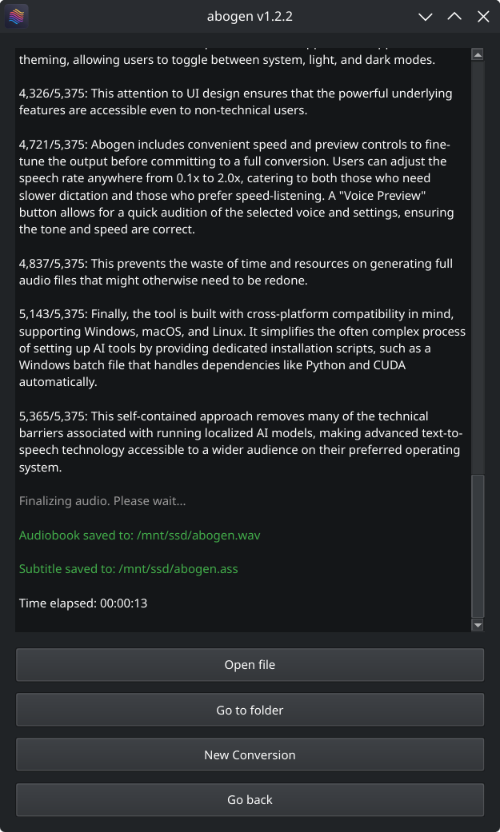
Here’s Abogen in action: in this demo, it processes ∼3,000 characters of text in just 11 seconds and turns it into 3 minutes and 28 seconds of audio, and I have a low-end RTX 2060 Mobile laptop GPU. Your results may vary depending on your hardware.
Configuration
| Options | Description |
|---|---|
| Input Box | Drag and drop ePub, PDF, .TXT, .MD, .SRT, .ASS or .VTT files (or use built-in text editor) |
| Queue options | Add multiple files to a queue and process them in batch, with individual settings for each file. See Queue mode for more details. |
| Speed | Adjust speech rate from 0.1x to 2.0x |
| Select Voice | First letter of the language code (e.g., a for American English, b for British English, etc.), second letter is for m for male and f for female. |
| Voice mixer | Create custom voices by mixing different voice models with a profile system. See Voice Mixer for more details. |
| Voice preview | Listen to the selected voice before processing. |
| Generate subtitles | Disabled, Line, Sentence, Sentence + Comma, Sentence + Highlighting, 1 word, 2 words, 3 words, etc. (Represents the number of words in each subtitle entry) |
| Output voice format | .WAV, .FLAC, .MP3, .OPUS (best compression) and M4B (with chapters) |
| Output subtitle format | Configures the subtitle format as SRT (standard), ASS (wide), ASS (narrow), ASS (centered wide), or ASS (centered narrow). |
| Replace single newlines with spaces | Replaces single newlines with spaces in the text. This is useful for texts that have imaginary line breaks. |
| Save location | Save next to input file, Save to desktop, or Choose output folder |
Special thanks to @brianxiadong for adding markdown support in PR #75
Special thanks to @mleg for adding
Lineoption in subtitle generation in PR #94
| Book handler options | Description |
|---|---|
| Chapter Control | Select specific chapters from ePUBs or markdown files or chapters + pages from PDFs. |
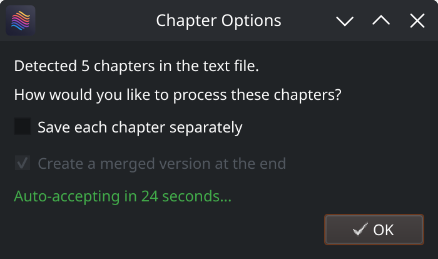
| Save each chapter separately | Save each chapter in e-books as a separate audio file. |
| Create a merged version | Create a single audio file that combines all chapters. (If Save each chapter separately is disabled, this option will be the default behavior.) |
| Save in a project folder with metadata | Save the converted items in a project folder with available metadata files. |
| Menu options | Description |
|---|---|
| Theme | Change the application’s theme using System, Light, or Dark options. |
| Configure max words per subtitle | Configures the maximum number of words per subtitle entry. |
| Configure silence between chapters | Configures the duration of silence between chapters (in seconds). |
| Configure max lines in log window | Configures the maximum number of lines to display in the log window. |
| Separate chapters audio format | Configures the audio format for separate chapters as wav, flac, mp3, or opus. |
| Create desktop shortcut | Creates a shortcut on your desktop for easy access. |
| Open config directory | Opens the directory where the configuration file is stored. |
| Open cache directory | Opens the cache directory where converted text files are stored. |
| Clear cache files | Deletes cache files created during the conversion or preview. |
| Use silent gaps between subtitles | Prevents unnecessary audio speed-up by letting speech continue into the silent gaps between subtitle etries. In short, it ignores the end times in subtitle entries and uses the silent space until the beginning of the next subtitle entry. When disabled, it speeds up the audio to fit the exact time interval specified in the subtitle. (for subtitle files). |
| Subtitle speed adjustment method | Choose how to speed up audio when needed: TTS Regeneration (better quality) re-generates the audio at a faster speed, while FFmpeg Time-stretch (better speed) quickly speeds up the generated audio. (for subtitle files). |
| Use spaCy for sentence segmentation | When this option is enabled, Abogen uses spaCy to detect sentence boundaries more accurately, instead of using punctuation marks (like periods, question marks, etc.) to split sentences, which could incorrectly cut off phrases like “Mr.” or “Dr.”. With spaCy, sentences are divided more accurately. For non-English text, spaCy runs before audio generation to create sentence chunks. For English text, spaCy runs during subtitle generation to improve timing and readability. spaCy is only used when subtitle mode is Sentence or Sentence + Comma. If you prefer the old punctuation splitting method, you can turn this option off. |
| Pre-download models and voices for offline use | Opens a window that displays the available models and voices. Click Download all button to download all required models and voices, allowing you to use Abogen completely offline without any internet connection. |
| Disable Kokoro’s internet access | Prevents Kokoro from downloading models or voices from HuggingFace Hub, useful for offline use. |
| Check for updates at startup | Automatically checks for updates when the program starts. |
| Reset to default settings | Resets all settings to their default values. |
Special thanks to @robmckinnon for adding Sentence + Highlighting feature in PR #65
Voice Mixer
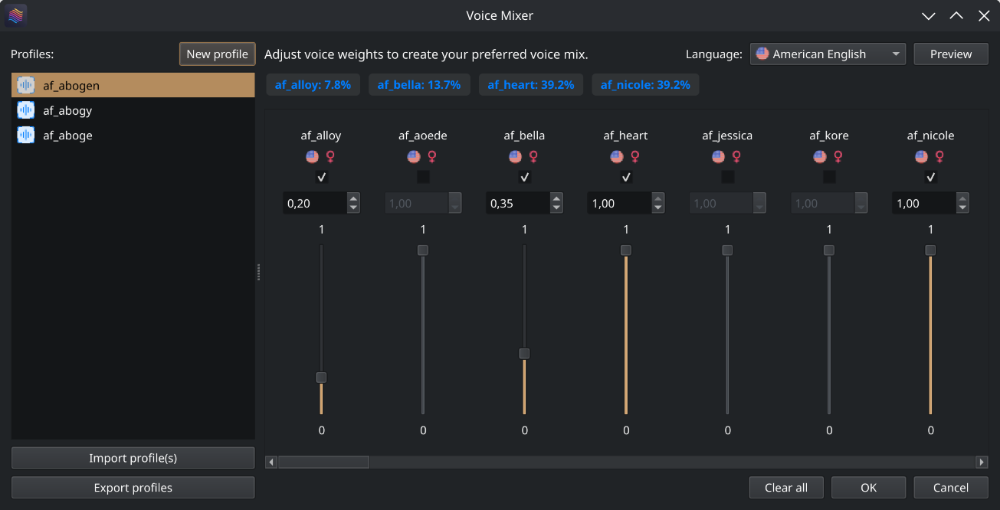
With voice mixer, you can create custom voices by mixing different voice models. You can adjust the weight of each voice and save your custom voice as a profile for future use. The voice mixer allows you to create unique and personalized voices.
Special thanks to @jborza for making this possible through his contributions in #5
Queue Mode
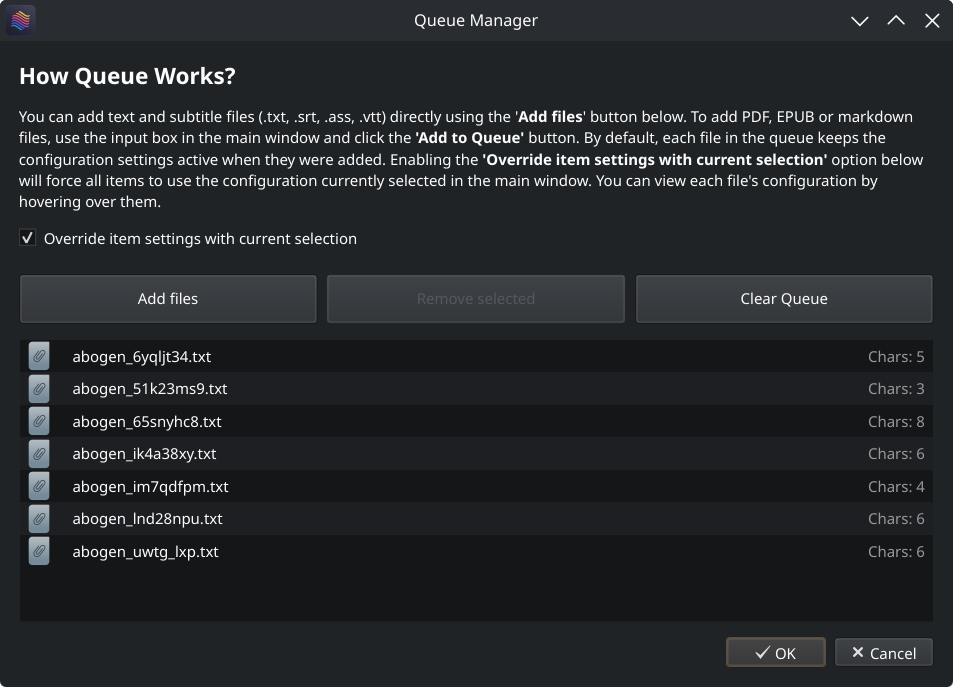
Abogen supports queue mode, allowing you to add multiple files to a processing queue. This is useful if you want to convert several files in one batch.
- You can add text files (
.txt) and subtitle files (.srt,.ass,.vtt) directly using the Add files button in the Queue Manager or by dragging and dropping them into the queue list. To add PDF, EPUB, or markdown files, use the input box in the main window and click the Add to Queue button. - Each file in the queue keeps the configuration settings that were active when it was added. Changing the main window configuration afterward does not affect files already in the queue.
- You can enable the Override item settings with current selection option to force all items in the queue to use the configuration currently selected in the main window, overriding their saved settings.
- You can view each file’s configuration by hovering over them.
Abogen will process each item in the queue automatically, saving outputs as configured.
Core Features (Available in Both)
About Chapter Markers
When you process ePUB, PDF or markdown files, Abogen converts them into text files stored in your cache directory. When you click “Edit,” you’re actually modifying these converted text files. In these text files, you’ll notice tags that look like this:
<<CHAPTER_MARKER:Chapter Title>>
These are chapter markers. They are automatically added when you process ePUB, PDF or markdown files, based on the chapters you select. They serve an important purpose:
- Allow you to split the text into separate audio files for each chapter
- Save time by letting you reprocess only specific chapters if errors occur, rather than the entire file
You can manually add these markers to plain text files for the same benefits. Simply include them in your text like this:
<<CHAPTER_MARKER:Introduction>>
This is the beginning of my text...

<<CHAPTER_MARKER:Main Content>>
Here's another part...
When you process the text file, Abogen will detect these markers automatically and ask if you want to save each chapter separately and create a merged version.
About Metadata Tags
Similar to chapter markers, it is possible to add metadata tags for M4B files. This is useful for audiobook players that support metadata, allowing you to add information like title, author, year, etc. Abogen automatically adds these tags when you process ePUB, PDF or markdown files, but you can also add them manually to your text files. Add metadata tags at the beginning of your text file like this:
<<METADATA_TITLE:Title>>
<<METADATA_ARTIST:Author>>
<<METADATA_ALBUM:Album Title>>
<<METADATA_YEAR:Year>>
<<METADATA_ALBUM_ARTIST:Album Artist>>
<<METADATA_COMPOSER:Narrator>>
<<METADATA_GENRE:Audiobook>>
<<METADATA_COVER_PATH:path/to/cover.jpg>>
Note:
METADATA_COVER_PATHis used to embed a cover image into the generated M4B file. Abogen automatically extracts the cover from EPUB and PDF files and adds this tag for you.
About Timestamp-based Text Files
Similar to converting subtitle files to audio, Abogen can automatically detect text files that contain timestamps in HH:MM:SS, HH:MM:SS,ms or HH:MM:SS.ms format. When timestamps are found inside your text file, Abogen will ask if you want to use them for audio timing. This is useful for creating timed narrations, scripts, or transcripts where you need exact control over when each segment is spoken.
Format your text file like this:
00:00:00
This is the first segment of text.

00:00:15
This is the second segment, starting at 15 seconds.

00:00:45
And this is the third segment, starting at 45 seconds.
Important notes:
- Timestamps must be in
HH:MM:SS,HH:MM:SS,msorHH:MM:SS.msformat (e.g.,00:05:30for 5 minutes 30 seconds, or00:05:30.500for 5 minutes 30.5 seconds) - Milliseconds are optional and provide precision up to 1/1000th of a second
- Text before the first timestamp (if any) will automatically start at
00:00:00 - When using timestamps, the subtitle generation mode setting is ignored
Supported Languages
# 🇺🇸 'a' => American English, 🇬🇧 'b' => British English
# 🇪🇸 'e' => Spanish es
# 🇫🇷 'f' => French fr-fr
# 🇮🇳 'h' => Hindi hi
# 🇮🇹 'i' => Italian it
# 🇯🇵 'j' => Japanese: pip install misaki[ja]
# 🇧🇷 'p' => Brazilian Portuguese pt-br
# 🇨🇳 'z' => Mandarin Chinese: pip install misaki[zh]
For a complete list of supported languages and voices, refer to Kokoro’s VOICES.md. To listen to sample audio outputs, see SAMPLES.md.
Guides & Troubleshooting
MPV Config
I highly recommend using MPV to play your audio files, as it supports displaying subtitles even without a video track. Here’s my mpv.conf:
# --- MPV Settings ---
save-position-on-quit
keep-open=yes
audio-display=no
# --- Subtitle ---
sub-ass-override=no
sub-margin-y=50
sub-margin-x=50
# --- Audio Quality ---
audio-spdif=ac3,dts,eac3,truehd,dts-hd
audio-channels=auto
audio-samplerate=48000
volume-max=200
Similar Projects
Abogen is a standalone project, but it is inspired by and shares some similarities with other projects. Here are a few:
- audiblez: Generate audiobooks from e-books. (Has CLI and GUI support)
- autiobooks: Automatically convert epubs to audiobooks
- pdf-narrator: Convert your PDFs and EPUBs into audiobooks effortlessly.
- epub_to_audiobook: EPUB to audiobook converter, optimized for Audiobookshelf
- ebook2audiobook: Convert ebooks to audiobooks with chapters and metadata using dynamic AI models and voice cloning
Roadmap
- Add OCR scan feature for PDF files using docling/teserract.
- Add chapter metadata for .m4a files. (Issue #9, PR #10)
- Add support for different languages in GUI.
- Add voice formula feature that enables mixing different voice models. (Issue #1, PR #5)
- Add support for kokoro-onnx (If it’s necessary).
- Add dark mode.
Troubleshooting
If you encounter any issues while running Abogen, try launching it from the command line with:
abogen-cli
If you installed using the Windows installer (WINDOWS_INSTALL.bat), go to python_embedded/Scripts and run:
abogen-cli.exe
This will start Abogen in command-line mode and display detailed error messages. Please open a new issue on the Issues page with the error message and a description of your problem.
Common Issues & Solutions
About the name "abogen"
The name “abogen” comes from a shortened form of “audiobook generator”, which is the purpose of this project.
After releasing the project, I learned from community feedback that the prefix “abo” can unfortunately be understood as an ethnic slur in certain regions (particularly Australia and New Zealand). This was something I was not aware of when naming the project, as English is not my first language.
I want to make it clear that the name was chosen only for its technical meaning, with no offensive intent. I’m grateful to those who kindly pointed this out, as it helps ensure the project remains respectful and welcoming to everyone.
How to fix "CUDA GPU is not available. Using CPU" warning?
This message means PyTorch could not use your GPU and has fallen back to the CPU. On Windows, Abogen only supports NVIDIA GPUs with CUDA. AMD GPUs are not supported on Windows (they are only supported on Linux with ROCm). Abogen will still work on the CPU, but processing will be slower compared to a supported GPU.
If you have a compatible NVIDIA GPU on Windows and still see this warning: Open your terminal in the Abogen folder (the folder that contains
python_embedded) and type:python_embedded\python.exe -m pip install --force-reinstall torch==2.8.0+cu128 torchvision==0.23.0+cu128 torchaudio==2.8.0 --index-url https://download.pytorch.org/whl/cu128If this does not resolve the issue and you are using an older NVIDIA GPU that does not support CUDA 12.8, you can try installing an older version of PyTorch that supports your GPU. For example, for CUDA 12.6, run:
python_embedded\python.exe -m pip install --force-reinstall torch==2.8.0+cu126 torchvision==0.23.0+cu126 torchaudio==2.8.0 --index-url https://download.pytorch.org/whl/cu126If you have an AMD GPU, you need to use Linux and follow the Linux/ROCm instructions. If you want to keep running on CPU, no action is required, but performance will just be reduced. See #32 for more details.
If you used
uvto install Abogen, you can uninstall and try reinstalling with another CUDA version:# First uninstall Abogen uv tool uninstall abogen # Try CUDA 12.6 for older drivers uv tool install --python 3.12 abogen[cuda126] --extra-index-url https://download.pytorch.org/whl/cu126 --index-strategy unsafe-best-match # If that doesn't work, try CUDA 13.0 for newer drivers uv tool install --python 3.12 abogen[cuda130] --extra-index-url https://download.pytorch.org/whl/cu130 --index-strategy unsafe-best-match
How to fix "WARNING: The script abogen-cli is installed in '/home/username/.local/bin' which is not on PATH" error in Linux?
Run the following command to add Abogen to your PATH:
echo "export PATH=\"/home/$USER/.local/bin:\$PATH\"" >> ~/.bashrc && source ~/.bashrc
How to fix "No matching distribution found" error?
Try installing Abogen on supported Python (3.10 to 3.12) versions. I recommend installing with uv. You can also use pyenv to manage multiple Python versions easily on Linux. Watch this video by NetworkChuck for a quick guide.
How to fix "[WinError 1114] A dynamic link library (DLL) initialization routine failed" error?
I faced this error when trying to run Abogen in a virtual Windows machine without GPU support. Here’s how I fixed it: If you installed Abogen using the Windows installer
(WINDOWS_INSTALL.bat), go to Abogen’s folder (that containspython_embedded), open your terminal there and run:python_embedded\python.exe -m pip install --force-reinstall torch==2.8.0+cu128 torchvision==0.23.0+cu128 torchaudio==2.8.0 --index-url https://download.pytorch.org/whl/cu128If you installed Abogen using pip, open your terminal in the virtual environment and run:
pip install torch==2.8.0 torchaudio==2.8.0 torchvision==0.23.0 --index-url https://download.pytorch.org/whl/cu128
How to fix Japanese audio not working?
Japanese audio may require additional configuration. I’m not sure about the exact solution, but it seems to be related to installing additional dependencies for Japanese support in Kokoro. Please check #56 for more information.
How to uninstall Abogen?
- From the settings menu, go to
Open configuration directoryand delete the directory.- From the settings menu, go to
Open cache directoryand delete the directory.- If you installed Abogen using pip, type:
pip uninstall abogen # uninstalls abogen
pip cache purge # removes pip cache
- If you installed Abogen using uv, type:
uv tool uninstall abogen # uninstalls abogen
uv cache clear # removes uv cache
- If you installed Abogen using the Windows installer (WINDOWS_INSTALL.bat), just remove the folder that contains Abogen. It installs everything inside
python_embeddedfolder, no other directories are created.- If you installed espeak-ng, you need to remove it separately.
Contributing
I welcome contributions! If you have ideas for new features, improvements, or bug fixes, please fork the repository and submit a pull request.
For developers and contributors
If you’d like to modify the code and contribute to development, you can download the repository, extract it and run the following commands to build or install the package:
# Go to the directory where you extracted the repository and run:
pip install -e .[dev]       # Installs the package in editable mode with build dependencies
python -m build             # Builds the package in dist folder (optional)
abogen                      # Opens the GUI
Make sure you are using Python 3.10 to 3.12. You need to create a virtual environment if needed.
Alternative: Using uv (click to expand)
# Go to the directory where you extracted the repository and run:
uv venv --python 3.12       # Creates a virtual environment with Python 3.12
# After activating the virtual environment, run:
uv pip install -e .         # Installs the package in editable mode
uv build                    # Builds the package in dist folder (optional)
abogen                      # Opens the GUI
Feel free to explore the code and make any changes you like.
Credits
- Web UI implementation by @jeremiahsb
- Abogen uses Kokoro for its high-quality, natural-sounding text-to-speech synthesis. Huge thanks to the Kokoro team for making this possible.
- Thanks to the spaCy project for its sentence-segmentation tools, which help Abogen produce cleaner, more natural sentence segmentation.
- Thanks to @wojiushixiaobai for Embedded Python packages. These modified packages include pip pre-installed, enabling Abogen to function as a standalone application without requiring users to separately install Python in Windows.
- Thanks to creators of EbookLib, a Python library for reading and writing ePub files, which is used for extracting text from ePub files.
- Special thanks to the PyQt team for providing the cross-platform GUI toolkit that powers Abogen’s interface.
- Icons: US, Great Britain, Spain, France, India, Italy, Japan, Brazil, China, Female, Male, Adjust and Voice Id icons by Icons8.
License
This project is available under the MIT License - see the LICENSE file for details. Kokoro is licensed under Apache-2.0 which allows commercial use, modification, distribution, and private use.
Star History
Abogen supports subtitle generation for all languages. However, word-level subtitle modes (e.g., “1 word”, “2 words”, “3 words”, etc.) are only available for English because Kokoro provides timestamp tokens only for English text. For non-English languages, Abogen uses a duration-based fallback that supports sentence-level and comma-based subtitle modes (“Line”, “Sentence”, “Sentence + Comma”). If you need word-level subtitles for other languages, please request that feature in the Kokoro project.
Tags: audiobook, kokoro, text-to-speech, TTS, audiobook generator, audiobooks, text to speech, audiobook maker, audiobook creator, audiobook generator, voice-synthesis, text to audio, text to audio converter, text to speech converter, text to speech generator, text to speech software, text to speech app, epub to audio, pdf to audio, markdown to audio, subtitle to audio, srt to audio, ass to audio, vtt to audio, webvtt to audio, content-creation, media-generation
相似文章
@Honcia13: 电子书秒变有声书的开源神器来了——Audiblez! 把 EPUB 直接扔进去, 几分钟就吐出高质量 M4B 有声书! 用的 Kokoro 语音模型,仅82M参数,但听感自然到离谱。 亮点: T4 GPU跑《动物庄园》只要5分钟 支持中英…
Audiblez 是一个开源工具,能将 EPUB 电子书快速转换为高质量的 M4B 有声书,使用 Kokoro-82M 语音模型,支持多种语言和图形界面,通过 pip 一键安装。
@Ryrenz: 太强了,能把整本电子书变成有声书,还能用你自己的声音念 GitHub 上 1.97 万 stars 通勤路上想「读」完一本书,现有办法都别扭:有声书平台上没有你想听的那本,机器朗读又是那种一听就想关掉的电子腔,中文里还经常读错停顿。 这个…
这个项目可以将电子书转换为有声书,支持多种格式和TTS引擎,包括语音克隆,适用于通勤时听书。
@mogician301: https://x.com/mogician301/status/2072250774332285073
介绍了一个名为 audio-to-text 的开源工具,它利用 AI 和本地工具(如 faster-whisper 和 ffmpeg)帮助用户自动生成、校对和烧录字幕,解决剪映等软件成本高、错误多、流程繁琐的问题。
@Jolyne_AI: 开源图书 ai 翻译利器:bilingual_book_maker。 用大语言模型(ChatGPT、Claude 等)把文件和整本书快速做成多语言译本,支持 epub、txt、srt 等常见格式,流程简单、上手快。 GitHub:http…
bilingual_book_maker 是一个开源 AI 翻译工具,利用 ChatGPT、Claude 等大语言模型快速将 epub/txt/srt/pdf 书籍翻译成多语言版本,支持多种模型并采用吴恩达的三步翻译法提高质量。
@Honcia13: 强烈推荐一款开源的语音转字幕神器! 速度飞快,质量极高! 支持中文、日语、韩语、英语等多语言,还特别优化了排版规则, 字幕效果自然又专业。 这是一款基于 PySide6 + ElevenLabs API 的桌面工具, 能把音视频文件或JS…
推荐基于PySide6和ElevenLabs API的开源语音转字幕工具Scribe2SRT,支持多语言并优化排版,快速生成高质量SRT字幕。