Cached at:
09/12/26, 05:31 PM
# Make Your First Edit to OpenStreetMap in the Next 15 Minutes
Source: [https://high5apps.github.io/josm-plugin-website-wizard/](https://high5apps.github.io/josm-plugin-website-wizard/)
## Intro
This quick tutorial will help you make a meaningful contribution to[OpenStreetMap](https://www.openstreetmap.org/)\(OSM\) in less than 15 minutes\. By the end, you will have added an official[`website`tag](https://wiki.openstreetmap.org/wiki/Key:website)to a nearby shop or amenity\. Soon after, your contribution will be ingested into dozens of free[OSM\-based services](https://wiki.openstreetmap.org/wiki/List_of_OSM-based_services), helping people worldwide\.
Why a`website`tag? Once a place in OSM has a`website`tag, it becomes way easier to determine other helpful info about that place\. Nearly every place’s official website has info about its[`phone`](https://wiki.openstreetmap.org/wiki/Key:phone),[`opening\_hours`](https://wiki.openstreetmap.org/wiki/Key:opening_hours),[`email`](https://wiki.openstreetmap.org/wiki/Key:email), and[other tags](https://taginfo.openstreetmap.org/)\. So adding a`website`tag is a great place to get started\.
Got your stopwatch out? Ready, set, go\!
## 1\. Create an OSM account
[Sign up](https://www.openstreetmap.org/user/new)for a free OSM account and then confirm your email\.
## 2\. Download and Run JOSM
[Download JOSM](https://josm.eu/wiki/Download)\(~365 MB\) for your specific operating system and then run it\.
[JOSM](https://josm.openstreetmap.de/), the Java OSM editor app, is a powerful tool for querying and editing OSM data\. While simpler in\-browser editors exist, JOSM offers[plugins](https://josm.openstreetmap.de/wiki/Plugins)that make your edit as quick and easy as possible\.
## 3\. Download OSM Data
[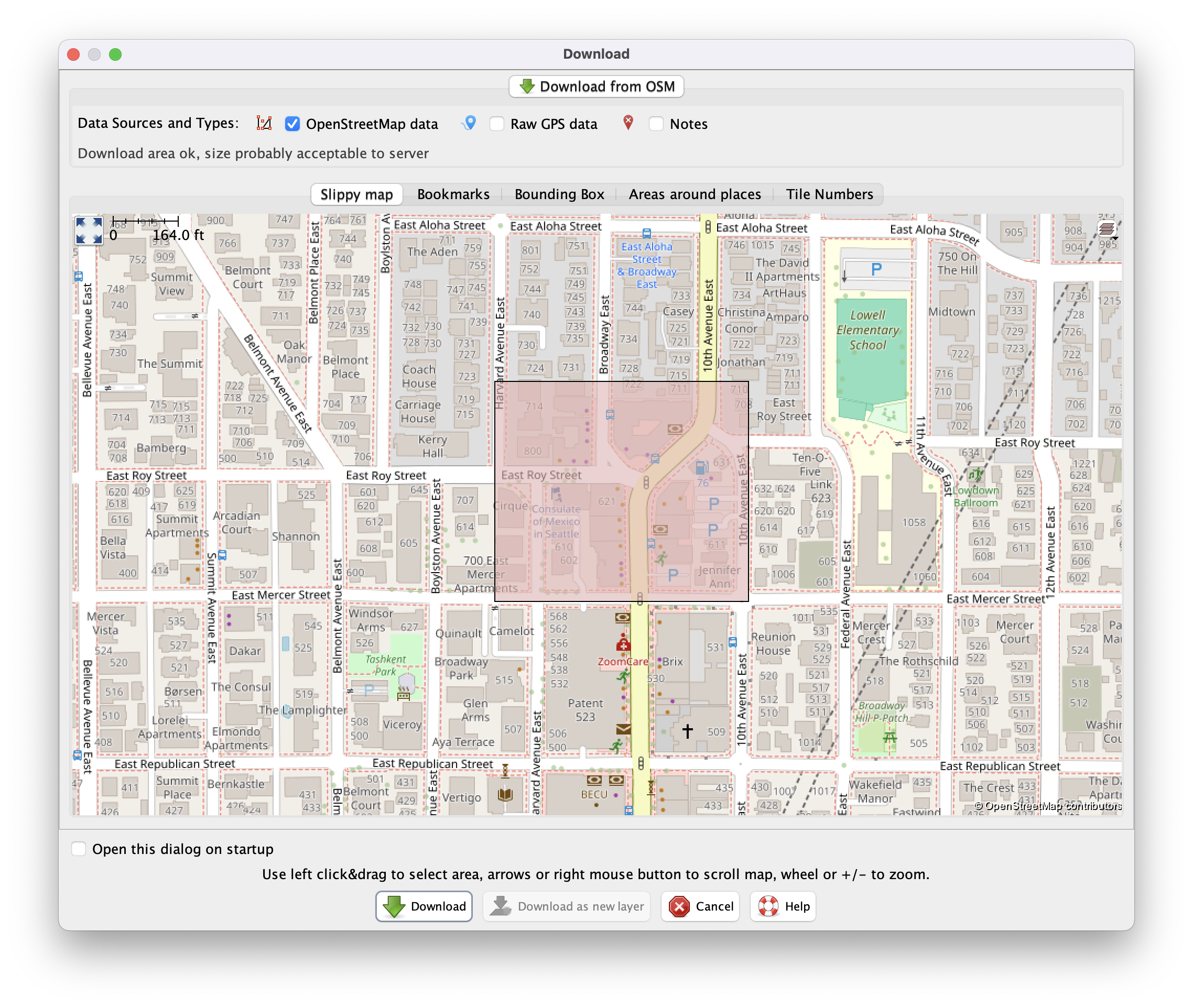](https://high5apps.github.io/josm-plugin-website-wizard/assets/images/blog-post/download-panel.png)
1. Press`Ctrl\+Shift\+↓`\(or`⌘\+Shift\+↓`on Mac\) to open the[Download](https://josm.openstreetmap.de/wiki/Help/Action/Download)dialog
2. Determine your area of interest \(AOI\)\. It should be somewhere you’re familiar with, no larger than a few city blocks\.
3. Locate your AOI on the map\. You can pan the map with`ctrl\+click`dragging and zoom in by scrolling\.
4. Click and drag to create a box around your AOI
5. Click**⬇️ Download**\. If this fails, your AOI was probably too large\. Choose a smaller AOI and try again\.
## 4\. Filter Irrelevant OSM Data
[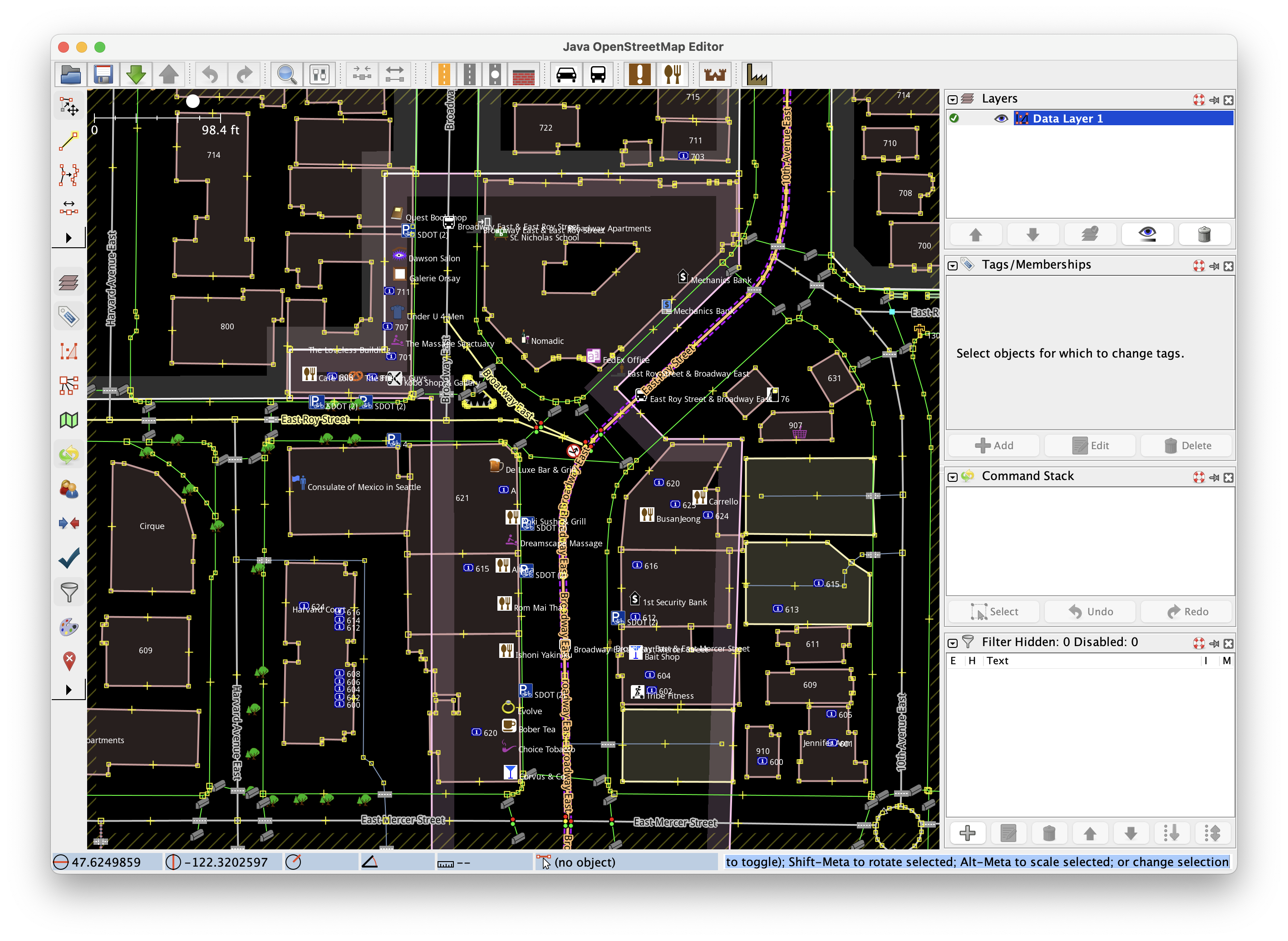](https://high5apps.github.io/josm-plugin-website-wizard/assets/images/blog-post/unfiltered-aoi.png)
[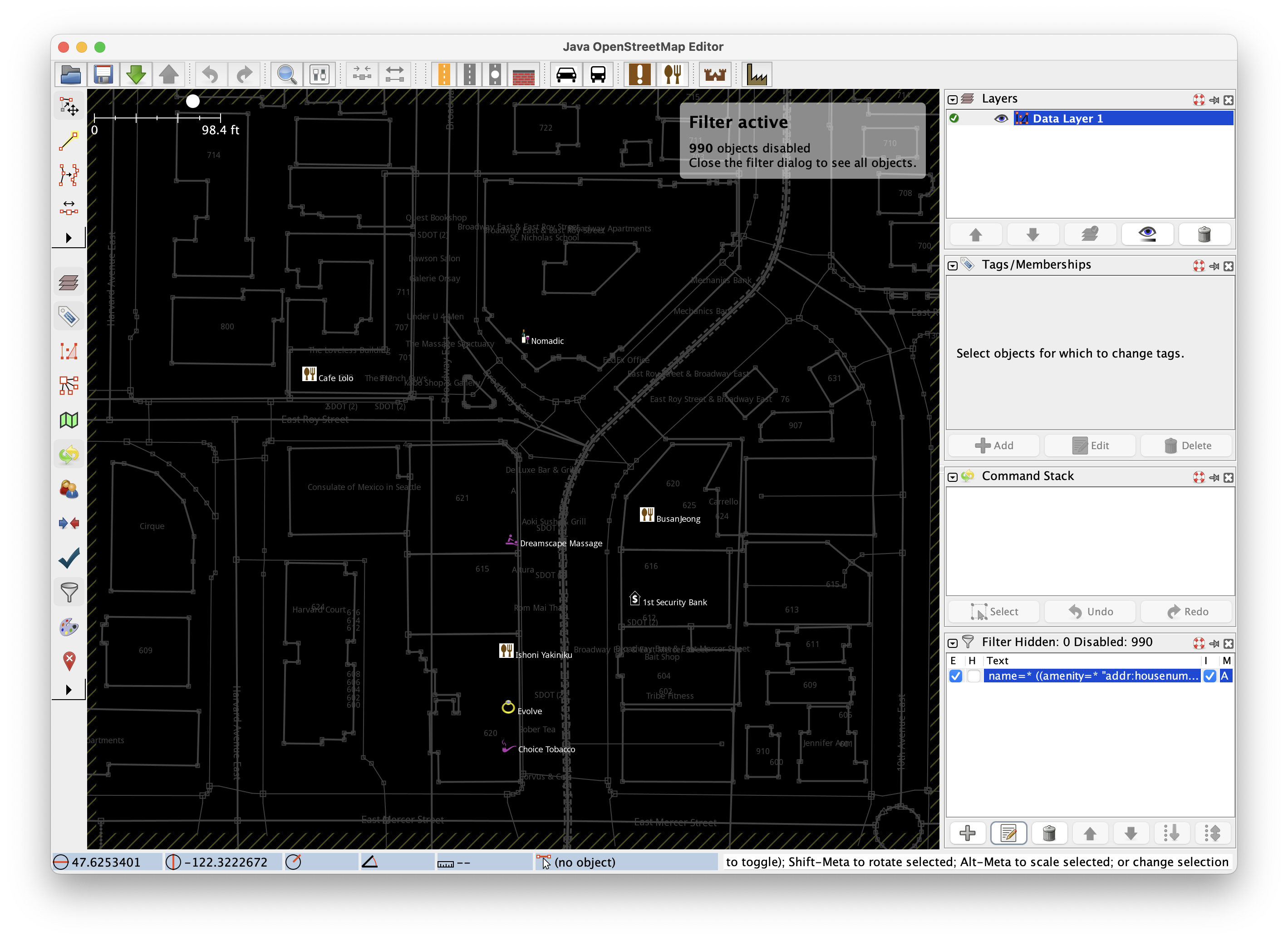](https://high5apps.github.io/josm-plugin-website-wizard/assets/images/blog-post/filtered-aoi.png)
Now we’ll filter the OSM data to only show shops and amenities that don’t have a website\.
1. Find the[**Filter**](https://josm.openstreetmap.de/wiki/Help/Dialog/Filter)panel on the right side of the screen
2. Click the**\+**icon to open the Filter dialog
3. Copy/paste the following query into the**Search string**text field``` name=* ((amenity=* "addr:housenumber"=*) | shop=*) -website=* -"contact:website"=* ```
4. Click**Submit filter**
5. Check**E**, uncheck**H**, and check**I**in the Filter panel\. You should now only see the relevant places in your AOI\.
## 5\. Set Up the Website Wizard Plugin
[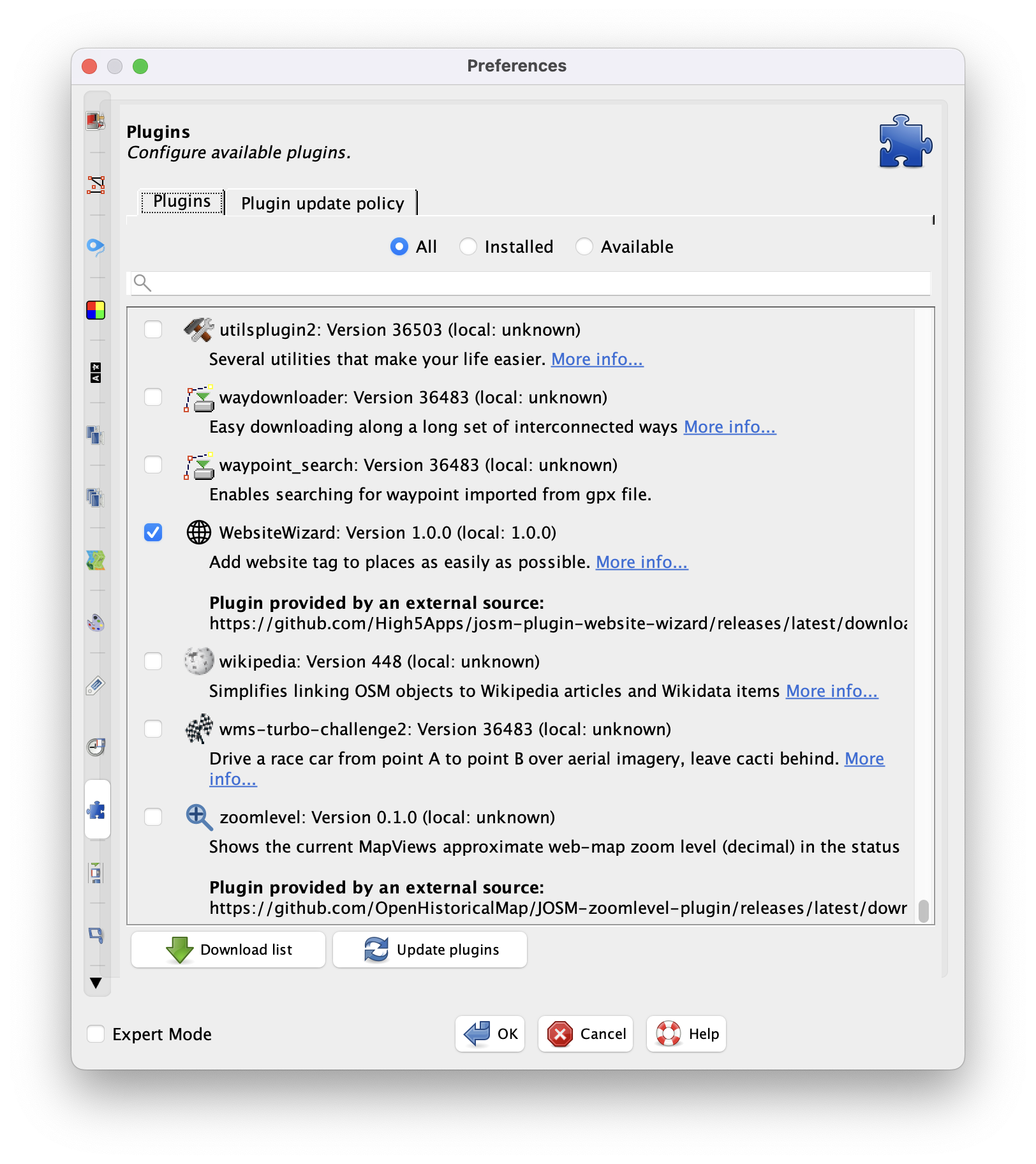](https://high5apps.github.io/josm-plugin-website-wizard/assets/images/blog-post/plugin-preferences.png)
1. Press`F12`\(or`⌘\+,`on Mac\) to open JOSM’s[Preferences](https://josm.openstreetmap.de/wiki/Help/Action/Preferences)dialog
2. Click the**🧩 puzzle piece**icon on the left side to open the[Plugins](https://josm.openstreetmap.de/wiki/Help/Preferences/Plugins)config
3. Click**⬇️ Download list**
4. Scroll down the list of plugins until you see[**🌐 WebsiteWizard**](https://github.com/High5Apps/josm-plugin-website-wizard)
5. Check its checkbox
6. Click**OK**to install it
## 6\. Search for an Official Website
[](https://high5apps.github.io/josm-plugin-website-wizard/assets/images/blog-post/website-wizard-search.png)
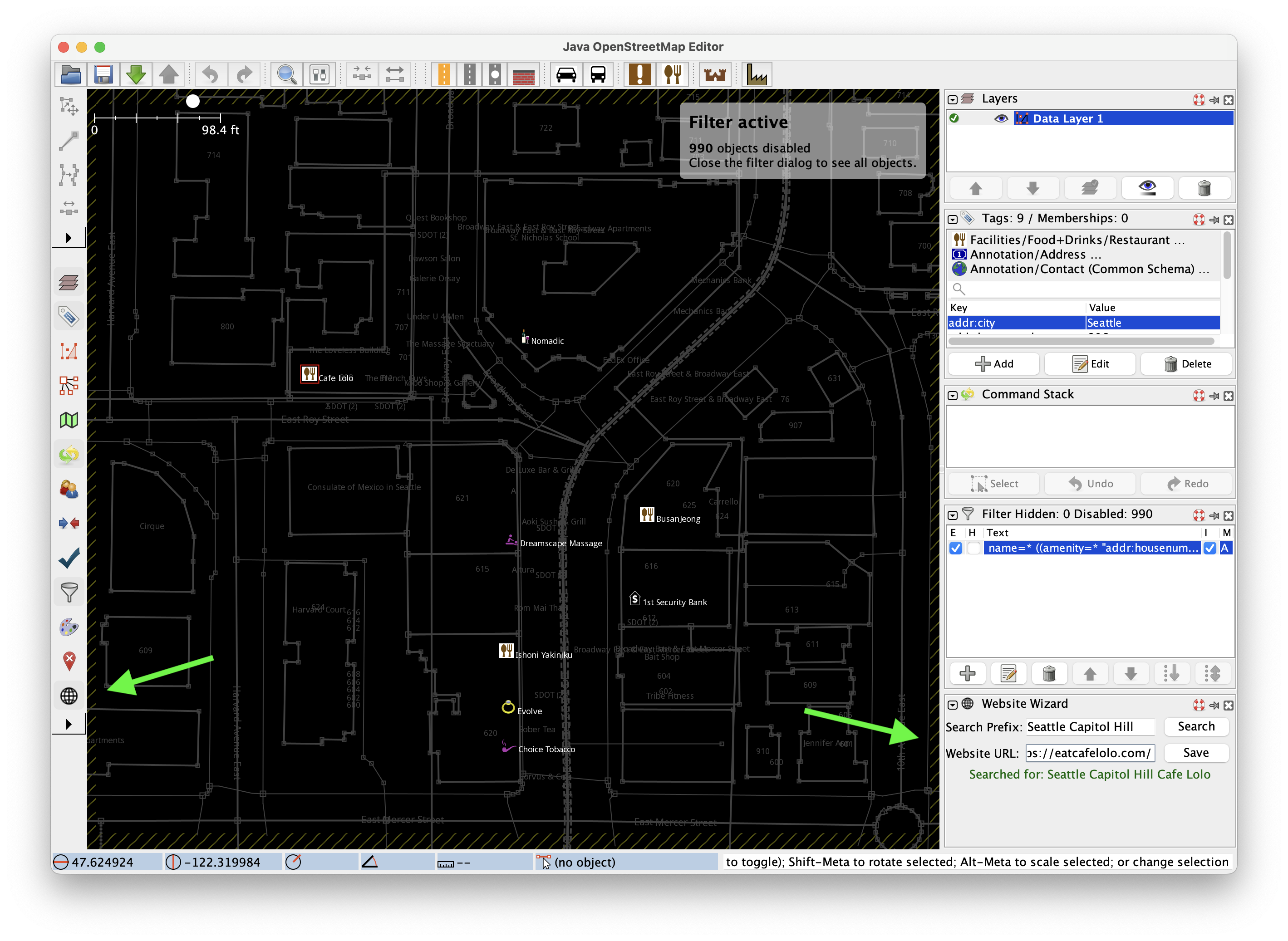
1. Click the 🌐 icon on the left side of the screen to show the**🌐 Website Wizard**panel on the right side of the screen
2. Type your AOI’s city and/or neighborhood into Website Wizard’s**Search Prefix**text field
3. Click a shop or amenity in your AOI
4. Click**Search**to open[DuckDuckGo](https://duckduckgo.com/)in your default browser with the query autofilled as the Search Prefix \+ the place’s name
5. Determine if any of the search results represent the*official*website for your place\. Do NOT use search results for social media profiles, review sites, or other business aggregators\. When in doubt, don’t use it\. If you don’t find one, just repeat steps 3 to 5 with another place in your AOI\.
6. Copy/paste the*official*website URL into the**Website URL**text field
7. Click**Save**\. If you make a mistake, you can always press`ctrl\+z`\(`⌘\+z`on Mac\) to undo it\.
## 7\. Upload Your Changeset
[](https://high5apps.github.io/josm-plugin-website-wizard/assets/images/blog-post/upload-panel.png)
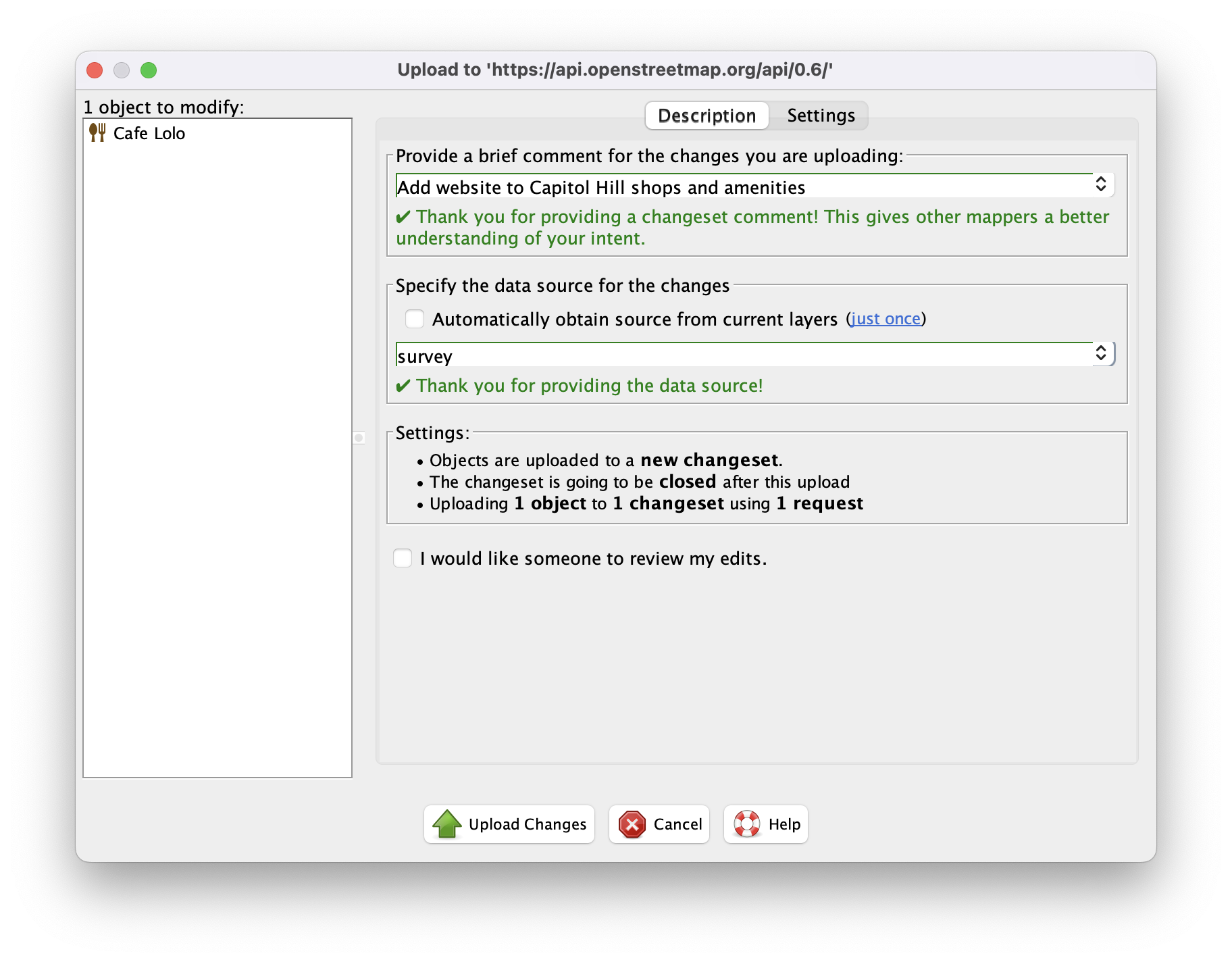
1. Press`Ctrl\+Shift\+↑`\(or`⌘\+Shift\+↑`on Mac\) to open the[Upload](https://josm.openstreetmap.de/wiki/Help/Action/Upload)dialog
2. Type`Add website to <city and/or neighborhood\> shops and amenities`in the text field labeled**Provide a brief comment…**
3. Select`survey`in the dropdown labeled**Specify the data source…**
4. Click**Upload Changes**, which will open OSM in your browser
5. Enter your OSM credentials
6. Click**Log In**
7. Click**Authorize**to allow JOSM to create the changeset for you
## Conclusion
🎉🎊🥳 Congratulations\- you just made OSM a little bit better for everyone\! Plus you got a preview of some of the cool things you can do with JOSM and OSM data\.
So what next?
You could keep going and add a`website`tag to every place in your AOI\. For example, I quickly added 66 new`website`tags in Seattle’s Wallingford neighborhood in[this changeset](https://www.openstreetmap.org/changeset/187858343)\.
Or you could modify the filter to show places in your AOI with a`website`tag but no`phone`tag\. Then you could add the`phone`tag based on info from the website\.
Or you could spread the word about OSM and Website Wizard\! The United States alone has more than 1 million shops\. So if we want to put them all on the map, we’ll need to get many more people to help\.
No matter what’s next, feel proud for pushing OSM a little closer toward becoming the world’s greatest map\!