Cached at:
09/25/26, 03:08 AM
# Launching FreeBSD/EC2 desktop AMIs
Source: [https://www.daemonology.net/blog/2026-09-24-Launching-FreeBSD-EC2-desktop-AMIs.html](https://www.daemonology.net/blog/2026-09-24-Launching-FreeBSD-EC2-desktop-AMIs.html)
I'm excited to announce — oh don't worry, I'm not doing[that](https://www.daemonology.net/blog/2026-08-27-Launching-Route-53-Files.html)again — a new feature for the FreeBSD/EC2 platform: Desktop AMIs\.Most people think of FreeBSD as being a server OS which is used only via the command line, but as anyone who has attended a BSD conference can attest, it works just fine with a GUI too\. At[BSDCan](https://www.bsdcan.org/)I saw many developers running FreeBSD on laptops from Framework, Lenovo, and Dell, and recognized KDE and Xfce desktop environments on many of them\.
Desktop AMIs are designed to make it easier for new users to discover and start using FreeBSD\. You can boot them in EC2, including as part of the[AWS Free Tier](https://aws.amazon.com/free/), and connect to them using the same[Remote Desktop Protocol](https://en.wikipedia.org/wiki/Remote_Desktop_Protocol)used for connecting to Windows VMs\. Indeed, I've carefully designed the AMIs to behave as much like Windows images as possible — with the exception, of course, that since they run FreeBSD, you don't have to pay for the operating system\.
**Let me show you how to get started\.**
I'm running FreeBSD already, so I use the[AWS CLI](https://aws.amazon.com/cli/)from my FreeBSD command line, but Amazon says that the AWS CLI supports Linux, macOS, and Windows, so you should be able to follow along no matter which OS you're running\. Since I live close to Vancouver, Canada, I'm using theca\-west\-1AWS region, but you can of course use whichever region is most convenient for you\.
I start by creating an EC2 security group which allows access from my IP address to port TCP/3389
```
$ aws --region ca-west-1 ec2 create-security-group \
--group-name "remote-desktop" \
--description "Allows RDP Access"
$ aws --region ca-west-1 ec2 authorize-security-group-ingress \
--group-name remote-desktop --protocol tcp --port 3389 \
--cidr 1.2.3.4/32
```
and then create an SSH key pair — we're not going to use this key pair for SSH \(although in fact the image we boot will have it enabled if we open that port in the security group\) but instead it's used for encrypting a randomly\-generated login password\. Note that we need some non\-default options tossh\-keygen: In order for the password encryption to work, we need an RSA key, and we need to store it in PEM format and with no passphrase\. \(If you don't havessh\-keygenon your OS, you can generate a key pair via the AWS Console\.\)```
$ ssh-keygen -q -t rsa -f ec2_desktop_key -N "" -m PEM
$ aws --region ca-west-1 ec2 import-key-pair --key-name desktop \
--public-key-material fileb://ec2_desktop_key.pub
```
Having created the security group and key pair, I look up the latest desktop AMI for FreeBSD 15\.1\-STABLE and launch an instance:
```
$ aws --region ca-west-1 ssm get-parameter \
--name /aws/service/freebsd/amd64/desktop/ufs/15.1/STABLE \
--query 'Parameter.Value' --output text
ami-0338948310e7f17c3
$ aws --region ca-west-1 ec2 run-instances \
--query 'Instances[].InstanceId' --output text \
--key-name desktop --security-groups remote-desktop \
--instance-type m7i-flex.large --image-id ami-0338948310e7f17c3
i-0b683b23ff0e08515
```
FreeBSD will now boot, create theec2\-useraccount, and set a random password on it, which we can retrieve using theaws ec2 get\-password\-datacommand \(aka the EC2 GetPasswordData API\):
```
$ time aws --region ca-west-1 ec2 wait password-data-available \
--instance-id i-0b683b23ff0e08515
92.08 real 0.66 user 0.08 sys
$ aws --region ca-west-1 ec2 get-password-data \
--query 'PasswordData' --output text \
--priv-launch-key ec2_desktop_key --instance-id i-0b683b23ff0e08515
35zukC+t+:hqQZv3
```
Now we need to look up the IP address of the instance, and we should also get the host certificate fingerprint — this comes in two versions, an older SHA1 fingerprint and a newer SHA256 fingerprint\. In general, tools running on UNIX will want the SHA256 fingerprint while Windows utilities use the SHA1 fingerprint\. \(If the second command doesn't print the fingerprint immediately, wait a few seconds and try again\.\)
```
$ aws --region ca-west-1 ec2 describe-instances \
--query 'Reservations[].Instances[].PublicIpAddress' --output text \
--instance-ids i-0b683b23ff0e08515
56.112.45.61
$ aws --region ca-west-1 ec2 get-console-output \
--query 'Output' --output text --latest \
--instance-id i-0b683b23ff0e08515 | grep THUMBPRINT
RDPCERTIFICATE-THUMBPRINT: 2B9840830741A21B4777FF59F69E1D0E5CDAC8D8
RDPCERTIFICATE-THUMBPRINT256: 3b:0f:1a:5d:ab:98:bc:1f:1d:fb:c8:4c:3b:11:7a:09:6b:70:0f:41:83:fe:f4:97:32:50:dd:41:7e:94:08:60
```
Since I'm running on FreeBSD, I usexfreerdpto connect to the instance; if you're running on macOS or Windows, you'll need to run the appropriate tools for your OS here\. Whichever tool you're using, you'll need to specify the usernameec2\-user, the IP address \(as seen above\), and the password \(as seen above — if running from a command line, you may need to quote it to avoid problems with shell metacharacters\); and at some point you should either specify the host certificate fingerprint or check it when your client asks you to confirm that it is correct\. For myself, using FreeBSD, I run
```
$ xfreerdp /u:ec2-user '/p:35zukC+t+:hqQZv3' /v:56.112.45.61 \
/cert:fingerprint:sha256:3b:0f:1a:5d:ab:98:bc:1f:1d:fb:c8:4c:3b:11:7a:09:6b:70:0f:41:83:fe:f4:97:32:50:dd:41:7e:94:08:60
```
and after a few seconds of KDE session initialization I'm presented with a familiar GUI environment\.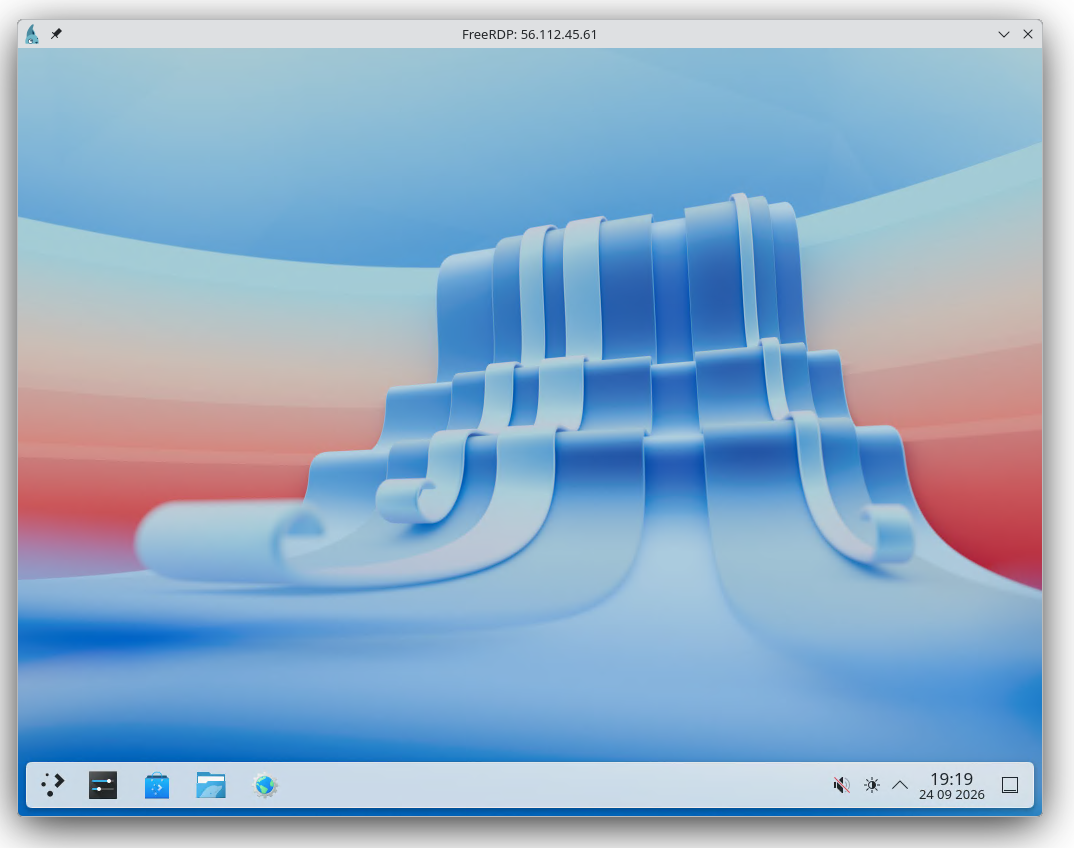
Once I'm done with the environment, I clean up, of course, terminating the EC2 instance and deleting the key pair and security group which I created\. \(If deleting the security group fails, try again after waiting a few seconds; you can't delete the security group until the instance using it is gone\.\)
```
$ aws --region ca-west-1 ec2 terminate-instances \
--instance-ids i-0b683b23ff0e08515
$ aws --region ca-west-1 ec2 delete-key-pair --key-name desktop
$ aws --region ca-west-1 ec2 delete-security-group --group-name remote-desktop
```
**Things to know**
Let me share some important technical details that I think you'll find useful\.
- Desktop AMIs use KDE and also ship with Chromium and LibreOffice installed; you can, of course, install other software with thepkgtool, but I wanted to provide a useful starting point\.
- Desktop AMIs are not available forarm64at this time; for reasons I don't fully understand, we don't have a Chromium package forarm64\.
- Like all FreeBSD AMIs, these are published in both UFS\-root and ZFS\-root versions; you can usd ZFS\-root if you prefer by changingufstozfsin thessm get\-parametercommand above\.
- The AWS Console doesn't understand that these AMIs support RDP, so if you launch an instance via its "Launch an instance" wizard it will suggest creating a security group with port TCP/22 open rather than port TCP/3389; and the "Connect" wizard will show SSH instructions rather than the RDP instructions which are shown for Windows\. I've asked Amazon to provide a mechanism for AMIs to be marked as RDP\-enabled in order to turn on that missing functionality\.
- I expect these to be part of FreeBSD 15\.2\-RELEASE when that ships in December\.
**Pricing and availability**
FreeBSD desktop AMIs, like all AMIs published by the FreeBSD Project, are free; you pay only the cost of the EC2 infrastructure\. They're available in all the commercial AWS Regions except Middle East \(Bahrain\) and Middle East \(UAE\) due to ongoing availability issues in those two regions\.
If you've been thinking of trying out FreeBSD, this is your cue: Go launch an instance\!
[blog comments powered byDisqus](https://disqus.com/)